You can connect AirPods to a laptop in under two minutes. The steps work for Windows laptops, MacBooks, and Chromebooks alike. In addition, the same method pairs AirPods with desktop computers. This guide shows how to connect AirPods to a laptop easily.
AirPods use standard Bluetooth, so no Apple computer is required. Any laptop with Bluetooth can treat them like normal earbuds. As a result, calls, music, and videos all play through them. Only a few Apple-only tricks, however, stay limited to Apple devices.
Follow the steps for your system in the sections below. Moreover, keep the case open and near the laptop throughout. Finally, use the fixes section if the name never appears. Pairing, in short, is simple once the case enters pairing mode.
Put AirPods into Pairing Mode First
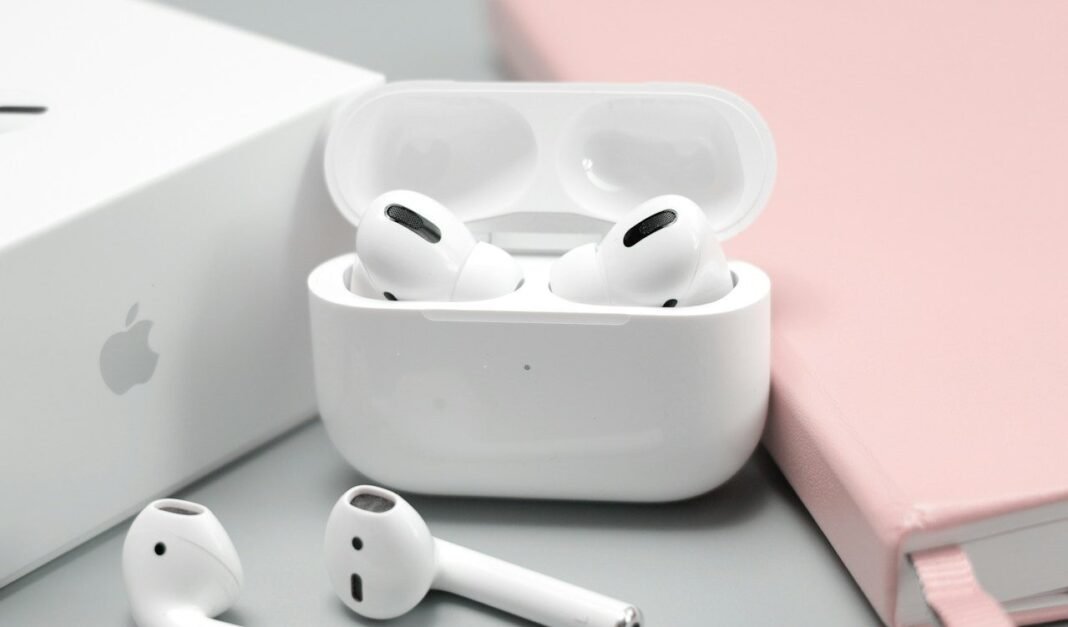
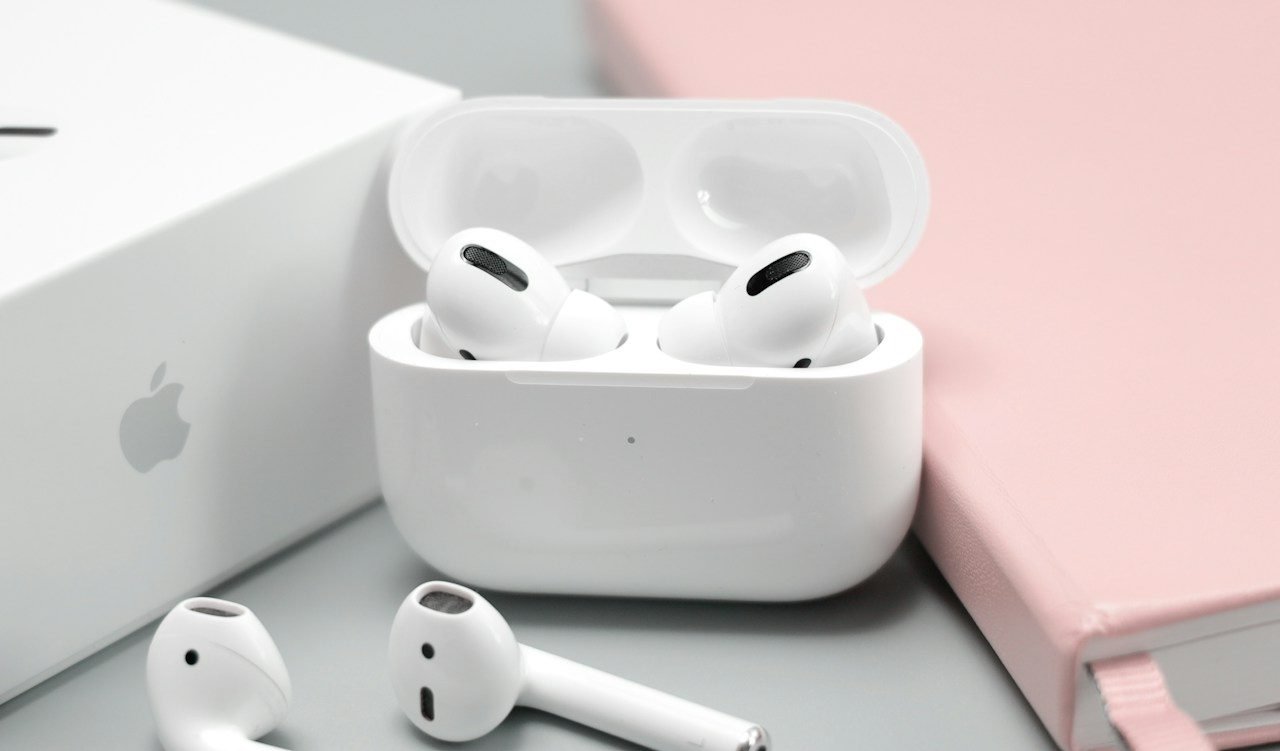
Place both AirPods inside their charging case before starting. Open the lid, and keep the case within arm’s reach. Then press the small button on the back of the case. Wait, meanwhile, until the light flashes white and blinks steadily.
Newer cases hide the button under a smooth surface, though. Tap the front of the closed case twice instead, for example. The light still turns white when pairing mode begins correctly. Indeed, that flashing white light is your green signal.
Connect AirPods to a Laptop Running Windows
Open Settings on the Windows laptop and choose Bluetooth and devices. Turn Bluetooth on, then click the option to add a device. Windows now searches and lists nearby Bluetooth gadgets, including AirPods. In fact, your AirPods name appears within a few seconds.
Click the AirPods name once to start the pairing process. Windows confirms the connection with a short success message, consequently. Open any video and check that sound plays in the buds. For sound problems, see our Windows Bluetooth fixes guide for deeper help.
Connect AirPods to a Laptop from Apple
On a MacBook, AirPods may connect almost by themselves. If the same Apple account is signed in, just select them. Open the sound menu in Control Centre and pick AirPods. As a result, audio switches to the buds within seconds.
If they do not appear, open Bluetooth settings manually instead. Keep the case open, then find AirPods in the device list. Click Connect once, and wait for the Connected label, meanwhile. The Apple support page for AirPods pairing confirms these exact steps. Future sessions, fortunately, connect automatically when you open the case.
Connect AirPods to a Laptop Chromebook or Linux PC
Chromebooks pair AirPods through their Bluetooth menu as well. Click the time corner, open Bluetooth, and enable it first. Then choose Pair new device and select your AirPods name. The buds, in addition, announce the connection with a chime.
Linux computers follow almost the same simple pattern too. Open Bluetooth settings, start the scan, and click the AirPods entry. Some systems ask you to confirm a pairing code, however. Accept it, and then set AirPods as the output device.
Fixes When AirPods Refuse to Appear
- Charge the case for ten minutes, then try again.
- Turn Bluetooth off, wait ten seconds, and turn it on.
- Move the case closer and away from other gadgets.
- Forget AirPods on your phone, then pair the laptop first.
- Restart the laptop if the Bluetooth list stays empty.
A full reset solves stubborn pairing problems for most people. Hold the case button until the light flashes amber, then white. Our guide on spotting a hacked phone also helps rule out odd device behaviour. After the reset, in other words, the buds behave like new.
Frequently Asked Questions
Can I use the AirPods microphone on Windows calls?
Yes, Windows can use the AirPods microphone in calls. Choose AirPods as the input device inside the meeting app, though. Sound quality may drop slightly in hands-free call mode, indeed. A laptop microphone, instead, sometimes sounds clearer for long meetings.
Do AirPods stay paired to two devices at once?
AirPods remember many devices, but they play from one at a time. Apple devices can hand over audio automatically within one account, meanwhile. On Windows, you reconnect manually from the Bluetooth list each time. The switch, consequently, takes only a few seconds.
Why does only one AirPod play sound?
One bud often has an empty battery or dirty contact. Place both buds in the case and charge them together, for instance. Clean the case contacts gently with a dry cotton bud. If the problem returns, finally, reset the AirPods completely.
Keep the case charged and pairing stays painless every time. Your laptop and AirPods, in short, make a fine daily pair. Enjoy the clean, wireless sound at work and home.