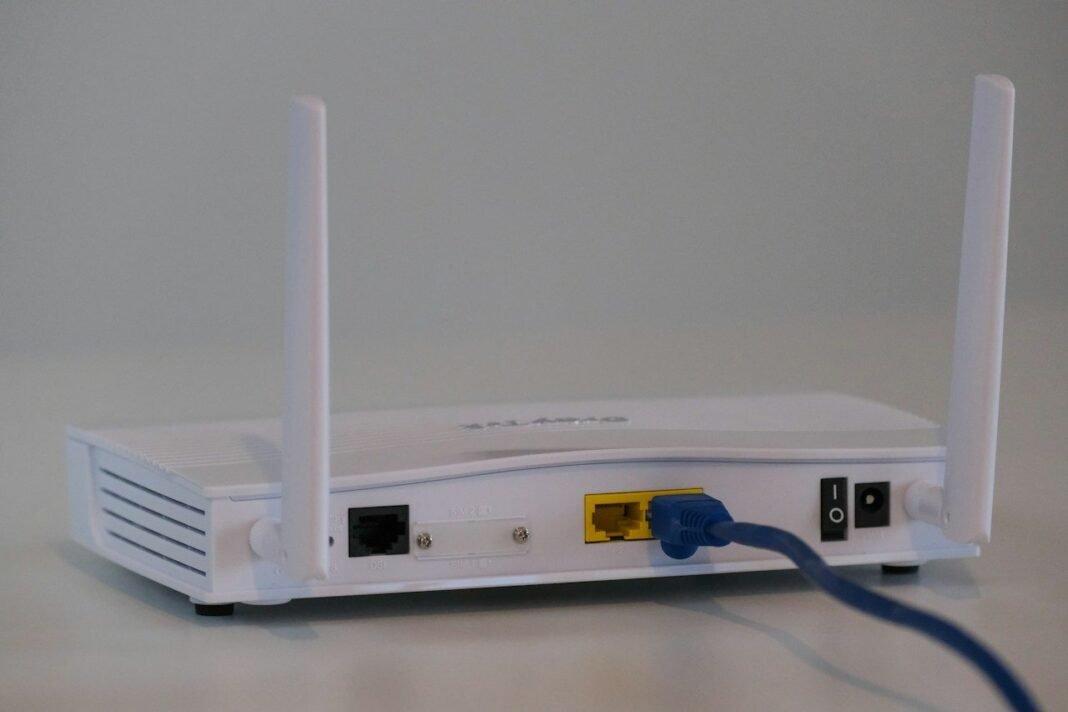
You can make Wi-Fi faster at home without buying anything. Most slow networks suffer from poor router placement and old settings. In addition, crowded channels and outdated firmware quietly cut speed. These ten fixes help you make Wi-Fi faster within one hour.
Start by testing your speed near the router first. Then test again in the room where speed feels worst. As a result, you learn whether the problem is distance or supply. A clear test, in short, stops wasted money and guesswork.
Work through the fixes below in the given order. Moreover, change only one thing at a time while testing. Finally, note which fix gives the biggest jump in speed. Most homes, fortunately, need only the first four fixes.
Place the Router Where It Can Breathe
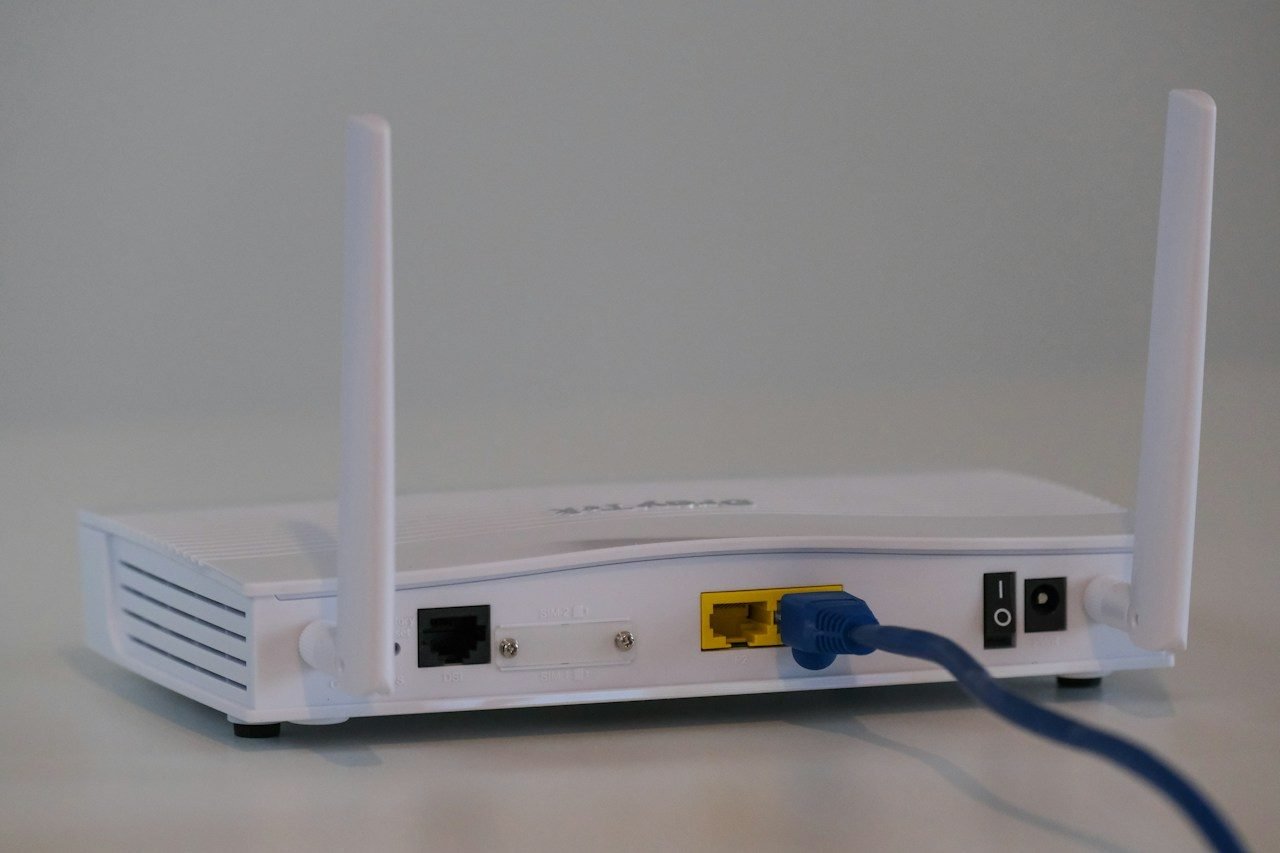
Router position decides signal strength more than any setting. Place the router high, central, and out in the open. Walls, metal, and fish tanks, meanwhile, block and weaken signals. For example, a hallway shelf beats a closed TV cabinet.
Keep the router away from microwaves and thick concrete walls. These objects disturb the signal, especially on older bands. In addition, raise the router off the floor whenever possible. A small move, consequently, can double speed in far rooms.
Restart, Update, and Make Wi-Fi Faster with Settings
A weekly restart clears memory and fixes small software glitches. Unplug the router for thirty seconds, then plug it back. Moreover, check the admin page for a firmware update monthly. Updates, in fact, often include real speed and security improvements.
Next, split your network into two clear band names. Connect nearby devices to the faster 5 GHz band. Far devices, instead, work better on the longer-range 2.4 GHz band. This split alone helps many homes make Wi-Fi faster daily.
Change the Wi-Fi channel when neighbours crowd your band. Free analyser apps show which channels nearby networks use most. Choose channel 1, 6, or 11 on the 2.4 GHz band. Indeed, a quieter channel means fewer collisions and retries.
Cut the Load from Greedy Devices
Old devices can slow every other device on the network. A very old phone forces the router to speak slowly. As a result, the whole home network feels sluggish and weak. Upgrade or retire, therefore, the oldest gadgets still in daily use.
- Pause big downloads and cloud backups during video calls.
- Disconnect smart devices that you no longer use.
- Wire the TV or console to the router with a cable.
- Set updates to run overnight, not during busy hours.
- Limit guest devices with a separate guest network.
Wired connections free wireless space for phones and laptops. A simple Ethernet cable gives the TV a stable feed. Meanwhile, phones enjoy the cleaner airtime that remains available. Gamers, above all, gain lower delay from a wired link.
Secure the Network and Remove Freeloaders
Strangers on your network steal speed without you knowing. Set a strong password with WPA3 or WPA2 security enabled. Our guide on how to create a strong password makes this easy. In addition, change the default admin password of the router.
Check the router device list for names you do not recognise. Unknown devices may belong to neighbours or old guests, though. Remove them, change the password, and reconnect your own devices. Our guide to using public Wi-Fi safely covers wider safety habits. Security, in short, protects both speed and private data.
When New Hardware Is the Honest Answer
Sometimes settings cannot rescue a truly outdated router. Routers older than six years often lack modern speed standards. A Wi-Fi 6 or Wi-Fi 7 model, for instance, handles many devices better. Large homes, meanwhile, benefit from a mesh system with two units.
Before buying, confirm the speed your provider actually delivers. Test with a cable plugged straight into the router first. The Google Nest guide to improving Wi-Fi speed gives similar placement advice. If wired speed is slow too, call the provider instead. Hardware, finally, cannot fix a slow line from outside.
Frequently Asked Questions
Does a Wi-Fi extender really help speed?
An extender helps coverage, but it can halve top speed. It repeats the signal, and repeating takes extra airtime, however. A mesh system usually gives a cleaner and faster result. Place any extender halfway, for example, not at the dead spot.
How often should I restart my router?
Restart the router once a month, or weekly if problems return. Many routers offer an automatic restart schedule in settings, indeed. A smart plug on a timer can do the same job. Regular restarts, consequently, prevent small glitches from building up.
Why is Wi-Fi fast near the router but slow upstairs?
Floors and walls weaken the signal as distance grows. The 5 GHz band, in particular, fades quickly through concrete. Move the router nearer the stairs, or add a mesh unit upstairs. Repositioning, in other words, usually beats buying a stronger plan.
Test your speed after every fix and keep the winning changes. Small improvements add up to a clearly faster home network. Share this guide, finally, with anyone still blaming their laptop.