Two-factor authentication (2FA) is the single most effective thing you can do to stop hackers from getting into your accounts — and most people in Pakistan have not turned it on. It takes about five minutes per account, costs nothing, and blocks the exact attacks that steal most accounts here: leaked passwords, phishing pages, and SIM-swap fraud. This guide explains what 2FA actually is, why your password alone cannot protect you, and the exact steps to enable it on Google, Facebook, Instagram, WhatsApp, Easypaisa and JazzCash.
What Is Two-Factor Authentication?
2FA means proving your identity in two different ways before you get into an account. The first factor is something you know — your password. The second factor is something you have — usually your phone.
Think of a bank locker with two keys. A thief might steal your password (key one), but they still cannot open the locker without the second key, which only you carry. In practice:
- You enter your username and password as usual.
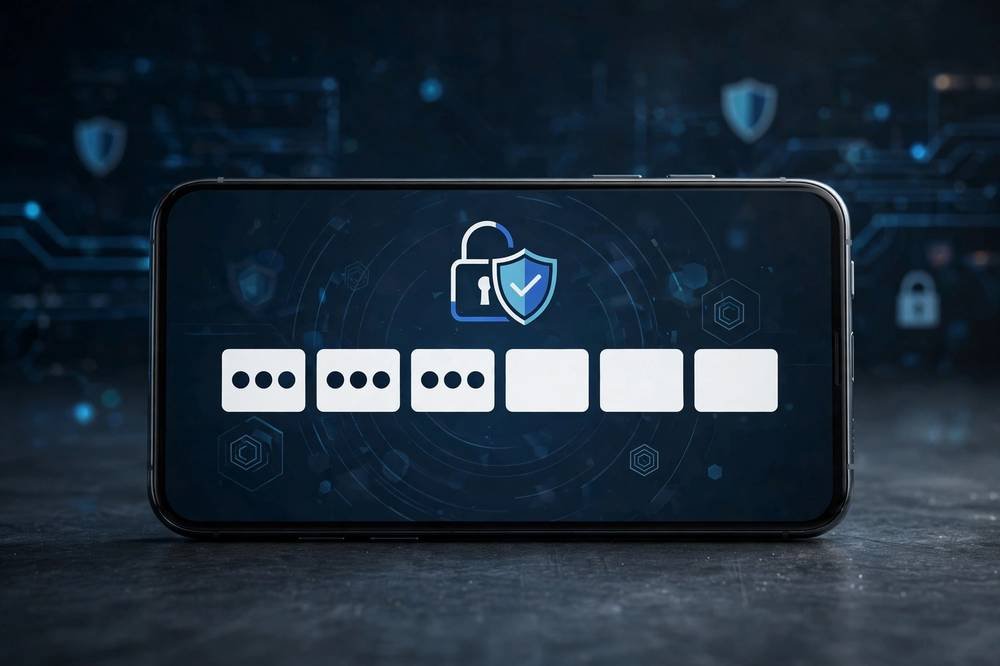
- The service asks for a second proof — a 6-digit code from your phone.
- You enter the code, and only then are you logged in.
That is all it is: password + a second check. WhatsApp calls it “two-step verification” — same thing, different name. Action: pick one account today (start with Gmail) and turn it on using the steps below.
Why Your Password Alone Cannot Protect You
Hackers rarely guess passwords. They steal them — and no password is strong enough to survive these:
- Data breaches: when a website gets hacked, your email and password land in a leaked database. Attackers then try that same combination on Gmail, Facebook and banking apps. If you reuse passwords, one breach opens every door.
- Phishing: a fake login page identical to Facebook or JazzCash tricks you into typing your password. The second you submit it, the attacker has it.
- SIM-swap fraud — the Pakistan-specific threat: a fraudster convinces your mobile company to issue a “replacement” SIM for your number, often with a fake ID or an insider’s help. Your number — and every SMS code sent to it — suddenly goes to the criminal’s phone. This is how WhatsApp accounts and even bank-linked numbers get hijacked here.
With 2FA on, a stolen password is useless on its own: the attacker types it in, the site demands the second code, and that code goes to your phone. Action: if you reuse one password across sites, turn on 2FA everywhere before anything else — you are the exact person attackers target first.
The Types of 2FA — and Which One to Use
Not all second factors are equal:
- SMS codes: a code texted to your number. Better than nothing, but the weakest option — SIM-swap fraud defeats it. Use only where nothing better exists.
- Authenticator apps (recommended): free apps like Google Authenticator or Microsoft Authenticator generate a fresh 6-digit code every 30 seconds, with no internet needed. You link it once by scanning a QR code. Safer than SMS because codes are created on your phone itself — a SIM-swapper cannot intercept them.
- Email codes: only useful if your email itself has 2FA on. Otherwise it is a locked front door with an open back door.
- Biometrics: fingerprint or face unlock. Easypaisa and JazzCash support biometric login in-app, and the State Bank of Pakistan has required biometric verification for cash transactions at retail agents since July 2025.
Action: install Google Authenticator from the Play Store or App Store right now. You will need it for the setups below, and it takes two minutes.
How to Turn On 2FA for Google / Gmail
Protect this account first — your email receives the password resets for everything else. Google calls it “2-Step Verification.”
- Go to myaccount.google.com and sign in.
- Tap Security → 2-Step Verification → Get started.
- Confirm it is you by tapping Yes on the prompt sent to your phone — the easiest daily method.
- Then add the stronger backup: on the same page, choose Authenticator app → scan the QR code with Google Authenticator → enter the 6-digit code.
- Add a backup phone number in case you lose your main phone.
Action: do this now, before continuing — every other account’s recovery flows through your Gmail.
How to Turn On 2FA for Facebook
- Facebook app → menu → Settings & Privacy → Settings.
- Accounts Center → Password and security → Two-factor authentication → select your profile.
- Choose Authentication app (recommended) — scan the QR code with Google Authenticator and enter the code. Add SMS as well, so you have a fallback.
- Facebook gives you recovery codes — save them (see the backup section below).
Action: screenshot your recovery codes the moment they appear. You will not get a second chance to see them easily.
How to Turn On 2FA for Instagram
- Instagram → profile → menu → Settings and privacy → Accounts Center → Password and security → Two-factor authentication → select your account.
- Turn on Authentication app (scan the QR/setup key into Google Authenticator) and also SMS as backup.
Instagram accounts are stolen daily in Pakistan through phishing links sent in DMs. With 2FA on, even if you type your password into a fake login page by mistake, the thief cannot get in without your code. Action: enable it, then check Settings → Accounts Center → “Where you’re logged in” and remove any device you do not recognize.
How to Turn On Two-Step Verification for WhatsApp
This is the one most readers have skipped — and it matters more in Pakistan than anywhere, because WhatsApp hijacking via SIM-swap is common here. WhatsApp’s version is a 6-digit PIN required whenever your number is registered on a new phone. Without it, whoever controls your number controls your WhatsApp.
- Open WhatsApp → Settings → Account → Two-step verification.
- Tap Enable, enter a 6-digit PIN (not 123456, not your birth year), and confirm it.
- Add a recovery email address and verify it. Do not skip this.
Why the email is non-negotiable: if you forget your PIN and never added an email, WhatsApp locks you out of re-registering your number for seven days. With the email added, you reset the PIN in minutes. WhatsApp will occasionally ask for your PIN during normal use — that is deliberate, so you do not forget it. Action: enable this on every family member’s phone too; hijacked WhatsApp accounts are routinely used to scam relatives for money.
How to Secure Easypaisa and JazzCash
Your wallet holds real money. These apps do not offer Google-style 2FA, but they have their own security layers — make sure every one is active:
- App PIN: required to log in and approve transactions. Never use 1234 or your birth year. Never share it — real company staff will never ask for your PIN or OTP, on call or in person.
- Biometric login: turn on fingerprint/face unlock in the app’s Settings → Security. Now a thief needs your actual finger or face, not just your PIN.
- OTPs: one-time codes arrive by SMS for sensitive actions. Treat every OTP like cash — never read it to a caller, no matter how urgent or official they sound. The most common wallet fraud in Pakistan is a fake “customer care” call asking for your OTP.
- Agent transactions: since July 2025, biometric (thumbprint) verification is mandatory for cash deposits and withdrawals at retail agents. Use only biometric-enabled agents, and never hand your phone to an agent to “do it for you.”
Action: open your wallet app today and check that biometric login is on — then tell one person who is vulnerable to phone scams (a parent, an elder relative) the golden rule: no one legitimate ever asks for your OTP.
Backup Codes: Your Emergency Spare Keys
When you enable 2FA, services give you backup (recovery) codes — usually 8 to 10 single-use codes that work in place of your second factor. Each works once, then it is gone. They are the only way back in if you lose your phone.
- Store them off your phone: print them, or write them in a notebook kept at home. A screenshot on the same phone that generates your codes is useless if the phone is gone.
- One code per service: Google’s codes do not work for Facebook. Save each set separately and label them.
- Generate new ones if you ever suspect someone saw them (each service lets you regenerate the set in security settings).
Action: collect the backup codes for Google, Facebook and Instagram right now and put them somewhere that survives a stolen phone — paper in a drawer beats a note in the phone.
Phone Lost or Stolen? Do This in Order
- Block your SIM first. Borrow a phone and call your network’s helpline — Jazz 111, Zong 310, Telenor 345, Ufone 333 — and ask them to block the SIM immediately. This stops SMS codes reaching the thief. Then get a replacement SIM with the same number.
- Log in with backup codes on a new or borrowed device, and remove the lost phone from “trusted devices” in each account’s security settings.
- Authenticator app users: if you had cloud backup/sync turned on in Google Authenticator or Microsoft Authenticator, your codes reappear when you sign into the app on the new phone. Turn that backup on today, before you need it.
- WhatsApp: install it on the new phone, verify with the SMS code to your replacement SIM, then enter your two-step verification PIN (or reset it through your recovery email).
- Wallets: reinstall Easypaisa/JazzCash on the new phone, log in with your PIN, and re-enable biometric login.
Action: save your network’s helpline number in a second phone or on paper today. In the panic of a theft, it is the number nobody can find.
Frequently Asked Questions
Is 2FA free?
Yes — SMS codes, authenticator apps and WhatsApp two-step verification all cost nothing. Only hardware security keys cost money, and almost nobody needs one.
Will 2FA annoy me at every login?
No. Trusted devices are remembered, so you are usually asked only on new logins. WhatsApp’s PIN appears only when registering a new phone, plus occasional reminders. Minor friction, major protection.
What is safer: SMS codes or an authenticator app?
The authenticator app, specifically because of SIM-swap fraud in Pakistan. SMS codes travel through the mobile network and can be redirected; app codes are generated on your device and never transmitted.
What if I change my phone number?
Update the number in every account’s security settings before surrendering the old SIM. For WhatsApp, use Settings → Account → Change number so chats and your PIN move over cleanly.
Can I still be hacked with 2FA on?
2FA defeats stolen passwords, phishing logins and automated break-ins — the attacks behind most account theft. It cannot help if you hand your OTP or PIN to a scammer yourself, or install malware. So: turn on 2FA, and never share codes with anyone.
Which accounts first?
In this order: (1) Gmail — password resets for everything flow through it; (2) Easypaisa/JazzCash and banking apps — they hold money; (3) WhatsApp, Facebook, Instagram — they hold your identity. Then the rest.
The Bottom Line
Two-factor authentication is password plus a second proof from your phone. The Pakistan-specific essentials: use an authenticator app instead of SMS wherever possible (SIM-swap is real here), turn on WhatsApp’s two-step PIN with a recovery email, keep backup codes on paper — not just on your phone — and know your network’s helpline number before your phone ever goes missing. Five minutes per account today saves you from the weeks-long nightmare of recovering a stolen identity tomorrow.