You have probably seen the word “firewall” in your computer’s settings or heard it mentioned when talking about online safety. But what is a firewall, really? In simple terms, a firewall is a security barrier that sits between your device or network and the internet, checking the traffic that goes in and out and blocking anything suspicious. Think of it like a security guard at the entrance of a building: it checks everyone who tries to enter and turns away anyone who does not belong. This guide explains how firewalls work, the different types, and what you need to know as an everyday user.
Firewalls are one of the oldest and most important tools in computer security. Every Windows PC and Mac has one built in, and your home internet router almost certainly has one too. Understanding what they do — and what they cannot do — will help you stay safer online without needing a technical background.
What Is a Firewall? The Simple Explanation
A firewall monitors the data traveling between your device and the internet. Every time you open a website, your computer sends requests out and receives data back. A firewall inspects this traffic against a set of rules and decides what to allow and what to block.
Legitimate traffic — like the web pages you asked for — passes through freely. Suspicious traffic — like an unknown program on the internet trying to connect to your computer without your permission — gets blocked. This happens silently in the background, thousands of times a day, without you noticing.
The building security guard analogy works well. The guard has a list of rules: residents and expected visitors may enter, strangers without a reason may not. A firewall works the same way with internet traffic, except it makes these decisions in fractions of a second, around the clock.
How Does a Firewall Actually Work?
To understand firewalls a little deeper, it helps to know that internet traffic travels in small chunks called packets. Each packet has a sender address, a destination address, and a type of content. A firewall examines these packets and applies its rules.
Packet Filtering
The most basic firewall technique is packet filtering. The firewall looks at each packet’s addresses and ports — the numbered channels that different types of traffic use — and decides whether to let it through. For example, it might allow web traffic on the standard ports but block traffic on ports commonly used by attackers. This is fast and happens automatically.
Stateful Inspection
Modern firewalls go further with stateful inspection. Instead of judging each packet alone, the firewall remembers the state of active connections. If you requested a web page, it knows the returning data belongs to your request and lets it through. If data arrives that nobody asked for, it gets suspicious and blocks it. This makes the firewall much smarter about telling legitimate traffic apart from attacks.
Application Awareness
Some firewalls also watch which programs on your computer are sending and receiving data. When a new app tries to access the internet for the first time, Windows or macOS may pop up a message asking whether to allow it. This is your firewall asking for your decision, and it is worth reading these prompts carefully instead of clicking “allow” automatically.
Types of Firewalls
Firewalls come in several forms, and most people are protected by more than one without realizing it.
Software Firewalls
A software firewall runs as a program on your device. Windows Defender Firewall comes free with every copy of Windows 10 and 11, and macOS has a built-in firewall you can turn on in System Settings under Network. These protect the individual device they are installed on, controlling which apps can send and receive data.
Hardware Firewalls
A hardware firewall is a separate physical device that protects a whole network. Your home internet router contains a basic hardware firewall that stands between all your devices and the internet. Businesses use larger, more powerful hardware firewalls to protect entire offices. The advantage is that one device protects everything behind it — your phone, laptop, smart TV, and anything else on your Wi-Fi.
Cloud and Network Firewalls
Large companies and websites use cloud-based firewalls that filter traffic before it ever reaches their servers. As an everyday user, you benefit from these indirectly whenever you visit a well-protected website. You do not need to set one up yourself.
Do You Need a Firewall?
For most people, the answer is: you already have one, and you should keep it turned on. Windows Defender Firewall is enabled by default and provides solid protection at no cost. Your router’s firewall adds a second layer. Together, these block the vast majority of unwanted incoming connections.
You generally do not need to buy a separate firewall product. Paid security suites include firewalls, but their main value is usually in the antivirus and extra features, not the firewall itself — the free built-in one does the core job well. If you ever install third-party security software, it may ask to take over firewall duties from Windows; that is normal, and you should let only one firewall manage each network type to avoid conflicts.
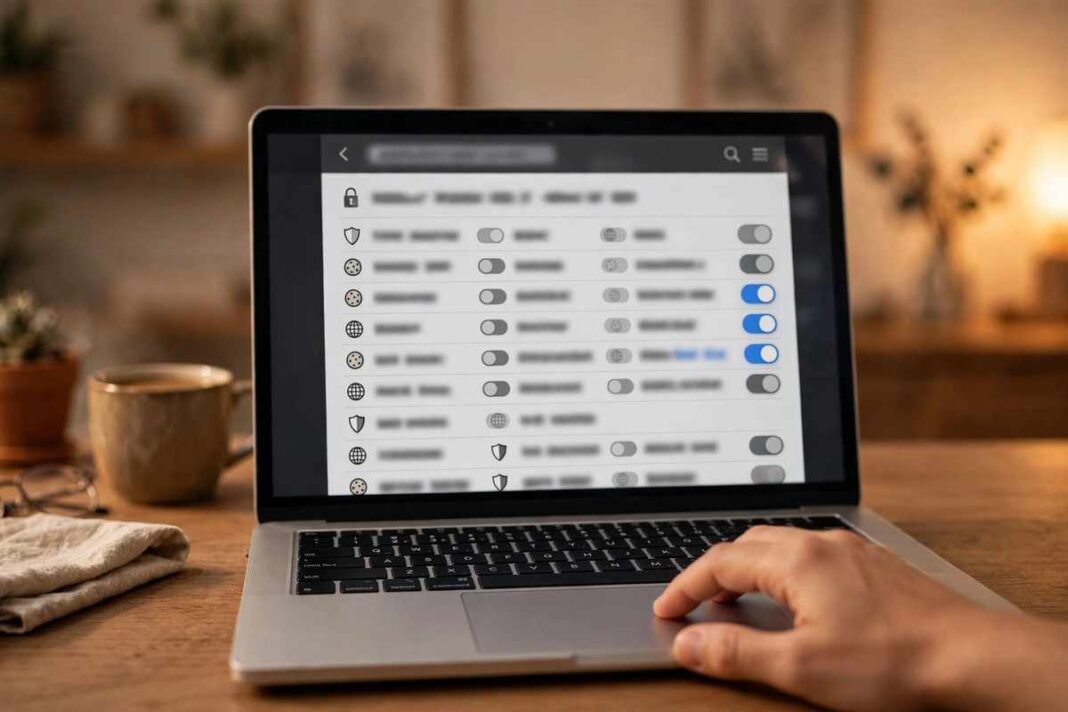
What you should do is check that your firewall is actually on. On Windows, go to Settings > Privacy & Security > Windows Security > Firewall & network protection, and confirm each network type shows as turned on. On a Mac, go to System Settings > Network > Firewall and make sure it is enabled. On your router, the firewall is almost always on by default; avoid turning it off unless you have a specific technical reason and know what you are doing.
How to Check Your Router’s Firewall
Your router’s firewall is your network’s first line of defense, and it is worth confirming it is active. You can usually check by opening a web browser and typing your router’s address — commonly 192.168.1.1 or 192.168.0.1 — then logging in with the admin username and password printed on the router’s label.
Look for a section called Firewall, Security, or SPI Firewall in the settings. Make sure it is enabled. While you are there, check two more things: that your Wi-Fi uses WPA2 or WPA3 encryption (never the outdated WEP), and that the router’s own admin password is not still the factory default. Changing the default admin password is one of the simplest security improvements you can make, because attackers know the default passwords for every major router brand.
You do not need to adjust advanced firewall rules unless you are running servers or have specific needs. For a normal household, the default settings on a modern router provide solid protection. Just avoid enabling the DMZ feature or turning the firewall off to fix a connection problem — there is almost always a safer, more targeted fix.
What a Firewall Cannot Protect You From
Firewalls are powerful, but they have limits. Understanding these limits is just as important as having the firewall turned on.
A firewall cannot stop you from voluntarily giving information to scammers. If a phishing email tricks you into typing your password into a fake website, the firewall sees normal web traffic and lets it through — it has no way to know you were deceived. This is why learning to recognize scams matters so much; read our guide on what phishing is and how to spot it to protect yourself where firewalls cannot.
Firewalls also cannot remove viruses already on your computer, stop you from downloading a harmful file you chose to download, or protect data you send over an insecure connection. They are one layer of defense, not a complete security system. Good security comes from combining a firewall with updated software, strong unique passwords, two-factor authentication, and cautious habits.
Firewall Alerts: What to Do When One Pops Up
Now and then, your firewall will ask you a question: “Do you want to allow this app to communicate on the network?” These prompts deserve a moment of thought.
If you just installed a program and it needs internet access to work — a video call app, a game, a cloud storage tool — allowing it is normal. If a program you do not recognize asks for access, or an app asks at a strange time, it is safer to deny it and investigate. You can always change the decision later in the firewall settings.
Be careful with prompts that appear inside your web browser claiming your firewall found a virus and urging you to call a number. Those are fake pop-up scams, not real firewall messages. A real firewall alert appears as a system dialog from Windows or macOS, never as a web page demanding urgent action.
Firewalls on Your Phone
Phones handle firewalls differently from computers. iPhones and Android phones do not have a traditional firewall you can configure, because their app systems are more locked down: apps can only access the network through permissions you grant, and the operating system manages the rest.
That said, the same principles apply. Keep your phone updated, only install apps from the official app store, and review app permissions occasionally. If your phone feels slow or storage is full, regular maintenance like clearing the cache on your iPhone helps more than any firewall setting would.
FAQs About Firewalls
What is a firewall in simple terms?
A firewall is a security barrier that monitors internet traffic going in and out of your device or network and blocks suspicious connections. Like a security guard for your internet connection, it lets legitimate traffic through and stops unwanted visitors.
Is the Windows firewall enough?
For most home users, yes. Windows Defender Firewall, combined with your router’s built-in firewall, blocks the vast majority of unwanted incoming connections. Add an antivirus program, software updates, and careful browsing habits, and you are well protected without paying for extra firewall software.
Should I turn off my firewall for gaming?
Usually you do not need to. If a game has connection problems, the better fix is to allow that specific game through the firewall rather than turning the whole firewall off. Disabling your firewall removes an important layer of protection for only a small and temporary benefit.
Can a firewall stop hackers?
A firewall makes hacking much harder by blocking unauthorized incoming connections, which stops many automated attacks completely. However, it cannot protect against every type of attack — especially ones that trick you into cooperating, like phishing, or malware you install yourself. Think of it as a locked front door: essential, but not the only security you need.
What is the difference between a firewall and antivirus?
A firewall controls network traffic — what can connect to your device over the internet. Antivirus scans files and programs on your device for malicious software. They do different jobs and work best together: the firewall guards the doors, while antivirus checks what is already inside.
Do I need a firewall on public Wi-Fi?
Yes, and this is when it matters most. Public Wi-Fi in cafes, airports, and hotels is riskier than your home network because strangers share it with you. Keep your firewall on, avoid accessing sensitive accounts on public networks when possible, and consider using a VPN for extra privacy.
Conclusion
So, what is a firewall? It is your device’s silent security guard, inspecting internet traffic around the clock and blocking connections that do not belong. You almost certainly have at least two already — one in your operating system and one in your router — and the most important thing you can do is leave them turned on.
Key takeaways: firewalls filter network traffic automatically using rules, they come as software on your device and hardware in your router, the free built-in options are enough for most people, and they work best as part of layered security alongside updates, strong passwords, and scam awareness. Check that yours is enabled today — it takes less than a minute and protects you every day.