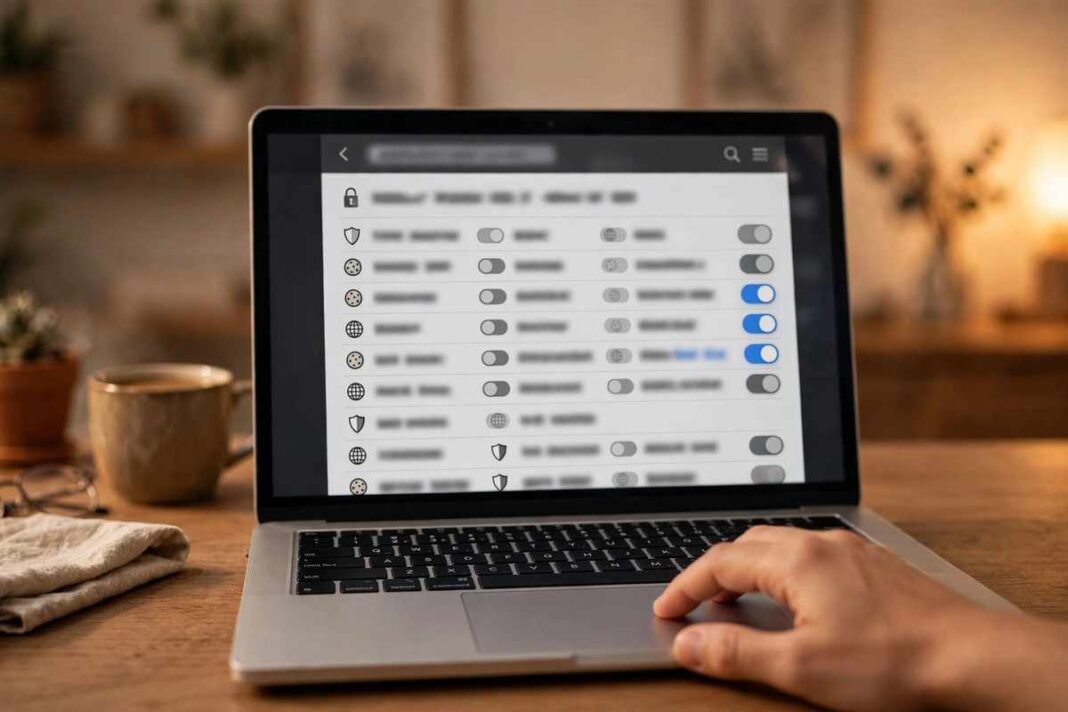
Websites remember you — your login, your shopping cart, your language preference — thanks to small files called cookies. But cookies also track your browsing, take up space, and can cause websites to misbehave. Learning how to delete cookies is a simple skill that fixes many common browser problems and gives you more control over your privacy. This guide shows you exactly how to do it in Chrome, Safari, and Firefox, explains what cookies actually are, and tells you what happens after you clear them.
Deleting cookies takes less than a minute in any browser, and you can choose to remove all of them or just the ones from specific sites. Nothing you need to be afraid of: your bookmarks, saved files, and installed extensions stay exactly where they are.
What Are Cookies, Exactly?
Cookies are small text files that websites store in your browser. When you visit a site, it may save a cookie containing a small piece of information, such as a session ID that keeps you logged in or a note about your preferences.
There are two main kinds. First-party cookies are set by the website you are visiting and are mostly helpful — they remember your login, keep items in your cart, and save your settings. Third-party cookies are set by other companies, usually advertisers, and they track you across different websites to build a picture of your browsing habits for targeted ads.
Cookies are not viruses and cannot harm your computer by themselves. But over time they accumulate, they enable tracking you may not want, and corrupted cookies can cause login errors and strange website behavior. That is why clearing them periodically is good digital hygiene. Cookies are closely related to cached files; if you also want to clear stored website files on your phone, see our guide on how to clear cache on iPhone.
How to Delete Cookies in Google Chrome
Chrome is the world’s most popular browser, so let us start there. The steps are the same on Windows and Mac.
Delete All Cookies in Chrome
Click the three dots in the top-right corner and go to Settings > Privacy and security > Delete browsing data. In the window that opens, you will see two tabs: Basic and Advanced. On either tab, check the box for Cookies and other site data. Choose a time range from the dropdown — “All time” removes everything, while shorter ranges like “Last 24 hours” remove only recent cookies. Click Delete data to confirm.
There is also a quicker route: press Ctrl + Shift + Delete (or Cmd + Shift + Delete on Mac) to jump straight to the Delete browsing data window.
Delete Cookies for One Website in Chrome
Sometimes only one site is misbehaving and you do not want to log out everywhere. Go to Settings > Privacy and security > Third-party cookies > See all site data and permissions. Use the search box to find the website, click the trash icon next to it, and confirm. Only that site’s cookies are removed.
Block Third-Party Cookies in Chrome
If tracking bothers you, Chrome lets you block third-party cookies entirely. In the same Third-party cookies settings page, choose Block third-party cookies. Most websites will still work fine, though a few features that rely on cross-site logins may need an exception, which you can add for specific sites.
How to Delete Cookies in Safari
Safari is the default browser on Macs, iPhones, and iPads. The steps differ slightly between Mac and iPhone.
Delete Cookies in Safari on Mac
Open Safari, click Safari in the menu bar, and choose Settings (or Preferences on older versions). Go to the Privacy tab and click Manage Website Data. You will see a list of websites and how much data each has stored. Click Remove All to clear everything, or select individual sites and click Remove.
Delete Cookies in Safari on iPhone and iPad
Go to Settings > Apps > Safari (or Settings > Safari on older iOS). Tap Clear History and Website Data and choose a time range. This removes history, cookies, and cache together. To remove website data while keeping your history, go to Advanced > Website Data and tap Remove All Website Data.
Safari’s Built-In Tracking Protection
Safari already blocks many third-party trackers automatically through a feature called Intelligent Tracking Prevention. You can see what it blocked by clicking the privacy icon in the address bar. This means Safari users generally need to worry less about tracking cookies than users of other browsers.
How to Delete Cookies in Firefox
Firefox is known for its strong privacy features, and clearing cookies is straightforward.
Delete All Cookies in Firefox
Click the three-line menu in the top-right corner and go to Settings > Privacy & Security. Scroll to the Cookies and Site Data section and click Clear Data. Check Cookies and Site Data and click Clear. Like Chrome, you can also press Ctrl + Shift + Delete to open the clear-data window directly.
Delete Cookies for One Website in Firefox
In the same Cookies and Site Data section, click Manage Data. Search for the website, select it, and click Remove Selected, then Save Changes. This is useful when a single site has login problems but everything else works fine.
Firefox Enhanced Tracking Protection
Firefox blocks third-party tracking cookies by default in its Standard protection mode, and Strict mode blocks even more. You can check the shield icon in the address bar to see what is being blocked on any page. If a website breaks, you can turn protection off just for that site with one click.
What Happens After You Delete Cookies?
The most noticeable effect is that you will be logged out of most websites. Your saved logins in the browser’s password manager are not deleted, so logging back in is usually just a click or two — but make sure you know your important passwords first, or have them saved securely.
Shopping carts will be emptied, website preferences like language and layout will reset to defaults, and some sites may show you cookie consent pop-ups again. Pages might also load slightly slower the first time you visit, while the browser re-downloads files it had cached. To make re-logging in painless, consider using your browser’s built-in password manager or a dedicated password manager app — that way, signing back into your regular sites after a cookie clear takes seconds rather than a frustrating hunt for forgotten passwords. Within a day or two of normal browsing, everything feels normal again — just a little cleaner and more private.
When Should You Delete Cookies?
There is no need to delete cookies every day. Good times to do it include when a website is not working properly — login loops, pages not loading, or features behaving strangely are often fixed by clearing that site’s cookies. It is also wise to clear cookies on a shared or public computer after you finish, so the next person cannot access your logged-in sessions.
From a privacy perspective, clearing cookies every few weeks reduces the trail of tracking data about you. And from a security perspective, clearing cookies after visiting a suspicious website is a sensible precaution. If you ever clicked a link you should not have, deleting cookies and site data removes anything the site may have left behind — though you should also review our guide on what phishing is to make sure you have not fallen for a scam.
Cookie Consent Pop-Ups: What Should You Click?
Almost every website now shows a cookie consent banner asking you to accept or manage cookies. What you click here matters more than many people realize, because it controls how much tracking you allow from the start.
The quickest privacy-friendly choice is to click “Reject all” or “Accept necessary only” when that option is offered. The big “Accept all” button is designed to be the easiest click, but it permits maximum tracking. If there is no reject option visible, look for “Manage preferences,” “Customize,” or “Settings” — regulations in many regions require sites to offer a real choice, even if it takes an extra click to find.
In the preferences screen, you will usually see categories like Necessary, Functional, Analytics, and Marketing or Advertising. Necessary cookies keep the site working and cannot be turned off. The others are optional: turning off Marketing and Analytics cookies significantly reduces tracking while rarely breaking the site. Spending ten seconds on these choices for sites you visit often is more effective than clearing cookies afterward, because it stops much of the tracking from happening in the first place.
Cookies vs. Cache: What Is the Difference?
People often mix these up. Cookies store information about you — who you are, what you prefer, what you put in your cart. Cache stores copies of website files — images, stylesheets, scripts — so pages load faster.
Deleting cookies logs you out and resets preferences. Clearing cache frees up more storage space but does not log you out. When browsers offer “browsing data” to delete, these are usually separate checkboxes, and you can choose one, the other, or both depending on what you want to achieve.
FAQs About Deleting Cookies
How do I delete cookies in Chrome on my phone?
In the Chrome app, tap the three dots, go to Settings > Privacy and security > Delete browsing data. Check “Cookies and site data,” choose a time range, and tap Delete data. The steps are the same on Android and iPhone versions of Chrome.
Will deleting cookies delete my passwords?
No. Saved passwords stored in your browser’s password manager are separate from cookies and are not deleted. However, you will be logged out of websites, so you will need those saved passwords — or your memory — to log back in.
Is it safe to delete all cookies?
Yes, it is completely safe. Cookies are designed to be temporary, and websites simply create new ones when you visit again. The only inconvenience is being logged out and losing saved preferences, both of which are easy to restore.
How often should I delete cookies?
For most people, every few weeks is plenty. Delete them sooner if a website misbehaves, if you used a shared computer, or if you are concerned about tracking. There is no benefit to doing it daily — you would just spend extra time logging back into everything.
Do cookies slow down my browser?
Not noticeably on their own — cookies are tiny files. What slows browsers down is usually a huge cache, too many open tabs, or too many extensions. If your browser feels slow, clearing cache and reviewing extensions will help more than deleting cookies alone.
Can I delete cookies automatically?
Yes. Chrome, Firefox, and Safari all have settings to clear cookies when you close the browser, or to block third-party cookies by default. This is a good option if you want privacy without remembering to clean up manually — just be aware you will need to log in to sites more often.
Conclusion
Knowing how to delete cookies is a small skill with real benefits. In Chrome, Safari, or Firefox, it takes under a minute through the privacy settings, and you can remove everything or target a single troublesome site. Clearing cookies fixes login glitches, reduces tracking, and is a smart move after using shared computers or visiting suspicious sites.
Key takeaways: cookies remember you but also track you, deleting them logs you out without deleting passwords or bookmarks, per-site deletion fixes most website problems with minimum hassle, and blocking third-party cookies gives you ongoing privacy. Make cookie clearing part of your routine browser maintenance, and your browsing will stay fast, functional, and a little more private.