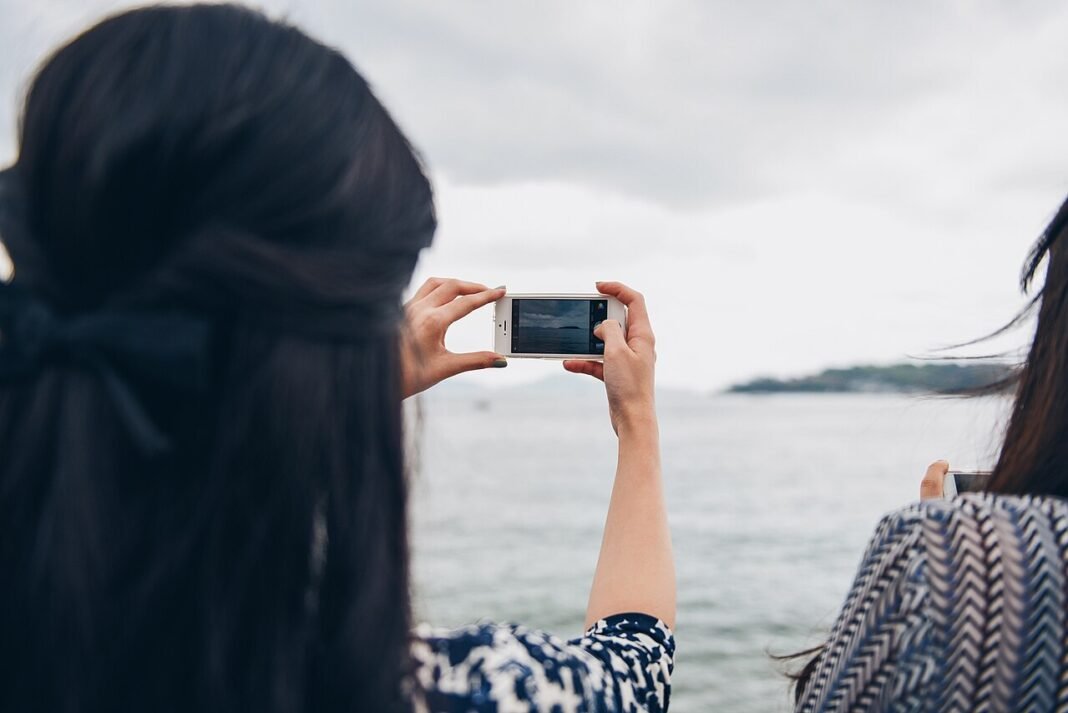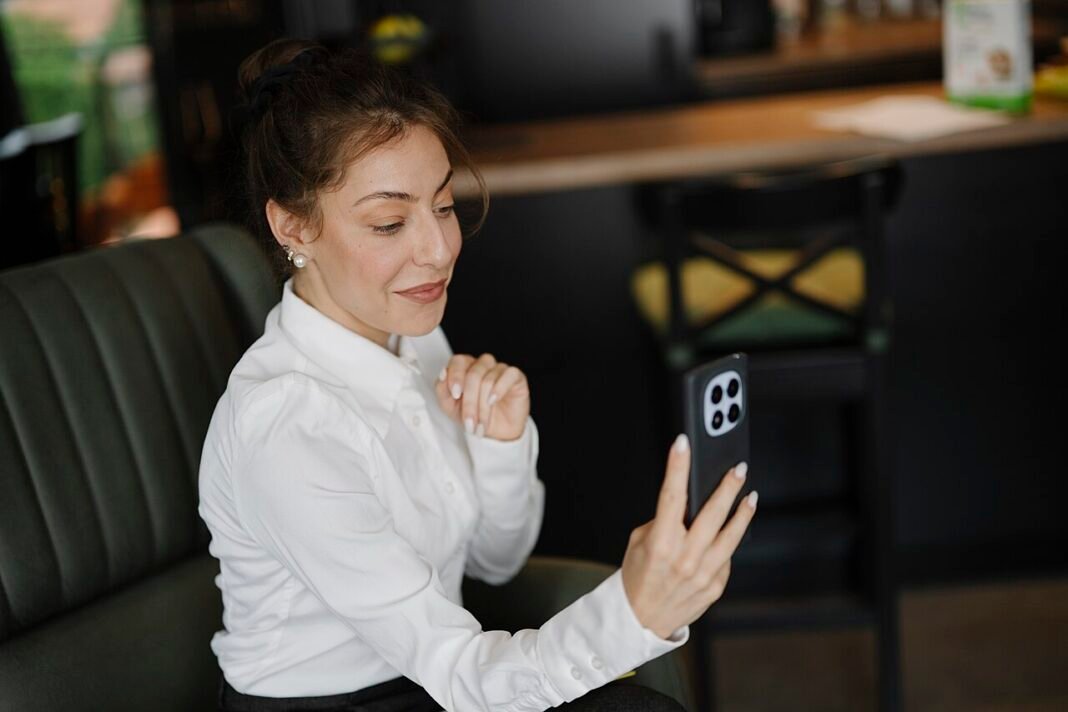
Laptop webcams are grainy and dull, but your phone camera is excellent. Turn your phone into a webcam and look sharp on every call. You can do it with built-in features or a free app.
The Built-In Options (No App Needed)
On Android 14 and newer, the feature is built right in. Plug your phone into the computer with a USB cable. Swipe down to the USB notification and tap it.
Change the USB option to Webcam. Your phone instantly appears as a camera on the computer. As a result, Zoom, Meet, and Teams can use it like any USB webcam.
On iPhone with a Mac, use Continuity Camera. Sign both devices into the same Apple account. Your iPhone then appears in the camera menu of FaceTime, Zoom, or any video app.
Continuity Camera works wirelessly and needs no setup. It also adds Center Stage auto-framing and background blur. In addition, Desk View shows your desk from above during demos.
Use a Free App for Any Combination
For other combinations, install a webcam app like DroidCam or Iriun Webcam. Both work on Android and iPhone with Windows, Mac, or Linux. The setup takes five minutes.
Install the app on your phone first. Then install the same app’s desktop program on your computer. Open both halves and they find each other automatically.
Connect over USB for the best results. USB gives the lowest delay and charges your phone during the call. For example, a long meeting will not drain your battery this way.
Wi-Fi works too if both devices share the same network. Meanwhile, open your video app’s settings and change the camera from the built-in webcam to the app’s virtual camera.
The free version of DroidCam limits video to standard definition. The paid upgrade unlocks HD and removes ads. Iriun Webcam offers a simpler free experience with fewer limits.
Get the Best Picture Quality
Mount the phone at eye level. A small tripod or phone stand keeps the shot steady. Stack books under the phone as a free alternative.
Use the rear camera when possible. Phone rear cameras beat front cameras in every quality test. However, check the framing on the phone screen before the call starts.
Face a window or use a lamp in front of you. Good lighting matters more than any app setting. In addition, turn on Do Not Disturb so notifications never pop up on camera.
Finally, keep the phone plugged in for long sessions. Indeed, streaming video for hours drains even a healthy battery fast.