One lost or broken phone can erase years of photos and chats. Set up automatic backups once, and your data protects itself forever. The whole setup takes five minutes.
Automatic Backup on iPhone
On iPhone, open Settings and tap your name at the top. Go to iCloud, then iCloud Backup. Turn on Back Up This iPhone.
The phone now backs up on its own. It runs when the phone is locked, charging, and connected to WiFi. As a result, most people get a fresh backup every night without thinking about it.
Tap Back Up Now to run the first backup immediately. The first one can take a while, so leave the phone on WiFi. In addition, check that your photos sync through iCloud Photos.
Apple gives 5GB of iCloud storage free. If that fills up, backups stop without much warning. Upgrade the plan or free cloud space to keep protection running.
Automatic Backup on Android
On Android, open Settings and tap Google, then Backup. Turn on Backup by Google One. Then tap Back Up Now to start the first backup.
Google backs up your apps, call history, contacts, device settings, and messages. Photos and videos back up separately through Google Photos. Turn on backup there too.
Every Google account includes 15GB of free storage. This covers Drive, Photos, and Gmail together. For example, heavy photo users often need a Google One upgrade.
On Samsung phones, you get a second option. Open Settings, then Accounts and Backup. Samsung Cloud and Smart Switch can back up everything to your computer.
Back Up Chats and Keep a Second Copy
Phone backup does not always include chat history. Open WhatsApp, go to Settings, then Chats, then Chat Backup. Turn on automatic backup and include videos.
Turn on end-to-end encrypted backup there. This locks your chat backup with a password. Meanwhile, check other messaging apps for their own backup settings.
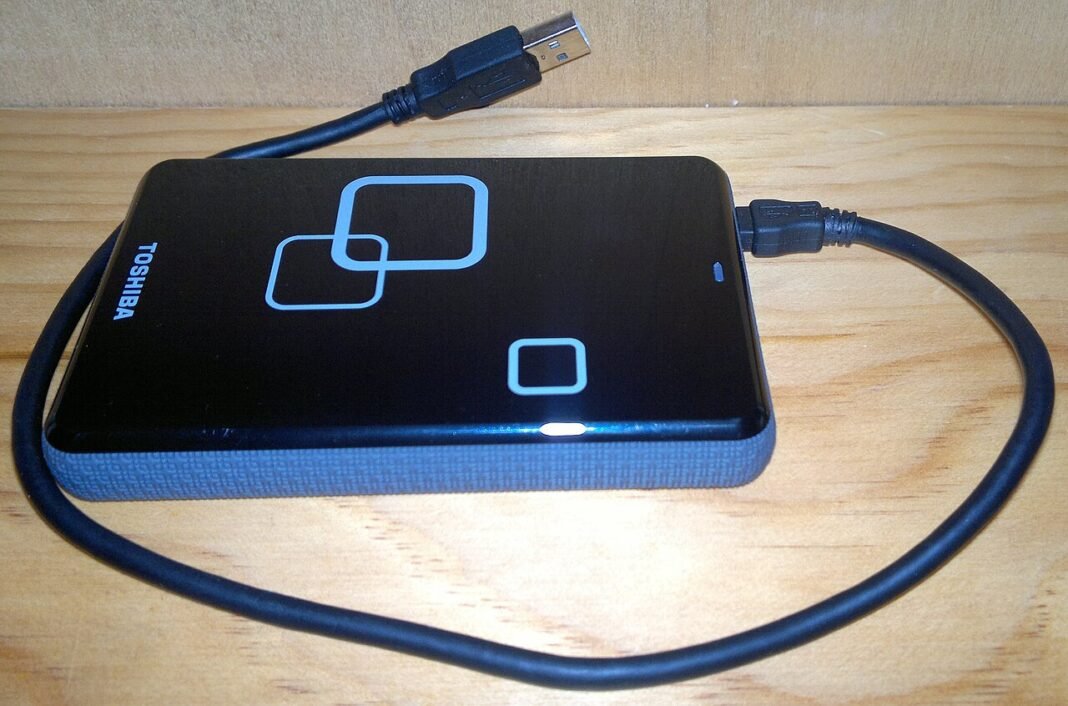
Keep one backup off the cloud too. Copy your most important photos to a computer or external drive. However, do this monthly at least, not yearly.
Finally, verify your backups once in a while. Check the backup date in your settings. Indeed, a backup you never check is only half a backup.