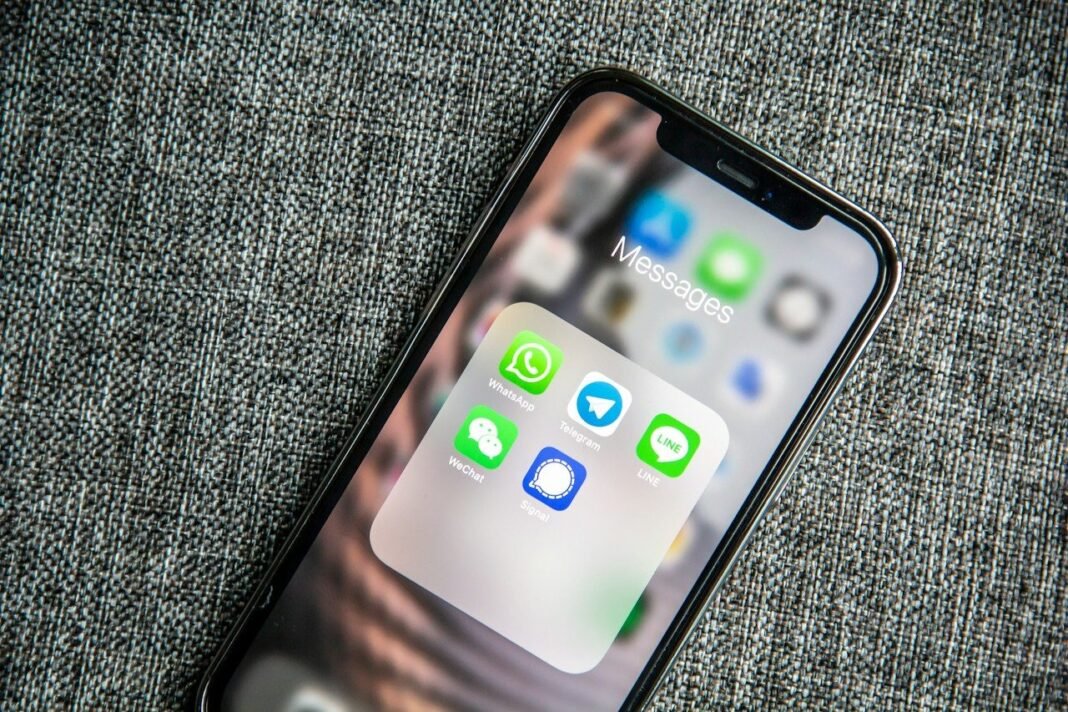
You can transfer WhatsApp to new phone setups without losing chats. The official backup and transfer tools move everything for you. In addition, photos, videos, and voice notes can travel too. This guide shows how to transfer WhatsApp to new phone devices.
The safest route depends on your old and new phones. Same-system moves use built-in chat transfer or cloud backups, however. Cross-system moves now work through official transfer tools as well. As a result, almost every switch has a clean supported path.
Prepare both phones first, and do not rush the switch. Moreover, keep your old phone working until the move ends. Finally, verify your chats before you erase anything at all. One careful hour, in short, protects years of memories.
Prepare Before You Transfer WhatsApp to New Phone
Charge both phones above fifty percent before you begin. Connect both devices to the same strong Wi-Fi network, meanwhile. Then update WhatsApp on the old phone to the latest version. In fact, outdated apps cause most transfer failures today.
- Update WhatsApp on the old phone first.
- Free at least double the chat size in storage.
- Keep the same phone number ready for verification.
- Find your two-step verification PIN if one exists.
- Charge both phones and stay near the router.
Transfer WhatsApp to New Phone on Android
Android offers a direct chat transfer with a QR code. Open WhatsApp Settings on the old phone and tap Chats. Then choose Transfer chats and follow the on-screen steps, for example. The new phone scans the code and receives everything directly.
Alternatively, restore chats from a Google Drive backup instead. Back up on the old phone, then install WhatsApp on the new one. Verify the same number, and WhatsApp offers the backup automatically, consequently. Our guide to automatic phone backups explains the wider habit clearly.
Transfer WhatsApp to New Phone on iPhone
iPhone users can transfer chats with the same QR method. Open Settings inside WhatsApp, tap Chats, and choose the transfer option. Then scan the code shown on the new iPhone, meanwhile. Both phones must stay unlocked and close together throughout.
iCloud backup gives iPhone users a second reliable route too. Back up chats in the old phone’s WhatsApp settings first. Then sign the new iPhone into the same Apple account, indeed. WhatsApp finds the iCloud backup after number verification, as a result.
Move Between Android and iPhone Safely
Switching systems needs the official migration tools from each side. Android to iPhone uses Apple’s Move to iOS app during setup. iPhone to Android uses a cable and the setup wizard, however. The official WhatsApp transfer guide lists the exact requirements for both directions.
Start these moves while the new phone is freshly reset. The migration step appears only during first-time setup, in fact. If setup already finished, a reset may be needed again. Back up everything else first, therefore, before you reset anything.
After the Move: Check and Secure Everything
Open several chats and check photos, videos, and documents carefully. Play a voice note and confirm media opens without errors, for instance. Then rejoin any groups and check disappearing message settings too. Only after this check should you erase the old phone.
Secure the account on the new device right away. Turn on two-step verification inside WhatsApp privacy settings, meanwhile. Our guide to securing your WhatsApp account walks through every protection step. Also remove the old phone from linked devices, consequently.
Frequently Asked Questions
Will I lose chats if I change my number too?
No, WhatsApp includes a Change Number feature for this case. Use it on the old phone before you transfer anything, though. The feature moves your account, groups, and settings to the new number. Contacts then see your new number, in other words, automatically.
Why does the transfer keep failing halfway?
Weak Wi-Fi and low storage cause most mid-transfer failures. Move closer to the router and free more space, for instance. Also disable battery saving on both phones during the move. If failures continue, finally, use the cloud backup route instead.
Do call logs and status updates transfer too?
Chats and media transfer, but call history rules vary by route. Status updates do not move with any official method, indeed. Payment history also stays behind on Android to iPhone moves. Screenshot anything vital, therefore, before you start the switch.
Keep the old phone untouched for a few days after moving. That safety window, in short, makes any surprise easy to fix. Enjoy your new phone with every memory safely aboard.