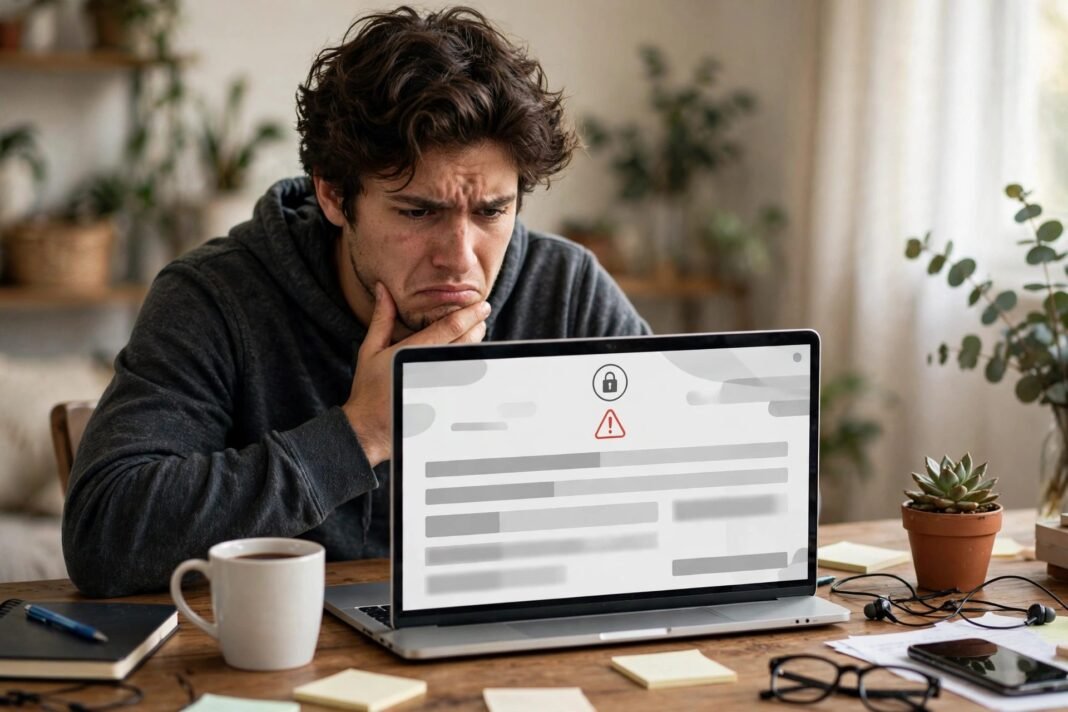



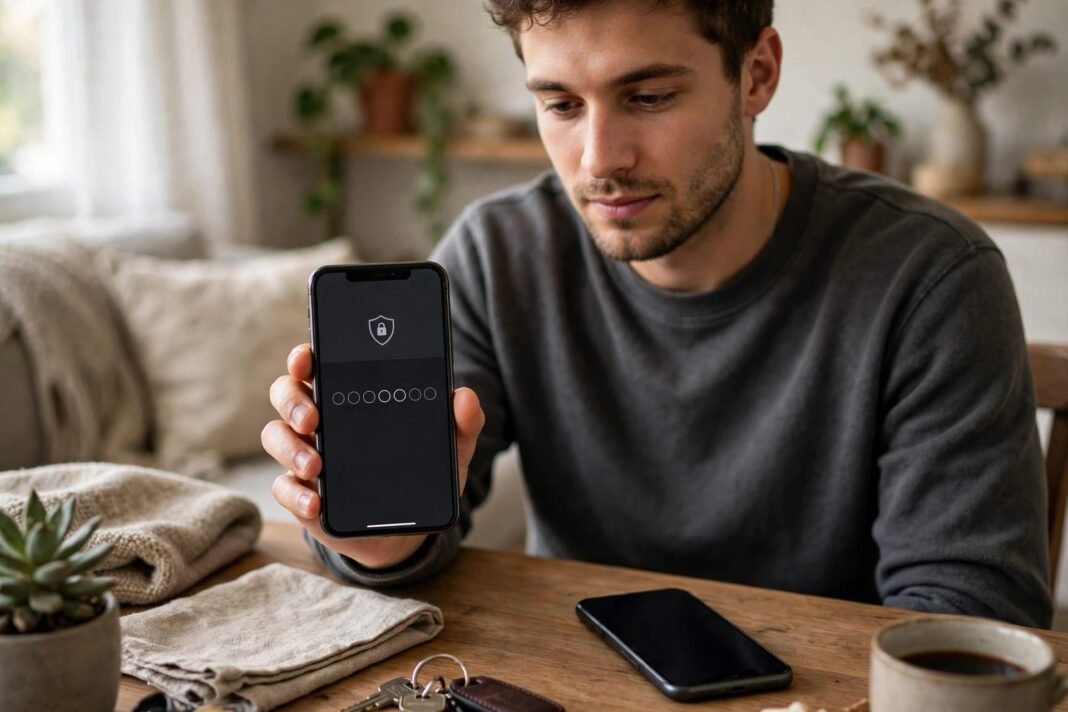
You know your password. You type it in, and Facebook asks for a code. But the code goes to a phone you no longer have, or an app you deleted. Now you are locked out of Facebook two-factor authentication, and the very feature meant to protect you has shut you out.
A lockout at the two-factor step is one of the most common Facebook problems. Two-factor authentication adds a second check after your password, and when that check fails, the door stays shut. The good news is that Facebook offers several ways back in. This guide walks through them in order, from the fastest fix to the last resort.
Why You Get Locked Out of Facebook Two-Factor Authentication
Two-factor authentication asks for a special login code, or for you to confirm the login, each time someone tries to access your account from a browser or device Facebook does not recognise. It is a strong lock, and that is the point.
The trouble starts when your second factor disappears. You lose your phone, change your number, or delete the authenticator app. Or you get a new phone and the app does not move over. Suddenly the code has nowhere to go.
Codes can also fail for simpler reasons. A text message can arrive late, or your phone clock can drift so far that authenticator codes stop matching. The fix depends on the cause, so start with the simplest one first.
First, Try the Code Again the Right Way
If you use text messages, wait a few minutes. Your mobile network can delay codes. Check that you have signal and that your message inbox is not full.
Then ask for a fresh code and enter the newest one. An old code will not work, even if it arrived a minute ago. If the code still does not arrive, check blocked or filtered messages on your phone.
If you use an authenticator app, check your phone’s clock. Open your date and time settings and turn on automatic time. Then restart the phone and try a new code. A wrong clock is a common reason app codes fail.
If the screen still shows you locked out of Facebook two-factor authentication, do not keep guessing codes. Too many wrong attempts can pause the login. Move to the next fix instead.
Approve the Login From a Device That Is Already Signed In
If Facebook is still open on another phone, tablet, or laptop, you may not need a code at all. Look at that device’s notifications. You may see a prompt to approve the new login.
Tap approve on the signed-in device, and the new login should go through. This is the fastest fix when it works, because it skips the code entirely.
If you see no prompt, open the Facebook app on the signed-in device and check for a login alert. The approval may be waiting there.
This only works if Facebook is still open on another device. If you logged out everywhere, move on to recovery codes.
Use a Saved Recovery Code to Get Back In
When you turn on two-factor authentication, Facebook gives you ten recovery login codes. Each one works once, and you can use one in place of your usual code. A recovery code is the fastest way back when a lost phone leaves you locked out of Facebook two-factor authentication. But there is a catch: recovery codes only help if you saved them before the lockout.
On the code screen, look for the recovery code option and enter one unused code. If it works, you are back in. Then go straight to your security settings and get a fresh set of codes.
You cannot generate recovery codes during a lockout. If you never saved any, this route will not work, and you will need Facebook’s identity check instead.
After you regain access, save your new codes somewhere safe and offline. Print them, or write them down and keep them with your important papers. Do not store them only on your phone.
Locked Out of Facebook Two-Factor Authentication With No Phone at All
If you have no phone, no signed-in device, and no recovery codes, Facebook can still check that the account is yours. Start on the code screen and ask for more help.
On a computer, click Need another way to authenticate?, then Other options, then Get more help. Android and mobile web users tap Having trouble?. iPhone or iPad users tap Need help?.
Facebook will guide you through its identity check. That usually means uploading a photo of a government ID, such as a passport or driving licence. Facebook says you typically hear back within one to two working days.
Do this in the full Facebook app or in a browser. Identity checks do not work in Facebook Lite, so install the full app or open facebook.com instead.
How to Confirm Your Identity With Facebook
The identity check asks you to prove the account belongs to you. Facebook may ask for a photo of a government-issued ID. Take a clear photo in good light, with the whole document in the frame.
The name on your ID should match the name on your profile. If it does not, the check can fail. Facebook may also ask questions about the account, such as the date of birth you gave when you signed up.
Only send your ID through Facebook’s own process. Never send it to anyone who contacts you by message or email. And never share a login code with anyone, whatever they claim.
One warning about old tutorials: some guides mention trusted contacts, friends who could send you recovery codes. Facebook retired that feature, and its current recovery pages no longer offer it. If a tutorial tells you to use it, that tutorial is out of date.
While you wait, do not submit the same request again and again. One clear request is enough. Facebook will contact you at the email address on the account.
What If Your Authenticator App Codes Keep Failing?
Authenticator apps make a new code every 30 seconds, and the code depends on your phone’s clock. If the clock is wrong by even a minute, every code fails.
Open your phone’s settings and turn on automatic date and time. Then restart the phone and try a fresh code. In most cases, that fixes it at once.
If you moved to a new phone, your authenticator app may not have moved with you. Most apps do not back up your accounts by themselves. If the app did not move over, use a recovery code or the identity check instead.
After you get back in, set up the authenticator app again on your new phone, and save a fresh set of recovery codes. That way, the next phone change will not lock you out.
Locked Out of Facebook Two-Factor Authentication After a Hack
Sometimes the lockout is not your fault. If someone else got into your account, they may have changed your two-factor settings, your email, or your phone number. In that case, the normal recovery steps may not work.
Go to facebook.com/hacked from a device you have used with the account before. That flow helps you reclaim an account someone else took over.
If Facebook says it locked the account, tap Get started and complete the unlock checks. Our guide to recovering a hacked Facebook or Instagram account walks through the whole process.
After you regain access, change your password, check your contact details, and review where you are signed in. Log out any device you do not recognise.
How to Make Sure This Never Locks You Out Again
The best time to fix a lockout is before it happens. If a lost phone leaves you locked out of Facebook two-factor authentication now, save your codes the moment you get back in. First, save your ten recovery codes. Go to Accounts Centre, then Password and security, then Two-factor authentication. Select your account, open Additional methods, then Recovery codes, and tap Get new codes.
Second, add a second way to get codes. Facebook offers three methods: a security key, an authentication app, and text message codes. Keep more than one ready, so a lost phone does not lock you out.
Third, keep your contact details up to date. Add an email address and a phone number you actually use. Note that you cannot use the phone number for two-factor codes to reset your password, so add a different number or email too.
Finally, learn how two-factor authentication works before you need it. Our guide explains what two-factor authentication is and how to set it up.
Locked Out of Facebook Two-Factor Authentication Is Fixable
It feels unfair when your own security shuts you out. But Facebook built several exits into the process. A delayed code, an approval from another device, a saved recovery code, or an ID check can each open the door.
Work through them in order, and do not skip ahead. The fastest fix is often the one you already have. And once you are back in, save your recovery codes so the next lockout never happens.
Has two-factor authentication ever shut you out? What got you back in? Share your story in the comments, because your answer might help another reader.
This article is for general information only. Facebook changes its login screens often, so the steps on your screen may look a little different from the ones here.