


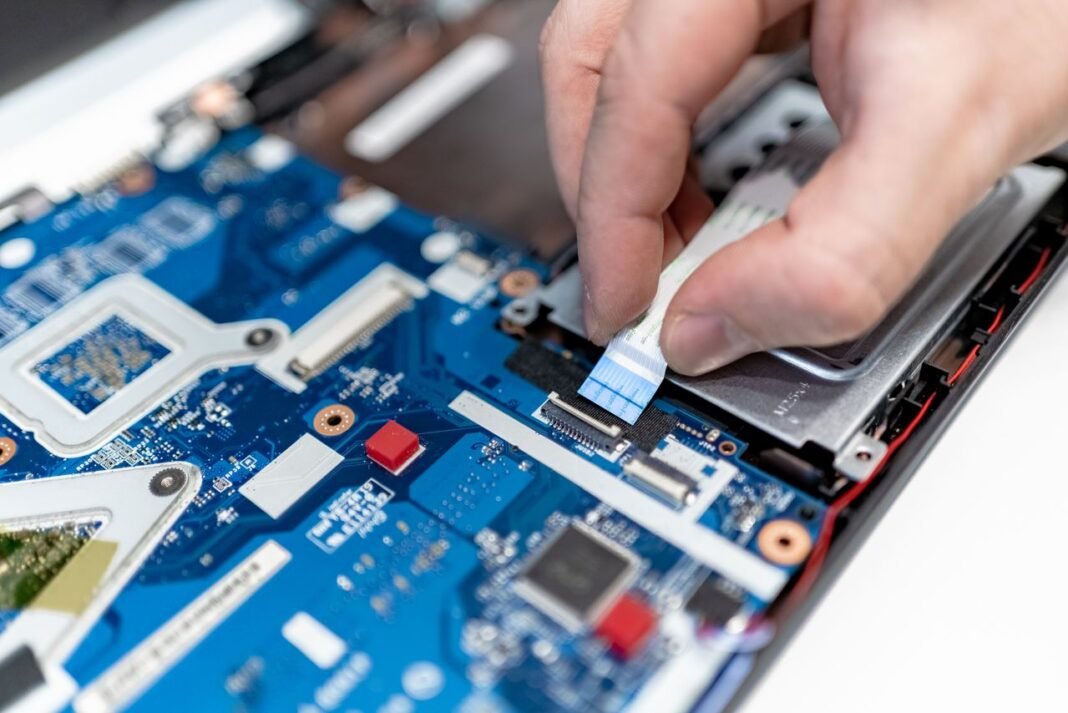
It could be wise to buy a second-hand laptop in Pakistan, as you might get better hardware without spending on the price of a brand new laptop.
In short: Two used laptops with the same Core i5, 8GB RAM and 256GB SSD can be in completely different condition. Safdar Munir’s checklist shows Pakistani buyers how to verify the exact processor and generation, RAM and SSD health, battery report, display, keyboard and ports — and run the machine under load before paying.
This is because there may be business laptops available at prices that would have been sufficient for buying only an entry-level model had the laptop been brand new.
However, one must understand that specs only help in comparing two laptops.
This is because two different laptops with a Core i5 processor, 8 GB RAM and a 256GB SSD can be in totally different conditions. The other may have a worn battery, slow storage, damaged ports or previous repair history.
This is the reason why a good buying checklist for a used laptop in Pakistan needs to have more than looks.
Before you pay for the laptop, you need to check the correct processor, RAM configuration, speed of RAM, SSD and its health, battery status, screen, keyboard, ports, cooling, and the condition of the computer physically.
This is how to do this practically and step by step.
1. Confirm the Exact Laptop Model
Start by asking for the complete model number.
Descriptions such as:
Dell Core i5
HP Core i7
Lenovo 8GB laptop
are not specific enough.
While both a Dell Latitude 5490 and a Dell Latitude 5410 are 14-inch Latitude laptops, they represent different generations with distinct hardware platform features.
The exact model can tell you:
processor generation
original specifications
screen options
available ports
RAM upgrade options
storage compatibility
approximate age
replacement-part availability
Do not just compare laptops but look for the model before going to the seller.
2. Compare the Processor Generations Instead of Core i5 and Core i7
Processor branding is often one of the simplest areas to misunderstand when buying used laptops.
It does not mean that all Core i7s are better than all Core i5 processors.
The generation of a processor, architecture, the number of cores, power consumption and even model make differences.
For instance:
- Intel Core i5-8250U is 8th generation processor
- Intel Core i5-10210U is 10th generation processor
- Intel Core i5-1135G7 is 11th generation processor
You can confirm the processor through:
Settings → System → About
or:
Task Manager → Performance → CPU
If you are unsure, search the complete processor number rather than simply searching “Core i5.”
What do U, H, F and K mean in a processor?
The letters at the end of Intel processor model numbers also matter.
The U-series processors are mainly created for efficient power usage in laptops. They are used in business laptops, student laptops, and thin notebooks.
The H-series processors are high performance processors for laptops. These types of processors are usually found in gaming laptops, mobile workstations, and other laptops that do demanding tasks. They usually consume more power and also need better cooling.
The F-series processors don’t have built-in graphics and mainly used as desktop processors. This means you won’t see many of them in an average laptop.
The K-series processors are unlocked processors for desktops and are meant for overclocking. Again, these processors are very rare in ordinary laptops.
In conclusion, when choosing between two second-hand laptops, one should take into account not only the processor series but also its model and generation.
3. Confirm the RAM Capacity
Open:
Task Manager → Performance → Memory
and confirm that the installed RAM matches the seller's description.
For general browsing, study, Microsoft Office and online meetings, 8GB is a practical starting point for many users.
More demanding work such as:
virtual machines
software development
large spreadsheets
video editing
heavy multitasking
may benefit from 16GB or more.
But capacity is not the only thing worth checking.
4. Check the RAM Speed
If you want to know how to check RAM speed in a laptop, Windows makes it fairly simple.
Open:
Task Manager → Performance → Memory
and look for the reported memory speed.
Depending on the laptop generation, you may see values such as:
2400 MT/s
2666 MT/s
2933 MT/s
3200 MT/s
Modern DDR5 machines can transfer data at much higher speeds.
The faster RAM speed doesn’t necessarily mean that one laptop is significantly better than another one, but this helps you ensure that the installed memory is right for your machine.
Make sure to verify whether the machine uses one or two memory modules.
On machines supporting such an option, two proper RAM modules can work in dual channel mode, and that will give more memory bandwidth compared to single channel machines. It might come in handy for laptops using integrated graphics.
Find out if you can upgrade the RAM
This is as important as the size of the installed RAM.
Some business notebooks have two slots for RAM installation. Some other notebooks have one slot and soldered memory. The least convenient option would be laptops where the RAM is soldered entirely.
If you want to buy an 8GB laptop but plan to upgrade it to 16GB in the future, make sure that the upgrade is even possible first.
5. Make Sure You Know What Type of Storage the Notebook Uses
Seeing “256GB SSD” in a listing does not tell you everything about the drive.
Common used laptops may use:
2.5-inch SATA SSD
M.2 SATA SSD
M.2 NVMe SSD
The performance of the SATA SSD is far greater than that of the conventional mechanical hard drive when working with Windows OS.
The NVMe SSDs have the PCIe interface in place of the SATA interface, and hence, they can offer significantly faster sequential transfer rates.
A functional SATA SSD normally works in the range of the SATA interface, whereas the NVMe SSDs work faster, depending on the generation of the PCIe, drive, and laptop.
It is not as significant when you need to open a web browser as it is when transferring large files.
6. Check SSD Health
Knowing how to check SSD health is especially useful when buying a used laptop because storage devices accumulate wear.
Use a SMART-capable drive-health utility and look at:
overall drive health
temperature
power-on hours
warning indicators
total data written where available
remaining life or wear information
read or write errors
Do not treat one number in isolation as an automatic pass or fail.
For example, high power-on hours may simply indicate that the laptop previously worked in an office environment.
What matters more is whether the drive reports errors, abnormal health indicators or instability.
7. Test the SSD Speed
Health and speed are related but not identical.
A drive may technically be healthy while performing far below expectations.
A utility such as CrystalDiskMark can be used to test storage read and write performance.
While analyzing the outcomes, consider how the performance level compares with that which is expected from the drive interface used.
For instance, you should not expect high-end NVMe levels from a SATA SSD drive. It is also erroneous to think that an NVMe drive is defective when the result attained is not the highest listed in the specification sheets from the manufacturer.
The bigger warning signs are:
extremely inconsistent speeds
repeated freezing during transfers
disk errors
very low performance compared with similar drives
unexplained system pauses while storage activity is high
Try copying a large file as a simple real-world test as well.
8. Check Laptop Battery Health
Battery conditions vary significantly between individual used laptops.
A battery showing “100% charged” is not necessarily healthy.
Windows includes a useful battery-report feature.
Open Command Prompt and run:
powercfg /batteryreport
Windows generates an HTML battery report.
Look for:
Design Capacity
Full Charge Capacity
recent usage
battery-life estimates
The Design Capacity represents what the battery was designed to hold when new.
The Full Charge Capacity represents approximately how much it can currently hold.
If those figures differ considerably, the battery has lost some of its original capacity.
Do not judge battery conditions by this report alone.
Disconnect the charger and use the laptop.
Watch for:
rapid discharge
sudden percentage drops
unexpected shutdowns
charging that repeatedly connects and disconnects
battery percentage becoming stuck
Real-world runtime will also depend on display brightness, processor workload, Wi-Fi use and background applications.
9. Look for Battery Swelling
Battery swelling deserves separate attention because it can physically deform the laptop.
Look for:
a raised touchpad
bottom cover bulging
gaps appearing between panels
keyboard or palm rest lifting
chassis that no longer sits flat
Do not treat an obviously swollen battery as a normal cosmetic defect.
It should be replaced properly.
10. Inspect the Display
Set the screen brightness high and display a plain white image.
Check for:
dark pixels
bright pixels
stains
pressure marks
uneven colours
unusual patches
Then display a black image and look for excessive light leakage or bright areas.
Also slowly move the screen through its normal hinge range.
Watch for:
flickering
lines
image disappearing
colour shifts caused by movement
Such behaviour may indicate a display cable or panel-related issue.
For touchscreen laptops, test different areas of the panel rather than tapping only one location.
11. Test Every Keyboard Key
Open Notepad and press every key.
Check:
letters
numbers
arrow keys
Space
Enter
Shift
Ctrl
Backspace
function keys
Then type a paragraph at normal speed.
A quick individual key test can miss a key that occasionally double-types or fails intermittently.
If keyboard backlighting is available, test it as well.
12. Check the Touchpad
Move the pointer across the full touchpad surface.
Test:
left click
right click
scrolling
drag and drop
multi-finger gestures
Watch for areas where cursor movement becomes inconsistent.
If the laptop includes separate physical buttons or a TrackPoint, test those too.
13. Test Every Port with a Real Device
Do not inspect ports only by looking at them.
Carry a USB flash drive and test every available USB port.
Depending on the laptop, also test:
USB-C
HDMI
DisplayPort
headphone jack
Ethernet
SD card reader
charging connector
If USB-C is used for power supply or for an external monitor, make sure that it works properly for this purpose since USB-C features differ depending on the laptop model.
14. Wi-Fi and Bluetooth Connectivity Test
Connect to Wi-Fi and use the connection for a few minutes.
Do not just check that the network appears in the list.
See whether the connection is stable enough.
Try to pair the Bluetooth device if you can.
Wireless issues can be irritating and do not manifest themselves in the thirty-second test.
15. Test Webcam, Microphone and Speakers
Webcamera, Microphone and Speakers Tests
Launch the Camera app.
Make sure that the image quality is high and that the webcamera connects successfully.
Then try recording a voice note and/or make a phone call via microphone.
Play audio via laptop speakers and headphone jack.
Students and remote workers usually find problems with the webcamera and microphone only after they take their laptop to home, so it is not hard to test these functions before purchase.
16. Check Hinges and Physical Condition
Open and close the laptop carefully.
The screen must open and stay put wherever you leave it.
Check for:
loose hinges
cracking sounds
broken hinge mounts
excessive screen movement
gaps opening around the chassis
Then inspect:
palm rest
corners
bezel
bottom cover
rubber feet
screws
Scratches and cosmetic wear are normal on many used business laptops.
Structural damage matters much more.
17. Look for Signs of Previous Repair
Previous repairs are not always easy to identify, but there are warning signs worth checking.
Look at:
damaged or rounded screw heads
missing screws
mismatched screws
uneven chassis seams
poorly seated covers
unusual adhesive
visible corrosion
heat marks
If the seller allows the bottom cover to be inspected, look for unusual motherboard work, liquid damage and poorly fitted replacement components.
Ask the seller directly whether the motherboard has previously undergone board-level repair.
Do not assume a clean exterior means untouched internal hardware.
18. Run a Laptop Stress Test Before Buying
One of the most useful checks is also one of the most commonly skipped.
A laptop can behave perfectly when cold and develop problems only after the CPU, GPU and cooling system become hot.
A proper laptop stress test before buying helps reveal those issues.
Start with normal heavy use:
open many browser tabs
play high-resolution video
open several programs
move a large file
switch repeatedly between applications
Then, if the seller allows it, use a benchmark or stress-testing utility.
Useful tools can include:
Cinebench for CPU load
OCCT for system stability testing
AIDA64 for system stress testing
CrystalDiskMark for storage performance
For a shop inspection, you normally do not need to leave the laptop running a test for several hours.
A 10–20-minute sustained test can already reveal problems that a quick boot cannot.
19. What Should You Watch During a Stress Test?
Do not focus only on the benchmark score.
Watch how the laptop behaves.
Look for:
freezing
unexpected restart
sudden shutdown
display corruption
severe slowdown
abnormal fan noise
extreme heat
charging problems
applications crashing
Some performance reductions under sustained load is normal because modern processors manage temperature and power dynamically.
The bigger problem is instability.
If a laptop repeatedly freezes, restarts or shuts down under load, do not ignore it simply because the specifications look good.
Check CPU temperature and clock speed
A monitoring utility can show CPU temperature and frequency during the test.
Temperatures naturally rise when a laptop is under load.
The important question is whether the cooling system can keep the machine stable.
A thin business laptop and a gaming workstation will have different cooling capabilities, so avoid judging every laptop by one universal temperature number.
Instead, look for sustained instability, unusually aggressive throttling or heat behaviour that is clearly abnormal for the model.
20. Stress-Test Dedicated Graphics Separately
If the used laptop contains an NVIDIA or AMD dedicated GPU, CPU testing alone is not enough.
Graphic-related faults can appear only when the GPU becomes active.
This is particularly relevant when buying:
gaming laptops
mobile workstations
CAD laptops
video-editing machines
Run an appropriate graphics workload and look for:
coloured artifacts
flashing textures
driver crashes
black screens
unexpected restart
excessive heat
A laptop bought specifically for GPU-heavy work should be tested under GPU load before payment whenever possible.
21. Check BIOS and Security Locks
Restart the laptop and enter BIOS or UEFI.
Confirm that you can access it without an unknown administrator or supervisor password.
Check:
processor
RAM
storage
serial number
boot configuration
security settings
Ex-corporate laptops occasionally retain security settings from their previous deployment.
A BIOS lock that you cannot remove may become a serious problem later.
22. Confirm Windows Activation and Compatibility
Open Windows Activation settings and check whether the installed Windows copy is activated.
Also consider whether the hardware supports the operating system you intend to use.
Operating system requirements change over time, so checking compatibility is more useful than assuming that any machine running Windows today will remain equally suitable for years.
23. Do Not Judge a Laptop Only by Cosmetic Grade
Terms such as:
A+
Grade A
Grade B
are frequently used in the used-device market.
They usually communicate something about physical appearance, but they do not automatically tell you about internal condition.
A very clean-looking laptop can still have:
poor battery health
worn SSD
overheating
faulty ports
repair history
Likewise, a laptop with minor scratches may be technically excellent.
Appearance matters, but it should be only one part of the decision.
24. Verify the Seller
When buying from a business or online seller, check more than the laptop.
Look for:
identifiable business details
working contact information
real customer reviews
clear product specifications
actual photos where possible
checking or return terms
purchase documentation
Ask whether photos and videos show the actual unit or are generic product images.
A serious seller should also be able to explain how the laptop was tested.
Pakistani buyers comparing seller transparency can look at how a specialist used-laptop retailer such as LapBazar.pk presents its laptop range and buying information before deciding what information they should expect from a seller.
25. Confirm Warranty or Checking Terms Before Payment
Do this before handing over money.
Ask:
How long is the checking period?
What faults are covered?
What is excluded?
What happens if a fault appears?
Is replacement available?
Is refund available?
How must a fault be reported?
Who pays shipping for an online return?
Whenever possible, get the terms in writing.
A vague verbal promise becomes much harder to rely on once the purchase is complete.
A Practical 15-Minute Used Laptop Buying Checklist
If you have limited time in a shop, use this sequence:
Confirm the exact laptop model.
Verify processor generation and suffix.
Confirm RAM capacity.
Check RAM speed and upgradeability.
Identify SATA or NVMe storage.
Check SSD health.
Run a quick SSD speed test.
Generate the battery report.
Inspect the display.
Test every keyboard key and touchpad.
Test USB and other important ports.
Connect Wi-Fi and test webcam, microphone and speakers.
Inspect hinges, screws and chassis.
Run a 10–20-minute load or stress test.
Confirm BIOS access and checking terms before payment.
Which Problems Should Make You Reconsider the Purchase?
Not every cosmetic defect should stop purchase.
A scratch may be acceptable if the price reflects it.
More serious warning signs include:
swollen battery
repeated shutdowns under load
freezing during stress testing
unknown BIOS password
major screen defects
badly damaged hinges
severe storage errors
obvious liquid damage
specifications that do not match the listing
seller refusing reasonable testing
The point of inspection is not to find a perfect used laptop.
It is to understand exactly what you are buying.
Final Thoughts
Knowing how to check a used laptop before buying is more useful than memorising a list of supposedly good models.
A Core i7 sticker cannot tell you the condition of the battery.
A large SSD capacity does not tell you whether the drive is healthy or fast.
Eight or sixteen gigabytes of RAM does not tell you its configuration or whether it can be upgraded.
And a laptop that feels fast for two minutes does not tell you whether it will remain stable after fifteen minutes of sustained load.
Check the exact processor and generation. Verify RAM capacity and speed. Identify the SSD type, test its health and check its performance. Generate a battery report. Test the display, keyboard and ports. Finally, run the machine hard enough to see how it behaves once it becomes warm.
That combination gives you a far more complete picture of a used laptop than its appearance or specification sheet alone.
For Pakistani buyers, a few extra minutes of structured testing before payment can be the difference between finding a good-value machine and inheriting someone else's hardware problem.
Frequently Asked Questions
What should you check before buying a used laptop in Pakistan?
Check the exact processor and generation, verify RAM capacity and speed, identify the SSD type and test its health and performance, generate a battery report, and test the display, keyboard and ports. Finally, run the machine hard enough to see how it behaves once it becomes warm.
Why is a battery report important when buying a used laptop?
Specifications only compare models; condition decides value. A battery report shows the battery’s real remaining capacity, and an SSD health test reveals wear that appearance and a spec sheet cannot show. A few minutes of structured testing before payment can prevent inheriting someone else’s hardware problem.
Is buying a used laptop in Pakistan a good idea?
It can be wise: business laptops often sell for the price of a new entry-level model, giving better hardware for the same money. The risk is condition, not specifications — which is why the testing checklist matters more than the listing.