


You open WhatsApp to read one quick message. A minute later, the sender knows you read it. Your last seen tells them when you were last online, and two blue ticks tell them you saw their words. But you can hide last seen blue ticks WhatsApp shows about you, and it takes less than a minute. This guide shows you the two settings that do it, plus the trade-offs you should know first.
What Last Seen and Blue Ticks Actually Show
Last seen is the time you last had WhatsApp open. Online means you have the app open right now. Both appear under your name at the top of a chat, so anyone who messages you can see them.
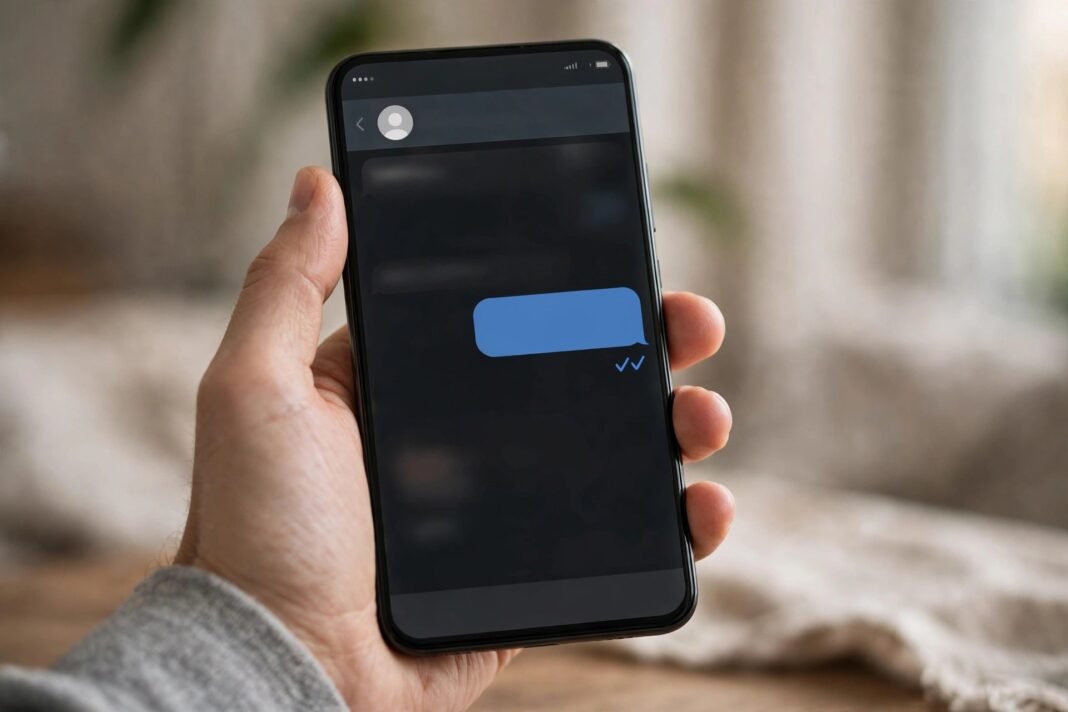
The ticks next to your messages tell a second story. One grey tick means your message was sent. Two grey ticks mean it reached the other person’s phone. Two blue ticks mean they opened the chat and read it. On a voice message, the small microphone turns blue once the message has been played.
By default, WhatsApp shares all of this. Your contacts can see your last seen, and anyone can see your read receipts and when you are online. So if you want to hide last seen blue ticks WhatsApp shows about you, you need to change the settings yourself. The good news is that both switches sit in the same menu.
Hide Last Seen Blue Ticks WhatsApp: Step 1, Your Last Seen
Start with your last seen, because it is the setting most people want to change. Follow these steps:
- Open WhatsApp and go to Settings. On Android, tap the three dots at the top right, then Settings. On iPhone, tap the Settings tab at the bottom.
- Tap Privacy.
- Tap Last seen and online.
- Under “Who can see my last seen”, choose Nobody to hide it from everyone. Or choose My contacts except… to hide it from certain people only.
- Under “Who can see when I’m online”, choose Same as last seen. This way, your online status follows the same rule.
The change works right away. From now on, the people you excluded will no longer see when you were last online. And if you picked Nobody, no one will see it at all.
One detail is worth knowing. If you pick Everyone, only people you have called, messaged, or saved as a contact can see your last seen. So Everyone is narrower than it sounds.
Hide Last Seen Blue Ticks WhatsApp: Step 2, Read Receipts
Next, turn off read receipts to hide the blue ticks. The steps are short:
- Open WhatsApp and go to Settings.
- Tap Privacy.
- Switch off Read receipts.
That is all it takes to hide last seen blue ticks WhatsApp shows in your one-to-one chats. From now on, senders will see only two grey ticks when you read their messages. In other words, they will know the message arrived, but not that you opened it.
You can switch read receipts back on at any time, in the same place. So nothing here is permanent, and you can test the setting for a few days before you decide.
What Hiding Your Last Seen Costs You
Before you change these settings, know the trade-offs. WhatsApp treats privacy as a two-way street, so hiding your activity hides other people’s activity from you too.
Firstly, if you hide your last seen, you cannot see other people’s last seen either. Your chats will simply stop showing those details for everyone.
Secondly, if you turn off read receipts, you will no longer see blue ticks on the messages you send. You will only see two grey ticks, so you cannot tell when someone has read your words.
Also, read receipts are tied to your status views. If you turn them off, you cannot see who viewed your status updates. So the quiet comes at a real cost, and it is worth thinking about which side matters more to you.
Finally, these settings are not retroactive. Messages you already read keep their blue ticks, and your last seen up to now stays visible in the past. The changes only affect what happens from now on.
Where These Settings Do Not Work
These two switches cover most chats, but they do not make you invisible. A few things still show, whatever you choose.
Group chats are the biggest exception. Read receipts are always sent in groups, so other members can still see that you read a message. Anyone can press and hold their message, tap Info, and see your name under Read by. There is no setting that turns this off.
Voice messages are the second exception. Play receipts for voice messages cannot be turned off either. The microphone turns blue when you play a voice message, even if your read receipts are off. So a voice note always gives you away.
Typing signs still appear too. When you type a reply, the other person sees “typing…” in the chat. The same goes for “recording…” when you record a voice message. In short, these settings hide your last seen and blue ticks, but not the fact that you are using WhatsApp now.
Your WhatsApp Privacy Checklist
Use this quick checklist to set everything in one go. Firstly, set your last seen to Nobody or My contacts except… Then set your online status to Same as last seen. Next, switch off read receipts if you want to hide your blue ticks. Finally, check your profile photo setting in the same Privacy menu, and limit it to your contacts if you like.
If you run more than one number, you can also use two WhatsApp accounts on one phone. You can set the privacy of each one separately. For wider phone safety, learn how to create a strong password you can remember. You can also learn how to turn off location tracking on your phone.
Now you know how to hide last seen blue ticks WhatsApp shows about you. Which setting will you change first — your last seen, or your blue ticks?