


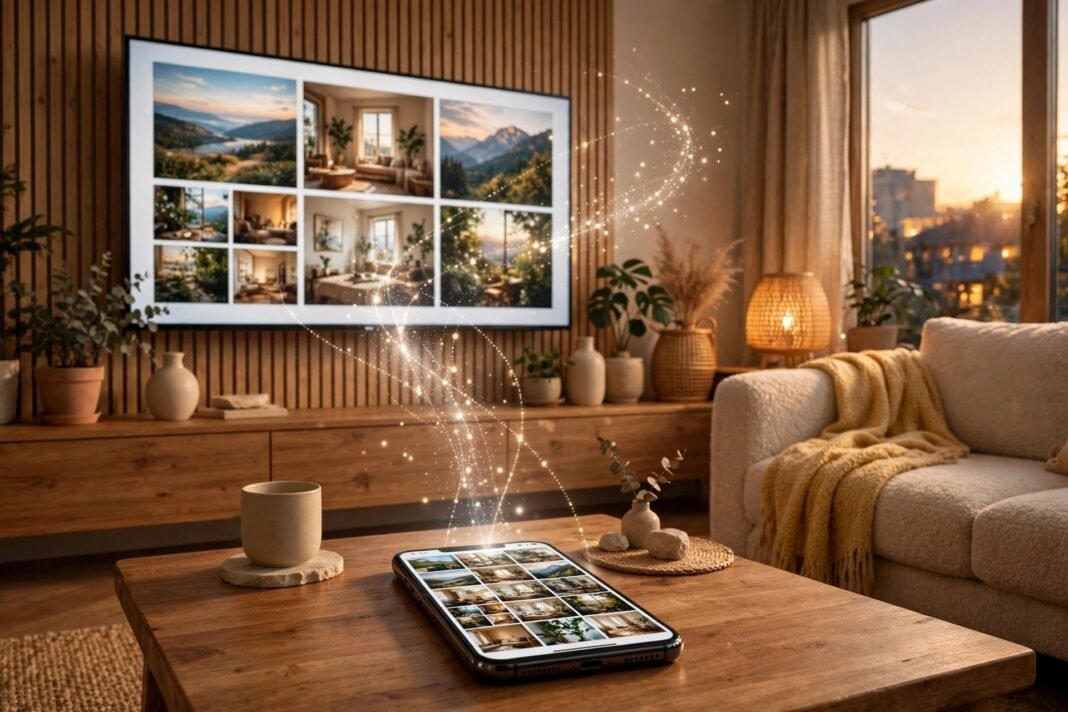
A phone screen is fine for quick videos, but some things deserve a bigger screen. Family photos, a video call, a film, or a game all look better on a TV. The good news is that you can connect phone to tv in minutes, with no tech skills needed.
There are three main ways to do it: wireless mirroring from iPhone or Android, casting a single video from an app, or a simple cable. This guide covers all three, plus what to do when the TV does not show up.
Connect Phone to TV: The Two Wireless Ways
Wireless mirroring copies your whole phone screen onto the TV. Everything you see on the phone appears on the TV, from photos to apps to web pages.
Casting is different: it sends only one video or song from an app to the TV, while your phone stays free for other things. For example, you can cast a film and still reply to messages.
Both ways need the phone and the TV on the same Wi-Fi network. That is the single most important rule in this guide, and most failures come down to it.
Mirroring shows calls and messages too, so turn on Do Not Disturb before you start if you want privacy.
Mirror Your iPhone With AirPlay
iPhones use AirPlay to mirror to a TV. You need an Apple TV box or a smart TV with AirPlay built in. Many recent smart TVs from Samsung, LG, and Sony have it.
- Connect your iPhone and the TV to the same Wi-Fi network.
- Open Control Centre: on iPhone X or later, swipe down from the top-right corner; on iPhone 8 or earlier, swipe up from the bottom edge.
- Tap Screen Mirroring (the icon of two overlapping rectangles).
- Select your TV from the list.
- If a passcode appears on the TV, enter it on your iPhone.
Your iPhone screen now appears on the TV. To stop, open Control Centre again, tap Screen Mirroring, then tap Stop Mirroring. Apple lists these exact steps on its AirPlay support page.
You can also stream one video without mirroring the whole screen. Open the video in an app, tap the AirPlay button, and choose your TV. In the Photos app, tap Share first, then tap the AirPlay button.
How to Connect Phone to TV From an Android
Android phones use Chromecast or Google Cast to send their screen to a TV. You need a Chromecast device, a Google TV Streamer, or a TV with Google Cast built in.
The easiest way is the Google Home app. First, connect your phone and the TV to the same Wi-Fi network. Then open the Google Home app on your phone.
- Open the Google Home app.
- Touch and hold the tile for your TV.
- Tap Cast, then tap Cast my screen.
- Tap Start now when asked.
Some Android phones also have a Cast or Screen Cast tile in Quick Settings. Swipe down from the top of the screen, tap the tile, and pick your TV from the list.
Screen casting needs Android 8.0 or later. Also keep the phone awake while you mirror, because locking the screen can stop the picture.
Use Samsung Smart View on a Galaxy Phone
Samsung Galaxy phones have their own mirroring tool called Smart View. It is built into the phone, so you do not need to download an app.
- Connect your phone and the TV to the same Wi-Fi network.
- Swipe down from the top of the screen to open the Quick panel, then swipe down again to expand it.
- Tap Smart View.
- Select your TV from the list of available devices.
- Tap Start now, and enter the PIN or tap Allow if the TV asks.
Smart View works with Samsung smart TVs and other Miracast-compatible TVs. If you cannot see Smart View in the Quick panel, tap Edit and add it to the panel. Samsung lists these steps in its screen mirroring guide.
To stop mirroring, tap the Smart View icon again and tap Disconnect.
Connect Phone to TV for One Video Only
You do not always need to mirror the whole screen. If you only want to watch one video, casting from the app is the better choice.
Open a video app such as YouTube on your phone, then tap the Cast button (a small screen with a Wi-Fi symbol). Choose your TV from the list, and the video plays on the TV while your phone stays free.
This works with Chromecast, Google TV, and many smart TVs. The phone and the TV must still share the same Wi-Fi network. As a bonus, casting often uses less battery than full mirroring, because the TV plays the video itself while your phone rests.
Connect Phone to TV With a Cable
No Wi-Fi? No problem. A cable is the most reliable way to connect phone to tv, and it never lags or drops.
For iPhone, you need an adapter that matches your phone’s port. iPhone 15 and later use a USB-C to HDMI adapter, while earlier iPhones use Apple’s Lightning Digital AV Adapter. Plug the adapter into the phone, connect an HDMI cable from the adapter to the TV, and switch the TV to that HDMI input.
Some Android phones also work with a USB-C to HDMI adapter. However, not every Android phone sends video through its charging port, so check your phone’s manual or the maker’s site first.
Adapters are sold separately, and you will also need an HDMI cable if you do not have one. The picture is sharp and steady, because a cable does not depend on Wi-Fi at all.
What to Do When Your TV Does Not Appear
The most common fix is also the simplest: check that both devices are on the same Wi-Fi network. A guest network counts as a different network, so move both to the main one.
Next, restart both devices. Turn the TV off and on again, and restart your phone. Then try the steps again from the start.
Also check that AirPlay or casting is turned on in the TV’s own settings. On some TVs, the feature is off by default. Finally, update the TV’s software if an update is waiting, because old software can block new phones.
If the TV still does not appear, move the phone closer to the router, or restart the router itself. A weak Wi-Fi signal is a common cause of a missing TV. Also make sure your phone’s software is up to date, because a phone update can fix casting bugs too.
How to Stop Mirroring When You Are Done
Stopping is as easy as starting. On iPhone, open Control Centre, tap Screen Mirroring, then tap Stop Mirroring.
On Android, open the Google Home app, tap the TV tile, and tap Stop mirroring. If you used Quick Settings, tap the Cast tile again to disconnect.
On Samsung, tap the Smart View icon and tap Disconnect. For a cable, simply unplug the adapter from the phone.
It is worth disconnecting when you finish. Otherwise the TV may keep showing your screen, and anyone in the room will see your notifications too.
Which Method Should You Pick?
If you have an iPhone and an AirPlay TV, use AirPlay — it is built in and takes seconds. If you have an Android phone and a Chromecast or Google TV, use the Google Home app.
Samsung owners should try Smart View first, because it is made for Galaxy phones and Samsung TVs. For a single video, casting from the app beats full mirroring every time.
And if your Wi-Fi is slow or unreliable, a cable wins. It costs a little, but it works every time, with no lag and no dropouts.
If you travel, a cable is also the safest bet, because hotel and guest Wi-Fi often block mirroring. A small adapter in your bag means the TV works wherever you go.
Get the Best Picture on the Big Screen
A few small habits make a big difference. First, turn your phone sideways (landscape) before you mirror, so the picture fills the TV screen instead of sitting in the middle.
Also, keep the phone charged or plugged in while you mirror. Mirroring uses power, and a phone that dies mid-film ruins the evening.
If you mirror photos, clean up your camera roll first — our guide to transferring photos from your phone to your laptop shows how to move them without a cable. And if you use your phone as a camera often, see how to use your phone as a webcam too.
So, what will you watch on the big screen first? Try one of these methods tonight and see how easy it is.