


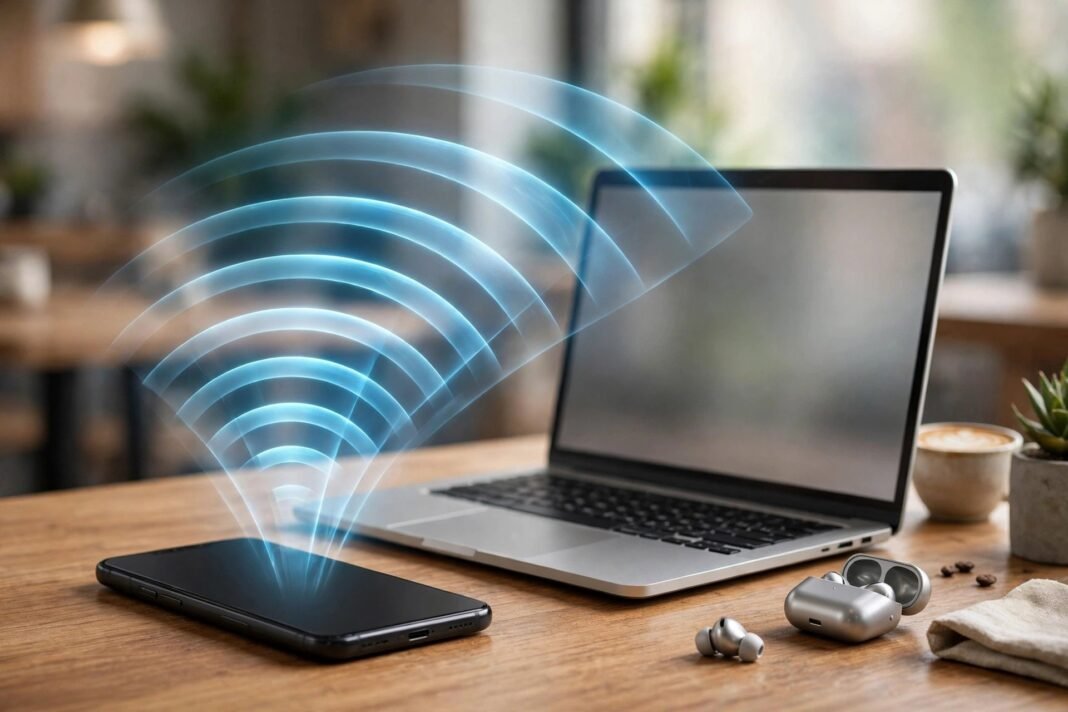
Your laptop needs the internet, but there is no Wi-Fi in sight. The hotel Wi-Fi is down, or you are working far from any router. In moments like these, your phone can save the day. You can use phone as mobile hotspot and share its mobile data with your laptop or tablet. That feature is called a mobile hotspot.
A hotspot turns your phone into a small Wi-Fi network. Other devices see it in their Wi-Fi list, just like a home router. This guide shows you how to use phone as mobile hotspot on iPhone, Samsung, and Pixel phones, step by step. It also covers passwords, data warnings, and fixes for when the hotspot will not work.
What a Mobile Hotspot Actually Does
A mobile hotspot shares your phone’s internet connection with other devices. Your phone uses its mobile data, and it broadcasts a Wi-Fi network that laptops and tablets can join. The feature is also called tethering, so you may see that word in your settings.
For example, it gets your laptop online in a car, at a beach, or in a cafe with no Wi-Fi. You can also help a friend whose data has run out, because one hotspot can serve several devices at once. On a Pixel phone, up to 10 devices can share one hotspot.
However, a hotspot is not the same as home broadband. It runs on your mobile data plan, so every page and video counts against your allowance. It also drains your phone’s battery faster than normal use.
Before You Use Phone as Mobile Hotspot, Check Your Plan
Before you switch anything on, check that your mobile plan allows tethering. Some carriers limit hotspots or charge extra for them, so it is worth a quick check. If your plan does not include tethering, the hotspot may not appear at all. If you are unsure, ask your carrier before you start.
Also make sure mobile data is turned on. A hotspot shares your cellular connection, so it cannot work if mobile data is off. On iPhone, open Settings, then tap Cellular, and check that Cellular Data is on. On Android, swipe down for Quick Settings and check that Mobile data is on. If your phone cannot browse with Wi-Fi off, the hotspot will not work either.
Note that an iPhone hotspot shares only your cellular connection. You cannot connect your iPhone to a Wi-Fi network and then share that network with another device.
How to Use Phone as Mobile Hotspot on iPhone
On iPhone, the feature is called Personal Hotspot, and it takes less than a minute to set up. First, open Settings, then tap Personal Hotspot. If you do not see it, open Settings, tap Cellular, and then tap Personal Hotspot there instead. On a new iPhone, you may need to tap Set Up Personal Hotspot and follow the steps on screen.
Next, turn on Allow Others to Join. The switch turns green, and your hotspot is live at once. The Wi-Fi Password is shown on the same screen, and you will need it on the other device. If you want a different password, tap Wi-Fi Password and type a new one. Apple asks for at least eight characters, and you must use plain letters, numbers, and common punctuation only.
Your hotspot name is your iPhone’s name, so other devices will see that name in their Wi-Fi list. To change it, open Settings, tap General, then tap About, then tap Name. Pick a name that does not give away personal details, because nearby strangers can see it.
How to Connect a Laptop or Tablet to Your iPhone Hotspot
Once the hotspot is on, connecting another device is easy. On the other device, open the Wi-Fi list and look for your iPhone’s name. Tap it, then type the Wi-Fi Password from your iPhone screen. It will connect in a few seconds, and it will remember the password.
Wi-Fi is not the only way to connect. You can also pair over Bluetooth, or plug in a USB cable and share the connection that way. A USB cable has a bonus: it charges your phone while you work.
How to Use Phone as Mobile Hotspot on a Samsung Phone
On a Samsung Galaxy phone, the path is slightly different, but the idea is the same. Open Settings, then tap Connections, then tap Mobile Hotspot and Tethering. Next, tap Mobile Hotspot and turn on the switch at the top.
Before you connect anything, check the network name and password. Tap Mobile Hotspot, then tap Configure to change them. Set a name that is easy to spot, and a password that is hard to guess. Samsung also offers a QR code, so a friend can join by pointing their camera at your screen.
Samsung adds a few extra controls under Advanced. You can set the hotspot to turn off on its own when no device is connected, and that saves battery. If a setting is missing, your model or carrier may not offer it.
How to Use Phone as Mobile Hotspot on a Pixel Phone
On a Google Pixel phone, open Settings, then tap Network & internet. Next, tap Hotspot & tethering, then tap Wi-Fi hotspot. Turn on Use Wi-Fi hotspot to start sharing. You can change the hotspot name and password on the same screen.
One thing can block the hotspot on a Pixel: Data Saver. If Data Saver is on, you must turn it off before you can tether by Wi-Fi. So check it first if the hotspot switch will not work. You will find Data Saver under Settings, then Network & internet, then Data Saver.
A Pixel hotspot can share your data with up to 10 devices at once. To save battery, the hotspot turns itself off when no device is connected. Bluetooth and USB sharing sit in the same menu, so you still have two more ways to connect.
Set a Strong Hotspot Password
Never run a hotspot without a password. An open hotspot lets any stranger nearby use your data, and it also exposes your devices to snooping. So always keep the password on, even if you are only sharing for a minute.
Pick a password that is long and hard to guess. Mix letters and numbers, and avoid birthdays, names, or simple patterns like 12345678. On iPhone, the password must be at least eight characters, using plain letters, numbers, and some punctuation. So skip emoji and accented letters, because they will not work.
Also change the password from time to time, especially if you shared it with people you do not see often. Once someone knows your hotspot password, their device can rejoin whenever the hotspot is on. So a fresh password is the simplest way to cut off old guests.
Watch Your Data and Battery
When you use phone as mobile hotspot, it can eat your data plan fast. Laptops use far more data than phones, because they load full websites, update apps, and sync files in the background. A single video call or a software update can use a lot of data on its own. So check your data balance before a long session.
Battery drain is the second cost. Sharing a connection keeps your phone working hard, and it can get warm too. So plug your phone into a charger while the hotspot is on, if you can. If you cannot charge, keep sessions short and turn the hotspot off as soon as you finish.
A few habits help a lot. Turn off automatic updates on the laptop before you connect, because they can start without warning. Ask others to avoid video streaming on your hotspot, since video is the biggest data user. And turn the hotspot off when you are done, because a forgotten hotspot keeps using power.
Hotspot Will Not Turn On? Try These Fixes
If the hotspot will not turn on, start with the simplest fix: restart your phone. Then try again. Restarting clears temporary glitches. Also restart the device that is trying to connect, because the fault may sit on that side.
Next, check the basics. Make sure mobile data is on, and make sure your phone can browse the web with Wi-Fi off. If it cannot, the problem is your data connection, not the hotspot. On Android, also check that Data Saver is off, because it blocks Wi-Fi tethering. On iPhone, check that Cellular Data is on in Settings, then Cellular.
If the hotspot option is missing or greyed out, your carrier plan is the likely cause. Apple says to contact your carrier about adding Personal Hotspot to your plan. So call your carrier and ask if tethering is included. If it is not, you may need a plan change before the feature appears.
On iPhone, one more fix is worth trying: reset your network settings. Open Settings, tap General, then tap Transfer or Reset iPhone, then tap Reset, then tap Reset Network Settings. This also erases saved Wi-Fi passwords and cellular and VPN settings, so use it only after the simpler fixes. On an iPhone 12 or later, Maximize Compatibility in Personal Hotspot can also help older devices connect.
When to Use a Hotspot, and When Not To
A hotspot shines in some moments and struggles in others. It is perfect for travel, a quick email, or a work call when the Wi-Fi fails. It also helps during a power cut, when your home router is dead but your phone still has signal.
However, it is a poor replacement for home broadband. Speeds depend on your mobile signal, so a weak signal means a slow connection. Heavy downloads and long video streams will drain your data and battery together. So for big jobs, wait for real Wi-Fi. If your home Wi-Fi is slow, our guide to how to make Wi-Fi faster at home can help instead.
So the rule is simple: use phone as mobile hotspot for short, light jobs, and use Wi-Fi for the heavy ones. Turn the hotspot off when you finish, keep your password strong, and check your data now and then. Have you ever used your phone as a hotspot in a tricky spot? Tell us where it saved your day.