


You hand your phone to a friend so they can see one photo. However, one wrong swipe can open your bank app, your chats, or your private pictures. Learning how to hide apps on your phone is a simple way to stop that worry. In addition, it takes only a few minutes on most phones, and it costs nothing.
Phone privacy is not a small thing in family life. For example, many people share their phone with children or relatives every day. A story on this site about when a woman’s phone is not really hers shows how hard that sharing can feel. As a result, hiding a few apps can bring real peace of mind.
How to hide apps on Android
Android gives you more than one way to hide an app. However, the exact steps depend on your phone brand and its software version. So look through the options below and use the one your phone offers.
On Samsung phones, open the Home screen settings and find the option to hide apps on the Home and Apps screens. Then tick the apps you want to hide and tap Done. After that, those apps vanish from your screens, but they still work as normal. You can still find them through search or in Settings, so this is light privacy, not a lock.
Similarly, many Xiaomi phones offer hidden apps inside the Security app or the app lock settings. In addition, some other brands place a similar option inside their launcher settings. In fact, a quick search inside Settings for the word “hide” often finds the feature fast. If your phone has no such option, the stronger tools in the next section may still help you. To bring a hidden app back later, open the same setting and untick it. Then it returns to your screens at once.
Stronger Android options: Secure Folder and Private Space
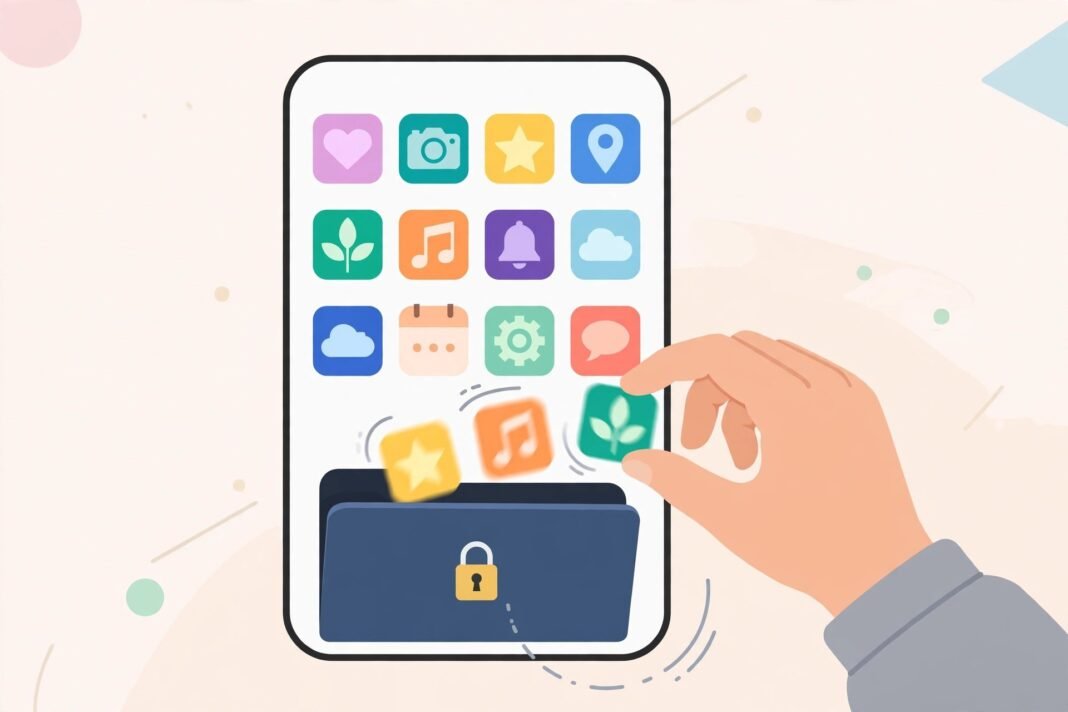
Samsung Secure Folder gives you a separate, locked space inside your phone. You set it up from Settings, under the security section, and you protect it with a PIN, a pattern, or your fingerprint. Then you add apps such as banking or gallery into the folder. As a result, those apps stay behind your lock, and their data stays separate as well. You can even hide the folder itself from your app drawer, for one more layer of calm.
Meanwhile, newer Android phones offer Private Space, a built-in area for apps you want to keep apart. It arrived with Android 15, so it appears on Pixel phones and some other models first. You lock it with your screen lock or with a separate lock, and you can also hide it from the app drawer. However, older phones do not have it, so do not worry if your Settings lack the option.
How to hide apps on an iPhone
On an iPhone, the simplest step is to move the app off your Home Screen. Press and hold the app, tap Remove App, and then choose Remove from Home Screen. After that, the app lives only in the App Library, which you reach by swiping left past your last page. It still works fully, but casual eyes no longer see it.
In addition, you can hide a whole Home Screen page at once. Press and hold an empty area, tap the dots at the bottom, and untick the page you want to hide. As a result, every app on that page disappears from view until you tick it again. This trick is handy for a page full of banking, shopping, or work apps.
On iOS 18 and newer, you can also lock an app with Face ID. Press and hold the app, and then tap Require Face ID. Moreover, the same menu offers a hide option, which moves the app into a locked Hidden folder in the App Library. Then only your face or your passcode can open it.
How to hide apps safely: hiding is not locking
Hiding an app only moves it out of sight. It does not lock the app, and a determined person can still find it in Settings or through search. For banking and payment apps, use a strong screen lock first, and also turn on the lock inside the app itself. Above all, never install unknown “vault” apps from makers you do not trust. Some of those apps steal photos and data instead of protecting them.
Privacy is also wider than hidden apps. For example, your phone shares your location with many apps by default, and our guide on how to turn off location tracking on your phone shows how to check those settings. In other words, hidden apps are one layer of privacy, and location control is another.
Quick questions about hidden apps
Does hiding an app delete it? No. The app stays installed, keeps its data, and still gets updates. You only remove it from view.
Can someone still find my hidden apps? Yes, in some cases. Search, Settings, and the app store list can still show them. So treat hiding as privacy from casual eyes, not as full security.
Is Samsung Secure Folder free? Yes. It comes built into Samsung phones that support it, and it needs no extra download.
A few small steps can make your phone feel like yours again. Start with the apps you would least like a stranger to open, and add a strong screen lock on top. Finally, check your hidden apps once in a while, because updates can move these settings to a new place. Which apps would you hide first on your phone: your banking app, your photos, or your chats?