


Your laptop feels hot to touch, the fan roars like a small jet, and then the screen goes black without warning. This pattern is classic laptop overheating, and it usually builds up slowly over months. The good news is simple: most causes are easy to fix at home. In fact, you rarely need tools or technical skills to cool a laptop down. This guide walks through the causes first, and then the safest fixes in order.
Why Laptop Overheating Happens
Every laptop makes heat while it works. The processor and graphics chip warm up under load, and small fans push that heat out through side or back vents. However, heat only escapes when air can flow freely. Dust, blocked vents, and heavy software all trap warmth inside the body. As a result, the machine protects itself by slowing down or switching off.
Soft surfaces cause many cases. A bed, sofa, or cushion sinks around the base and seals the vents underneath. Meanwhile, dust gathers inside the vents over time and forms a thick layer. Old batteries can also run hotter than new ones. Finally, too many heavy programs at once keep the processor busy and the temperature high.
A shutdown feels alarming, yet it is actually a safety feature. The laptop cuts power before heat can damage the processor or the battery. Still, repeated shutdowns mean the cooling system needs attention soon. Ignoring them can shorten the life of the whole machine over time.
Simple Fixes for Laptop Overheating
Start with the easiest fixes first. Work through them in order, and test the laptop after each one. Most machines cool down noticeably after the first two or three steps.
- Use a hard, flat surface. Move the laptop to a desk or table so the vents underneath stay open.
- Clean the vents gently. First, shut the laptop down and unplug it fully. Then brush dust from the vents with a soft, dry brush, or blow short bursts of compressed air across them.
- Close heavy programs. Games, video editors, and dozens of open browser tabs force the processor to work hard.
- Check which app uses the processor most. On Windows, Task Manager shows this clearly, and on a Mac, Activity Monitor does the same job. Close or remove any app that stays busy in the background for no reason.
- Raise the back of the laptop. A cooling pad or a simple stand lifts the base and lets air move freely under it.
- Update the system. System updates often include better fan control and smarter power use.
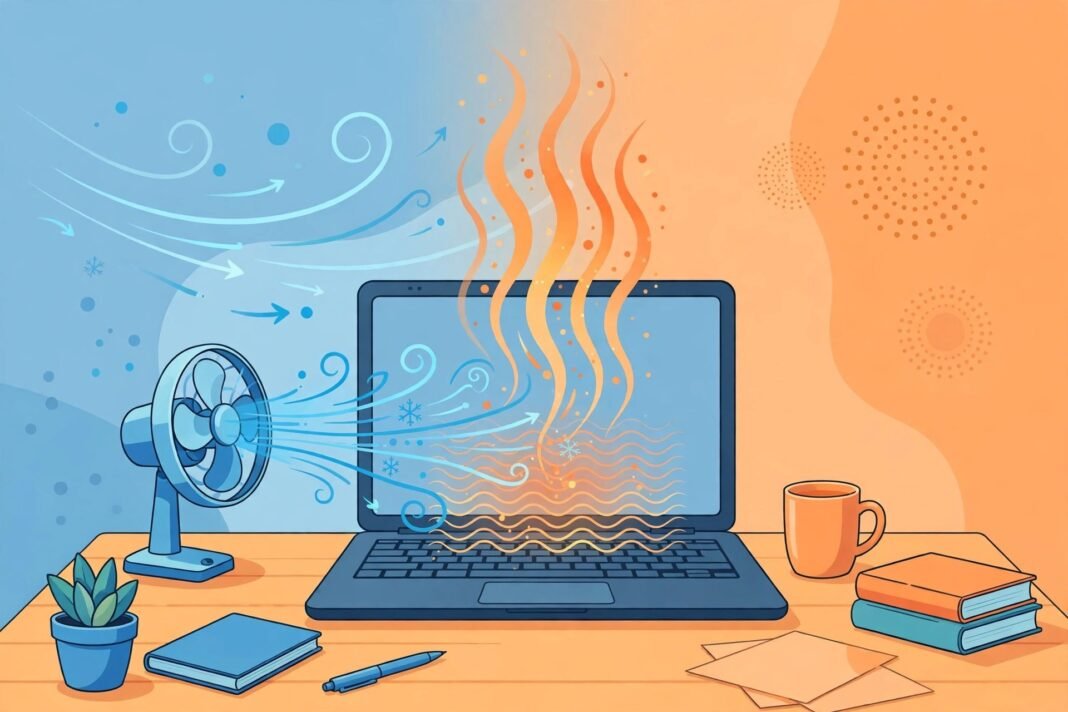
Room conditions matter as well. A hot room gives the fans warm air to work with, so cooling becomes harder. If you can, work in a cooler spot and keep curtains closed against strong sun. Even a small desk fan aimed across the desk can help air move.
If your machine also feels slow, heat and speed often share the same causes. In that case, follow our guide on how to speed up a slow laptop alongside these steps. Together, the two routines clear the clutter that makes a laptop work harder than it should.
Daily Habits That Keep Your Laptop Cool
Small daily habits prevent most heat problems. For example, keep the area around the vents clear of books, papers, and walls. Also, avoid leaving the laptop in a hot car or in direct sunlight. In addition, give the machine a rest during long, heavy tasks instead of running them for hours.
Charging habits matter too. A laptop often warms up while it charges and works hard at the same time. Therefore, unplug it once the battery is full during heavy work, when you can. These same habits also extend your laptop battery life, so the battery stays healthy for longer.
Breaks help more than people expect. During a break, close the lid or put the machine to sleep so the parts can cool fully. Over time, these short pauses also ease wear on the fan and the battery.
When a Repair Shop Should Take Over
Some signs point to a hardware fault instead. Take the laptop to a repair shop if the fan grinds or rattles yet pushes out little air. Also seek help if sudden shutdowns continue after you try every fix above. A technician can open the machine safely, clean deep inside, and renew the thermal paste on the processor.
One warning matters most of all. If the battery swells, the base bulges, or the touchpad lifts, stop using the laptop at once. A swollen battery is a real safety risk, so never press it down or charge the machine. Instead, keep it switched off and take it to a professional as soon as you can.
Quick Questions About Laptop Overheating
Is it normal for a laptop to feel warm? Yes, mild warmth is normal during heavy work. However, heat that makes the keyboard uncomfortable, paired with loud fans or shutdowns, signals a problem worth fixing.
Can a cooling pad really help? Yes, a pad lifts the base and adds airflow underneath the machine. It works best alongside clean vents and a hard surface, not instead of them.
Should I open my laptop to clean inside? No, opening the case can damage delicate parts and may void your warranty. A repair shop has the right tools and training for deep cleaning.
With a clear desk, clean vents, and lighter software, most laptops run cooler within a day. Which of these fixes will you try first on your machine?