


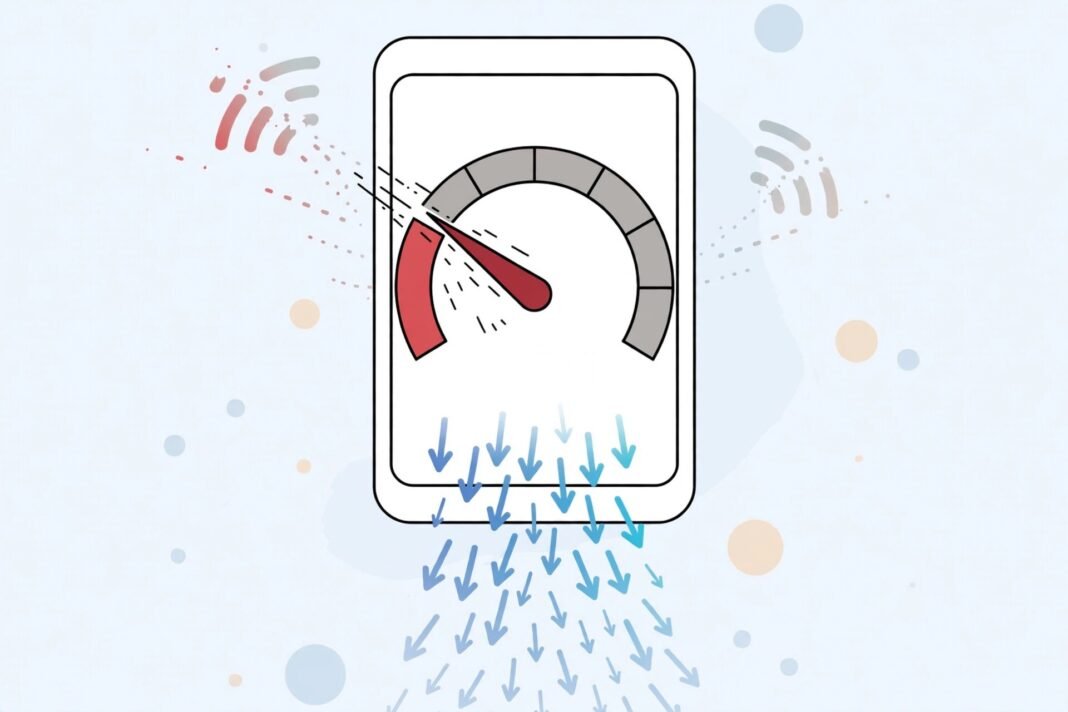
You buy a data bundle that should last the whole month, yet it is gone within days. Mobile data draining fast is a common problem, and it upsets many phone users. However, your data rarely vanishes by magic. In most cases, a few apps quietly use far more than you expect. Once you find those apps, you can stop the waste in minutes.
What Causes Mobile Data Draining Fast?
Video apps are usually the biggest cause of the drain. When a video plays in high quality, it uses much more data than the same clip at a lower setting. In addition, short video feeds keep loading fresh clips before you even tap them. As a result, one hour of relaxed scrolling can eat a large share of your bundle.
Automatic downloads are another hidden cause. For example, your phone may update large apps on mobile data without asking you first. Cloud backup can also upload your photos and videos in the background all day long. Meanwhile, these same heavy background apps also drain your phone battery, so one fix helps both problems at once.
Chat apps add their share as well. By default, many of them download every photo and video that friends send you. A busy group chat can therefore pull down hundreds of files each week. Hotspot sharing causes a similar leak, because other phones treat your connection like free Wi-Fi. Their updates and backups then come straight out of your bundle.
Find the Apps Behind Mobile Data Draining Fast
First, open the data usage screen on your phone, because it names the real culprits. On Android, open Settings, then tap Network and internet or Connections, then choose Data usage. Next, read the list of apps and the data each one used this month. Usually, the top two or three apps cause most of the drain.
On an iPhone, the path looks slightly different. Open Settings, tap Mobile Data, and then scroll through the list of apps. Each app shows the data it used during the current period. You can also switch off mobile data for any single app on that same screen. This quick check takes two minutes, yet it turns a vague worry into a clear list.
Also, set the dates on that screen to match your bundle. Android lets you pick the start day of your usage cycle in those same settings. On an iPhone, scroll to the bottom and tap Reset Statistics on the day your new bundle starts. As a result, the numbers always show this bundle, not old use.
Pay special attention to background data in that list. Foreground data is what an app uses while you watch it. Background data, however, flows while the app sits closed on your phone. If a little-used app shows heavy background use, it is a prime suspect.
Simple Settings That Slow the Drain
Now work through these fixes in order, because each one blocks a different leak:
- Set a data warning and a limit on Android, so your phone warns you early and stops data at your chosen level.
- On an iPhone, turn on Low Data Mode under Mobile Data Options, since it cuts background use across the whole system.
- Turn off mobile data for the heaviest apps, and open them only when Wi-Fi is available.
- Switch on Data Saver on Android, because it stops most apps from using data in the background.
- Turn off automatic app updates on mobile data, and allow updates on Wi-Fi only.
- Stop automatic photo and video backup on mobile data in your Google Photos or iCloud settings.
- Turn off auto-download of photos and videos in your chat apps, and fetch files only when you want them.
Habits That Make Your Bundle Last Longer
Video quality is the habit that saves the most data. Open the settings inside your video and social apps, then choose the data saving or lower quality option for mobile networks. The picture still looks clear on a small phone screen. In fact, each clip simply uses far less data than before.
Next, download music, films, and long videos at home on Wi-Fi instead of streaming them while you travel. A quick home connection makes this easy, and it pays to fix slow Wi-Fi at home so those downloads finish fast. After that, your bundle only has to cover light daily tasks.
Also, switch your hotspot off when nobody needs it, and always guard it with a password. Finally, glance at the usage screen once a week. That small habit helps you spot a new hungry app before it empties your bundle again.
Quick Answers to Common Questions
Why does my data finish even when I barely use my phone? Background activity is the usual reason. Apps update, back up photos, and fetch new content while the screen stays off.
Does Data Saver break my apps? No, it only slows background work. Your apps still work normally when you open them, and most messages still arrive on time.
Should I turn mobile data off completely at night? You do not need to. Once background use is under control, overnight use stays very small, and your phone still works as normal.
Which single change saves the most data? Lower video quality on mobile networks saves the most for most people. Video uses far more data than text, photos, or music.
Small changes like these add up fast. Your bundle should soon last far longer, and you will know exactly where every megabyte went. Which app surprised you most when you checked your data usage screen? Share your answer in the comments below.