

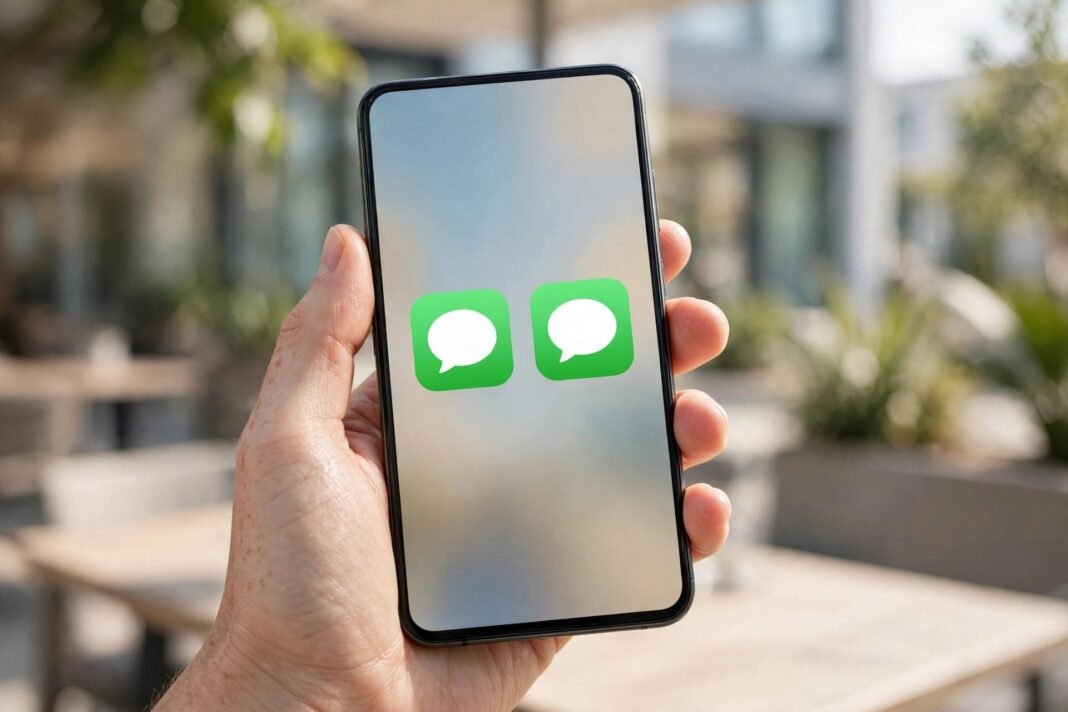
One phone, two numbers, and no second handset to carry. That is the promise of two WhatsApp accounts on one phone, and it is now an official feature. You can keep work chats and personal chats apart, with each account holding its own messages, notifications, and privacy settings. In this guide, you will learn every official way to do it, on Android and iPhone, with exact steps. You will also learn what does not work, and which shortcuts to avoid.
What You Need Before You Start
Every method in this guide needs one thing: a second phone number. WhatsApp ties each account to a phone number, so one number means one account. The second number can sit on a second SIM, a dual SIM phone, or an eSIM. It does not need to be in the same phone as your first number, but it must be able to receive WhatsApp’s six-digit verification code by SMS or call.
You will also need the latest version of WhatsApp. If a menu option in this guide is missing on your phone, update the app first from Google Play or the App Store. The steps below assume an up-to-date app.
Method 1: Add a Second Account Inside WhatsApp
This is the simplest method, and it is the one WhatsApp itself recommends. WhatsApp added account switching to Android in October 2023, so most Android phones have it already. Here is how to set it up.
- Open WhatsApp, then tap the three-dot menu and tap Settings.
- Tap the arrow next to your name at the top of the screen.
- Tap Add account, then tap Agree and continue.
- Enter your second phone number, including the country code.
- Enter the six-digit code WhatsApp sends by SMS or call.
- Add a name and a profile photo for the second account.
That is all. Both accounts now live inside the same app, and you can switch between them without logging out. Each account keeps its own chats, status updates, notification settings, and privacy settings. So your work number can stay quiet at night while your personal number does not.
How Switching Between Two WhatsApp Accounts on One Phone Works
Switching is quick once both accounts are set up. Open WhatsApp, tap the three-dot menu, then tap Switch accounts. Choose the account you want, and the app switches at once. You can also switch from Settings by tapping the arrow next to your name.
Both accounts stay active in the background, so messages and calls still arrive for the account you are not using. You will see its notifications, and you can switch over to read and answer them. The feature supports a maximum of two accounts, so you cannot add a third number this way.
One more limit: you can only add a second account on your main phone. A linked tablet or computer cannot create one. And account switching is not available inside the WhatsApp Business app, which is a separate app with its own rules.
Method 2: WhatsApp Business for Two WhatsApp Accounts on One Phone
If you want a second WhatsApp that is fully separate, use WhatsApp Business. It is a free official app from WhatsApp, and it runs alongside regular WhatsApp on the same phone. You do not need a business to use it, although it does include business tools such as a business profile and quick replies.
- Install WhatsApp Business from Google Play or the App Store.
- Open it, then tap Agree and continue.
- Register it with your second phone number and enter the verification code.
- Set up your profile, and skip the business details if you do not need them.
This method works on iPhone and Android, and it is the best option if you want two separate icons on your home screen. It also works if the built-in account switcher has not reached your phone yet. One number still means one account, so use a different number from your main WhatsApp.
Method 3: Clone WhatsApp on Samsung and Xiaomi Phones
Many Android phones can clone an app, which creates a second copy with its own data. The clone is still the official WhatsApp, and it still needs a second number. This method gives you two WhatsApp icons, one for each account.
On a Samsung Galaxy phone, open Settings, then tap Advanced features, then tap Dual Messenger. Turn on the switch next to WhatsApp, and a second WhatsApp icon appears with a small badge. Open it and register your second number.
On a Xiaomi, Redmi, or POCO phone, open Settings, then tap Apps, then tap Dual apps. Select WhatsApp from the list, and a second copy appears with a dual apps badge. Open it and register your second number. Note that turning Dual apps off deletes the copy and its data, with no way to get it back, so back up your chats first.
Other brands have similar tools under names such as App Cloner or Parallel Apps. The steps vary, so check your phone’s settings for a cloning option if your brand is not listed here.
What About iPhone? Two WhatsApp Accounts on One Phone
iPhone users had to wait longer, but the built-in account switcher reached iPhone in 2026. WhatsApp announced it in March 2026, and it rolled out to all iPhone users in the months after. If your iPhone has the latest WhatsApp, the steps match Android closely.
- Open WhatsApp, then tap Settings.
- Tap the plus icon next to your name.
- Tap Add Account, then enter your second number.
- Enter the six-digit code, then add a name for the account.
If the Add Account option is missing, update WhatsApp from the App Store and try again. iPhone does not offer app cloning, so there is no Dual Messenger equivalent. But WhatsApp Business works on iPhone too, so that method is always available as a backup.
What Does Not Work: One Number on Two Phones
It is easy to mix up two ideas, so here is the line. You cannot register the same phone number as the main account on two phones. If you try, the second phone takes over, and the first phone is logged out. One number means one main account, and that rule has not changed.
What you can do is link a second phone as a companion device. WhatsApp added companion mode in April 2023, and it lets you link up to four devices to one account. On the second phone, install WhatsApp, tap Agree and continue, open the menu, and choose Link as companion device. Then scan the QR code with your main phone. The second phone mirrors your chats, but the main phone stays in charge. If the main phone sits unused for more than 14 days, the companion phone is logged out.
So if your goal is two numbers on one phone, use the methods above. If your goal is one number on two phones, companion mode is the official answer.
Avoid Unofficial WhatsApp Apps
You may see apps such as GB WhatsApp, FM WhatsApp, or TM WhatsApp promising extra features or extra accounts. Do not use them. WhatsApp names these as unofficial apps, and using them breaks WhatsApp’s Terms of Service. Accounts linked to unofficial apps can be banned, temporarily or permanently.
Unofficial apps also carry a security risk, because they are not made by WhatsApp and their code is not checked by WhatsApp. They can read your messages, steal your data, or lock you out of your account. The official methods in this guide give you two accounts without any of that risk, so there is no reason to take the chance.
Which Method Is Best for Two WhatsApp Accounts on One Phone?
For most people, the built-in account switcher is the best choice. It is official, it needs no extra app, and switching takes two taps. Use it if your phone shows the Add account option.
Choose WhatsApp Business if you want two separate icons, or if you run a small business and want the business tools. Choose Dual Messenger or Dual Apps if your Android phone offers cloning and you prefer two separate apps. All three methods are official and safe, so pick the one that fits how you use your phone.
Keep Both Accounts Safe
Two accounts mean twice the reason to use good security. Turn on two-step verification for each account, with a different six-digit PIN for each one. Open WhatsApp, tap Settings, then tap Account, then tap Two-step verification, and follow the steps. Do this on both accounts, because each one needs its own PIN.
Also back up each account separately. Each account keeps its own backup, so check that both are backing up to Google Drive or iCloud. If you move to a new phone later, our guide to transferring WhatsApp to a new phone walks you through it. And if you ever worry about someone else getting into your account, read how to secure your WhatsApp account from hackers.
So which method will you try first? Two WhatsApp accounts on one phone takes less than ten minutes to set up, and it may be the simplest upgrade your phone gets this year.