

You plug in your phone, and nothing happens. No charging icon appears. No buzz sounds, and the battery percentage stays put, so the worry starts right away. But a phone won’t charge for many simple reasons. Most of them have a fix you can try at home. Work through the steps below in order, because each step rules out one cause. Start with the cheapest fix first. Save the repair shop for last.
Why Your Phone Won’t Charge
When your phone won’t charge, the cause usually sits in one of five places. The cable or adapter may have damage. The wall socket may be dead. Lint can also plug the charging port. Software can pause charging too. A worn battery can refuse to take a charge at all. Heat and water can stop charging too, because your phone protects itself from danger. Most of these causes are easy to check. Each check below takes only a few minutes, so start at the top.
One warning comes first, however. Stop using any cable that looks frayed, bent, or burnt. A damaged cable can harm your phone, so set it aside. Also stop charging at once if your phone feels unusually hot, looks swollen, or smells strange. In that case, unplug it and get help from a repair shop. Those are signs of a battery problem, so do not ignore them.
Start With the Cable, Charger, and Socket
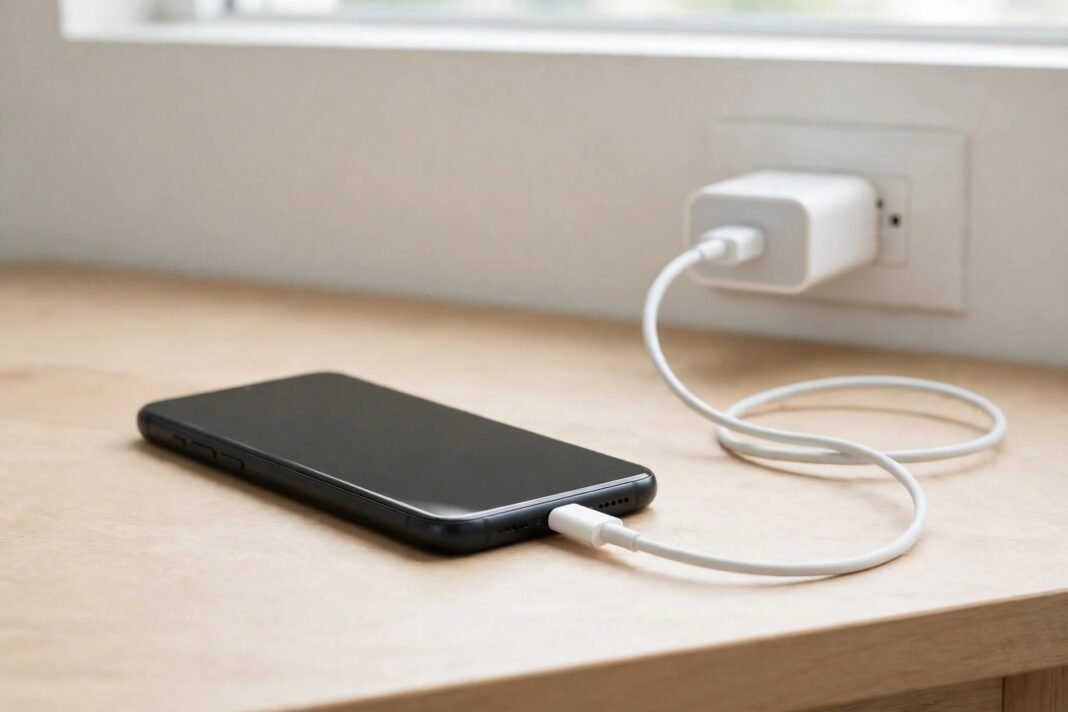
Most charging failures start with the accessories, so test those first. Look closely at your cable and adapter for cracks, fraying, or bent prongs. Set aside anything that looks damaged, because a weak cable wastes your time. Then try a cable and adapter that you know work. A cable that looks fine can still hide a break inside. Plug the adapter straight into a wall socket. Skip extension leads or computer USB ports for this test. They may not give enough power, so the test would mislead you.
Also try a different wall socket, because the first one may be dead. Push the cable firmly into the phone until it sits flat. Check that the charging icon appears. If your phone shows a “check charging accessory” message, try another set. That message means the cable or adapter has damage or lacks support. If your phone won’t charge on a known-good cable and adapter, the fault sits elsewhere. Move to the next step.
Take the Case Off and Check the Port
A thick case can stop the cable from seating fully, so take the case off and try again. Then look into the charging port with a bright light. Pocket lint builds up there over time. You may see a grey layer of fluff pressed against the back of the port. That layer can block the connection, so it needs to go. Never force the cable in, because that can bend the pins inside the port.
Also try flipping the cable over, since USB-C and Lightning cables work in both directions. Gently move the cable from side to side while it sits plugged in. Watch the charging icon as you move it. If charging starts and stops, the port or the cable may have wear. Note that for later. If the cable feels loose or falls out, lint is the most likely cause.
Clean the Charging Port the Safe Way
Cleaning the port fixes more charging problems than any other step. But handle it gently, so take your time. First, turn your phone off and unplug every cable. Never clean a live port, because a short can damage the phone. Then use a small, soft-bristled brush that is clean and dry. Twist the bristles inside the port to loosen the lint. Brush the debris away from the port, so you do not push it deeper inside.
Never use a metal pin, knife, or paperclip. Metal can scratch the contacts or short the port, so keep it out. Also avoid compressed air and liquids. They can push dirt deeper or leave moisture behind. If lint sits packed hard, a wooden toothpick can help. Use it very gently, and never scrape or force it. When the port is clean, plug the cable in again. Check whether it now sits firmly.
Restart Your Phone and Give It Time
A restart clears small software glitches, so try it before you assume the worst. Turn your phone off, wait a few seconds, and turn it on again. Then plug it in and watch for the charging icon. If the battery has fully drained, however, the screen may stay black for a while. Do not give up too soon. A dead iPhone can need 30 minutes on a working charger before it shows anything. A dead Pixel can show no response for up to 25 minutes, so be patient.
If your phone won’t charge after a restart, try a force restart. On an iPhone 8 or later, press volume up quickly. Then press volume down quickly. Hold the side button until the Apple logo appears. Samsung phones use a different method, but it works the same way. Hold the power button and volume down together until the phone restarts. For a Pixel, hold the power button for about 35 seconds. Then leave the phone on the charger for another 30 minutes. A deeply drained battery needs time to recover, so wait it out.
When Your Phone Won’t Charge Past 80%
Sometimes the phone charges fine but stops at 80%. That is often a feature, not a fault. iPhones use Optimized Battery Charging, which learns your routine. It waits to finish charging past 80% until you need it. iPhone 15 models and later can also have a charge limit set. Check Settings to see if a limit is on. Heat can pause charging too, because the software protects the battery when it gets too warm.
Android phones have similar settings, so check those as well. On a Pixel, open Settings and tap Battery. Then tap Battery health, then Charging optimization, and turn it off to test. On a Samsung phone, open Settings and tap Battery. Check the Battery protection options, because a limit there can cap the charge. If your phone often feels hot while charging, read our guide on how to fix iPhone overheating for more help. For healthy charging habits in general, see our Android battery charging tips.
If Your Phone Won’t Charge After Water
When a phone won’t charge after it gets wet, the liquid sensor is often the reason. An iPhone can show a “Liquid Detected” alert, for example. A Samsung phone shows a waterdrop icon instead. Take either warning seriously, because charging a wet port can corrode the contacts. So unplug the cable at once. Then tap the phone gently against your hand with the port facing down. That lets the water drip out.
Next, leave the phone in a dry place with good airflow for several hours. Do not plug it in until the warning clears. A hairdryer on a cool setting can help, but never use hot air. Heat can damage the seals, so keep the air cool. If the warning stays after the phone is fully dry, restart the phone and try again. Get help if the alert will not clear.
Update the Software and Check Battery Settings
Software updates often fix charging bugs, so make sure your phone runs the latest version. On an iPhone, open Settings and tap General. Then tap Software Update and install anything waiting. On Android, open Settings and look for Software update. On a Pixel it sits under System, so tap that first. A restart after the update can also help, because it clears any stuck charging process.
Also check your battery health, because a worn battery may refuse to charge. On an iPhone, open Settings and tap Battery. Then tap Battery Health & Charging and look at Maximum Capacity. If it is below 80% or shows a service message, the battery has likely worn out. Samsung owners can run a battery and charging test in the Samsung Members app. Use that check before you pay for a repair.
Try Wireless Charging to Find the Fault
Wireless charging can tell you where the fault sits, so try it if your phone supports it. iPhone 8 and later models support wireless charging. iPhone 12 and later models support MagSafe. Many Android phones support Qi wireless charging as well. First, unplug the wired cable. Charging defaults to the wired connection when you use both, so unplug first. Then take the case off and place the phone face up in the centre of the pad. Wait up to 10 minutes for a response, because a dead phone wakes slowly.
If the phone charges wirelessly but not with a cable, the wired path is the problem. The fault is likely the port or the cable. If your phone won’t charge with either method, the battery or the phone itself may be at fault. Either way, this test gives the repair shop useful information. Note the result before you go.
When Your Phone Won’t Charge at All: Time for a Repair
If your phone won’t charge after every step above, the problem is likely hardware. It is time for a repair, so book a check. An intermittent connection with a known-good cable points to a faulty port. Also get help if the battery drains very fast. Get help too if the phone shuts off at a high percentage. A swollen back is another warning sign, so do not ignore it. Do not open the phone yourself, because that can void the warranty and damage the battery.
Before you go, check whether the phone is still under warranty. The warranty may cover a charging fault, so ask the shop. Back up your photos and files first if the phone still turns on. A repair can wipe the device, so save your data now. Tell the repair shop which steps you already tried. That way, they can start from the right place. Have you ever fixed a charging problem with a simple clean? Share your story in the comments below.