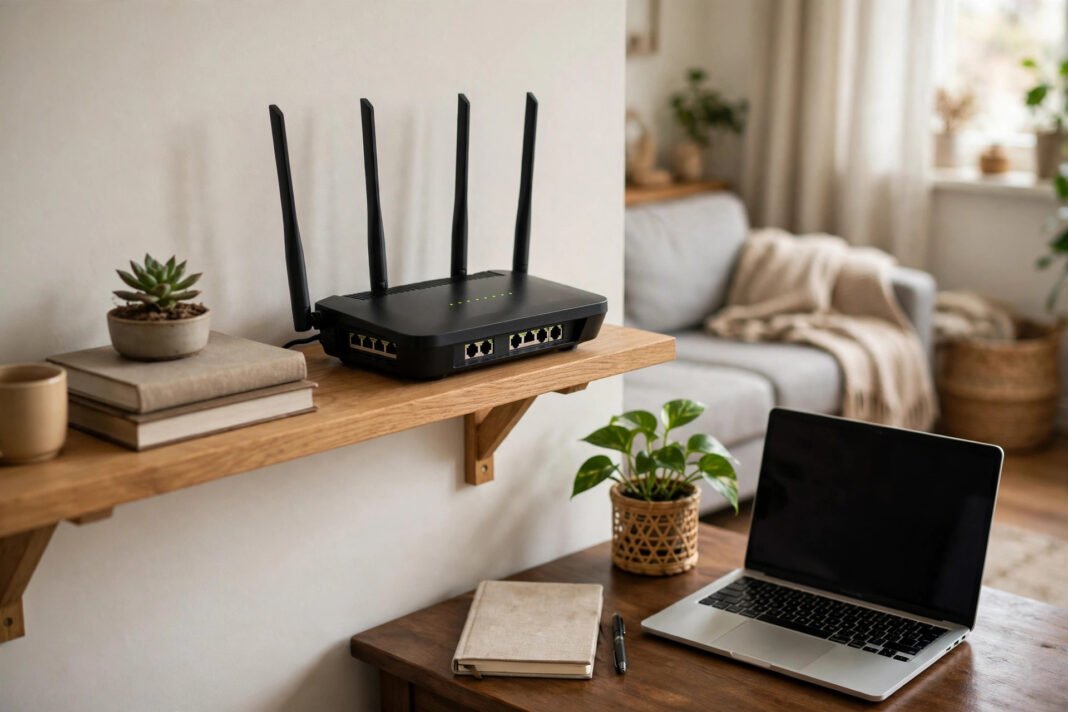
If wifi keeps disconnecting, you are not alone. The drop often feels random, however the cause is usually simple. A weak signal, a busy channel, or an old setting can break the link. This guide gives you a clear fix order. You will start with the easy checks first. Next, you will move to deeper settings only if needed. In addition, you will learn when to call your provider. Follow the steps in order, and test after each one. As a result, you will find the real cause faster. Do not change many settings at once, because that hides the cause. Instead, change one thing, then check the link again.
You do not need special tools for this guide. You only need access to your router and your device settings. In addition, keep your Wi-Fi password nearby for the rejoin step. If you share the router, tell others before you restart it. As a result, no one loses work during the restart.
Why wifi keeps disconnecting
A Wi-Fi link needs a steady signal and a steady router. When either one fails, the link drops. Distance is a common cause, for example. Walls, floors, and metal objects can weaken the signal too. In addition, other networks nearby can crowd the same channel. Your router may also struggle when too many devices join at once. A device setting can cause drops as well. For example, a saved network may hold an old password or a wrong setting.
Old router software can cause drops too. Meanwhile, a loose cable can cut the link without warning. A short power dip can also restart the router on its own. Finally, a fault on your provider side can break the link for all devices. The fix order below helps you rule out each cause in turn. Start at the top, and stop when the link stays steady. In fact, most drops end at the first few steps.
Keep notes as you go, so you can retrace your steps later. A short note also helps if you later call your provider.
Start with a proper router restart
A restart clears short faults and frees router memory. First, unplug the power cable from the router. Next, wait for about thirty seconds. Then plug the power cable back in. Wait until the lights settle into their normal pattern. This wait can take a few minutes, so be patient. Meanwhile, restart the device that keeps dropping too. A phone, laptop, or tablet can also hold a stale link. After both restarts, test the link again.
Open a page or play a short video. If the link holds, you have likely fixed it. In addition, check the cables at the back of the router. Push each cable in firmly, and look for damage. A loose cable can mimic a Wi-Fi fault. Similarly, check that the router feels warm, not very hot. A very hot router may need more air around it. Move it away from closed boxes and heaters.
Finally, test again after you fix the cables and airflow. If the drop returns, move to the next step.
Also, check the power socket itself. A loose plug can cut power for a moment. Try a different socket for a test. If the router holds on the new socket, the old socket was the fault. In addition, avoid power strips that feel loose or worn.
Move the router and check the signal
Place the router in a central spot when you can. A central spot gives all rooms a fair signal. In addition, place it high, on a shelf or a table. A router on the floor sends a weaker signal upstairs. Keep it out in the open, not inside a closed cupboard. Thick walls and metal shelves can block the signal. Similarly, large fish tanks and mirrors can weaken it. Keep the router away from microwaves and cordless phone bases.
These devices can crowd the same airwaves. Next, walk to the spot where drops happen most. Check the signal bars on your device there. One bar means the link is fragile. Two or three bars give a much steadier link. In addition, test the same spot with a second device. If both devices drop there, the spot is the problem. Try moving closer to the router for a test. If the link holds nearby, distance is the cause.
You may need a better spot for the router. Alternatively, move your work spot closer to it. Finally, test for a while before you call the job done.
Also, keep the router away from thick metal doors. A metal door can block the signal almost fully. Next, test video calls in the weak spot. A call shows drops faster than a simple page load. In addition, note the time of day when drops happen. Busy evening hours can crowd nearby networks more.
When wifi keeps disconnecting on one band only
Many routers send two bands, 2.4 GHz and 5 GHz. The 2.4 GHz band reaches farther through walls. However, it runs slower and faces more crowding. The 5 GHz band runs faster, but it covers a shorter range. In fact, each band suits a different spot. Use 2.4 GHz in far rooms or behind thick walls. Use 5 GHz near the router for fast work. Next, check which band your device uses now.
Open the Wi-Fi settings and look at the network name. Some routers show one name for both bands. Others show a separate name for each band. If your router shows two names, try the other one. For example, switch from 5 GHz to 2.4 GHz in a far room. Then test the link for a while. Similarly, switch to 5 GHz when you sit near the router. If one band holds steady, use that band in that spot.
In addition, look for a channel setting in the router menu. Most routers pick a channel on their own. Leave the channel on automatic unless drops persist. A manual channel can help, but it can also make things worse. Therefore, change it only if the other steps fail. Note the old setting first, so you can restore it.
Forget the network and join it again
A saved network can hold a bad setting. Forgetting it forces a clean join. First, open the Wi-Fi settings on your device. Find the network name in the list. Choose the option to forget that network. Next, restart the device once more. This step clears any stale link state. Then open Wi-Fi settings again and pick the network. Type the password with care, letter by letter. A small typo can cause repeated drops.
In addition, check for extra spaces at the end. After you join, test the link right away. Open a page, then wait and test again later. If the drop stops, the old saved setting was the cause. Similarly, try the same test on a second device. If only one device drops, focus on that device. Check its Wi-Fi settings for a power saving mode. Some devices cut Wi-Fi to save battery.
Turn that mode off for a test, if you find it. Also, remove any old network with a similar name. A device can jump to the wrong saved network. Finally, if your device also feels slow in general, read this guide on how to speed up a slow laptop. A slow device can feel like a weak link.
Try a different DNS setting
DNS turns website names into addresses your device can use. A slow or faulty DNS setting can stall pages. As a result, pages may fail even when Wi-Fi shows full bars. First, note your current DNS setting before you change it. You can restore it later if the change does not help. Next, open the Wi-Fi settings on your device. Find the network you use, and open its details. Look for the DNS or IP settings section.
If DNS is set by hand, switch it back to automatic. Automatic DNS uses your provider setting, which usually works well. In addition, test the link after this change. Open a few pages and watch for drops. If pages load faster, keep the automatic setting. However, if DNS is already automatic, do not guess a new value. Instead, note the fault and move to the next step. A wrong DNS value can break pages for all sites.
Meanwhile, test a second device on the same network. If both devices stall, the router or provider may be at fault. If only one device stalls, focus on that device. You can also clear old stored data on a phone. For example, see how to clear cache on Android or how to clear cache on iPhone. Finally, restore your old DNS setting if nothing improves.
When wifi keeps disconnecting after every fix
Router software, called firmware, can fix known bugs. First, log in to your router settings page. Use the address printed on the router label. Next, look for a firmware or software update section. If an update is ready, follow the on-screen steps. Do not turn the router off during the update. In addition, do not unplug it until the update ends. An interrupted update can damage the router. After the update, restart the router once more.
Then test the link for a day if you can. Meanwhile, check for a provider fault too. Ask a neighbour or check another device at home. If all devices drop at the same time, the fault may sit outside your home. In that case, contact your internet provider. Tell them when drops happen and which lights change. Also tell them which steps you already tried. This detail saves time and avoids repeat checks.
Similarly, contact them if the router keeps restarting on its own. A faulty router or line needs their help. Do not open the router or change line wiring yourself. Finally, keep your notes from each step for the support call.
Also, write down the router model from its label. Support staff often ask for the model first. Next, note the exact time of each drop. A clear time pattern can point to a line fault. In addition, save any error message your device shows. An error message can speed up the support call. Which step fixed your link, or does it still drop after you tried them all?