A hot iPhone can feel worrying, especially when it slows down or dims its screen. This guide explains how to fix iPhone overheating with simple steps you can try at home. You will learn why heat builds up and which settings help most. You do not need special tools or skills for these steps.
Heat is normal in small amounts during heavy use. However, steady heat can drain your battery fast and make apps feel slow. First, notice when the heat starts and what you were doing. Then, work through the steps below in order. As a result, you can often cool the phone down in a short time.
Why Your iPhone Gets Hot in the First Place
Your iPhone works hard when it runs games, video calls, or maps. These tasks use the processor, screen, and network at the same time. As a result, heat builds up inside the phone. The phone then tries to protect itself by slowing down. This slowdown can feel annoying, but it helps prevent damage.
Background tasks can add heat too. Apps may refresh content, fetch mail, or track location in the background. Meanwhile, a weak signal makes the phone work harder to stay connected. In addition, bright screens and long video sessions use more power. Together, these small loads can push the temperature up.
Heat often rises in three common situations. First, a software update may run tasks in the background for a while. Next, charging adds heat, especially with fast or wireless charging. Finally, hot weather or direct sun can warm the phone fast. When you know the cause, you can pick the right fix.
A hot phone does not always mean a fault. Still, you should watch for warning signs over time. For example, heat that never fades needs closer attention. Also, sudden shutdowns or a swollen back need prompt care. Later in this guide, you will learn when to seek help.
Thick cases can trap heat during heavy use. First, remove the case when the phone feels warm. Then, check if the phone cools faster without it. Also, keep vents and ports free from dust and lint. Finally, use a light case if you need daily protection.
How to Fix iPhone Overheating After an Update
After an update, your phone may index files and refresh apps. This work can last for a short time after the update ends. As a result, the phone may feel warm for a few hours. First, give the phone time to finish these background tasks. Then, check if the heat fades on its own.
If heat stays high, restart your phone once. A restart clears stuck tasks and frees memory fast. Next, check your battery use in Settings. Open Settings, then tap Battery to see heavy apps. If one app uses far more power, close it for a while.
Also, limit background refresh for apps you rarely use. Open Settings, then tap General, then Background App Refresh. Next, turn it off for apps that do not need fresh data. In addition, keep your phone on Wi-Fi during large downloads. As a result, the phone works less hard to fetch data.
For example, large photo uploads can heat a phone fast. Pause uploads until the phone cools down fully. Then, resume them when the phone feels normal again. Also, avoid games and long video calls during this cooling period. Finally, check again after an hour of light use.
How to Fix iPhone Overheating While Charging
Charging always creates some heat, but heavy use adds more. First, stop games and video streaming while the phone charges. Next, remove a thick case so heat can escape. Also, place the phone on a hard, cool surface. As a result, heat can spread away from the phone.
Use the cable and charger that came with your phone. Cheap or damaged cables can cause extra heat and slow charging. If a cable feels loose or looks worn, replace it soon. Also, avoid charging on soft beds or under pillows. These spots trap heat around the phone.
Wireless charging can feel warmer than cable charging. If heat rises, switch to a cable for a while. Next, avoid charging in a hot car or near a heater. In addition, do not cover the phone with clothes while it charges. Finally, unplug the phone if it feels very hot.
Charging to a full battery takes longer when the phone is hot. So, let the phone cool before you charge it again. Also, try charging in a cooler room when you can. Meanwhile, keep the screen off during charging sessions. This simple habit cuts heat and speeds up charging.
Overnight charging needs extra care when heat is a concern. First, charge the phone before bed instead of all night. Then, place it on a hard surface near airflow. Also, keep the room cool while the phone charges. Finally, check the phone first thing in the morning.
How to Fix iPhone Overheating on a Hot Day
Direct sun can heat a phone in minutes. First, move the phone into shade as soon as you can. Next, take it out of a pocket or closed bag. Also, remove a dark case that absorbs extra heat. As a result, the phone can start cooling at once.
Do not put a hot phone in a fridge or freezer. Sudden cold can harm the battery and cause moisture inside. Instead, let the phone cool slowly at room temperature. Also, turn the screen off and stop heavy apps. Meanwhile, keep the phone away from hot surfaces.
If you must use the phone outside, lower the brightness first. A dimmer screen uses less power and creates less heat. Next, close apps you do not need right now. In addition, pause video recording until the phone cools down. Recording video in heat can warm a phone very fast.
Hot cars deserve special care on sunny days. Never leave a phone on a dashboard in direct sun. Also, avoid using a phone mount near a hot windscreen. Finally, carry the phone in a bag when you walk outside. These small steps can prevent a sudden heat spike.
Settings That Actually Cool Your iPhone Down
A few settings can cut heat without changing how you use the phone. First, turn on Low Power Mode when heat rises. Open Settings, then tap Battery, then Low Power Mode. This mode cuts background work and lowers screen activity. As a result, the phone uses less power at once.
Next, lower screen brightness by hand. Open Settings, then tap Display and Brightness. Then, move the brightness slider down to a comfortable level. Also, turn on Auto-Brightness if you find it helpful. In addition, set Auto-Lock to a short time, such as one minute.
Location and wireless signals can also add heat. Open Settings, then tap Privacy and Security, then Location Services. Next, limit location access to apps that truly need it. Also, turn off Bluetooth and Wi-Fi when you do not use them. Meanwhile, use Airplane Mode in areas with a very weak signal.
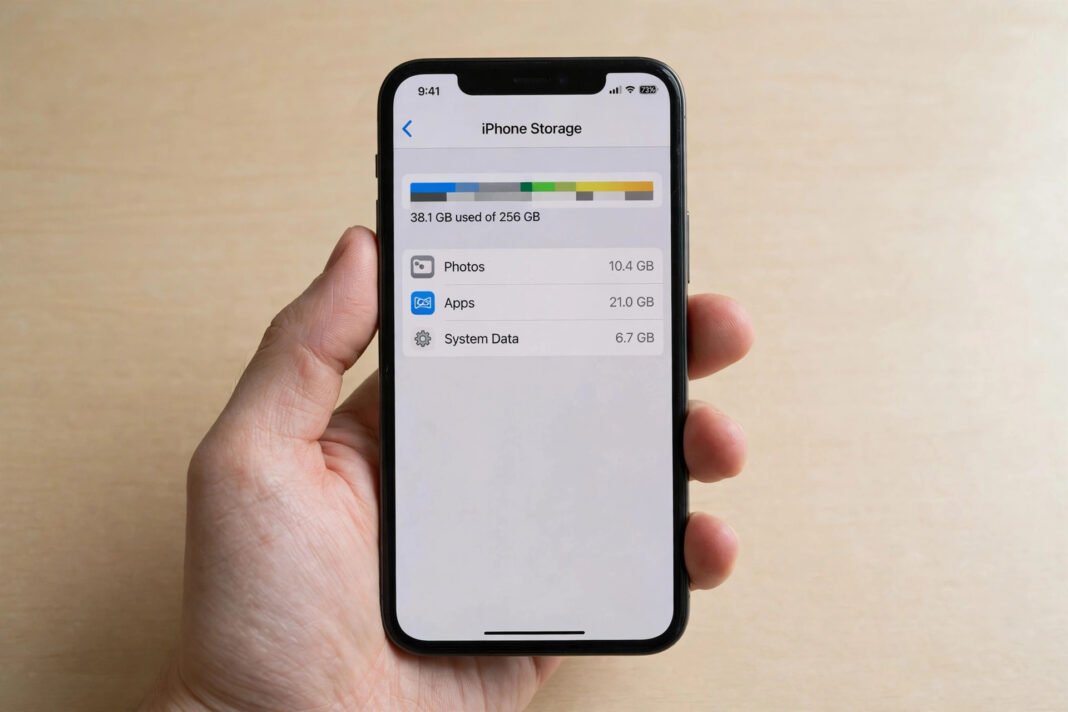
Old data can make a busy phone feel slower over time. For a simple cleanup, read our guide on how to clear cache on iPhone. Also, close apps you have not used for a while. Finally, restart the phone once a week to clear stuck tasks.
Notifications can wake the screen again and again. First, silence alerts from apps you rarely check. Then, group alerts so the screen lights up less often. Also, turn off vibrations for low-priority alerts. As a result, the screen stays dark for longer stretches.
Habits That Keep Heat Down Day to Day
Daily habits matter as much as settings for heat control. First, avoid long gaming sessions without a break. Next, take short pauses during video calls and streaming. Also, keep the phone out of tight pockets during heavy use. As a result, air can move around the phone more freely.
Heavy tasks heat a phone faster than light tasks. For example, video recording and navigation use many parts at once. So, split long recordings into shorter parts when you can. Also, download maps before a trip instead of streaming them live. This step cuts network work and saves battery too. If you record often, see our guide on how to screen record on iPhone.
A weak Wi-Fi signal can also keep a phone working hard. If pages load slowly, move closer to your router. Also, restart your router if the connection drops again and again. For more help, read our guide on Wi-Fi keeps disconnecting. Finally, switch to mobile data only when Wi-Fi stays weak.
Keep your phone updated, but avoid updating in extreme heat. First, charge the phone and wait until it feels cool. Then, start the update on a stable Wi-Fi network. Also, avoid heavy use while the update runs. Finally, restart the phone once the update ends.
When to Get Your iPhone Checked
Most heat fades with the steps above. However, some signs point to a deeper fault. First, watch for heat that stays high during light use. Next, note any rapid battery drain or sudden shutdowns. Also, check for a swollen back or a lifting screen.
A battery warning on screen also needs prompt attention. Do not ignore a message about battery health or heat. Instead, stop heavy use and let the phone cool down. Then, back up your photos and contacts as soon as you can. As a result, you protect your data before a repair visit.
Take the phone to a trusted repair shop for these signs. Explain when the heat starts and what you tried already. Also, mention any drops, water contact, or recent repairs. A trained technician can test the battery and internal parts safely. Do not open the phone yourself at home.
Until then, use the phone lightly and keep it cool. Avoid charging it overnight while a fault remains unclear. Also, keep it away from heat, sun, and soft bedding. Finally, act early instead of waiting for the fault to grow. What helps your iPhone stay cool on a hot day?