The phrase iPhone system data too big describes a storage problem many people face. Your phone may warn you that storage is almost full. You may struggle to take a new photo or add a new app. First, do not panic about this warning. Also, do not rush to wipe your phone. In most cases, you can free space with safe and simple steps. This guide explains what System Data is in plain words. Next, it shows why this number grows over time. Finally, it walks you through safe ways to shrink it.
You do not need special tools for these steps. You also do not need to delete your photos or chats. Instead, you will check what takes space on your phone. Then you will clear files you no longer need. For example, old message files can take more space than you expect. Similarly, web data can build up quietly in the background. So take each step one at a time. After each step, check your storage again. That way, you can see what helped most. In short, small cleanups can add up to real free space.
What Is System Data on an iPhone?
System Data is a storage label on your iPhone. It covers files that do not fit other labels. For example, it holds temporary files from apps and the system. It also holds web data, logs, and small support files. Your phone needs some of these files to run well. So a small amount of System Data is normal. However, the number can grow much larger than you expect. That growth is what causes trouble for many people.
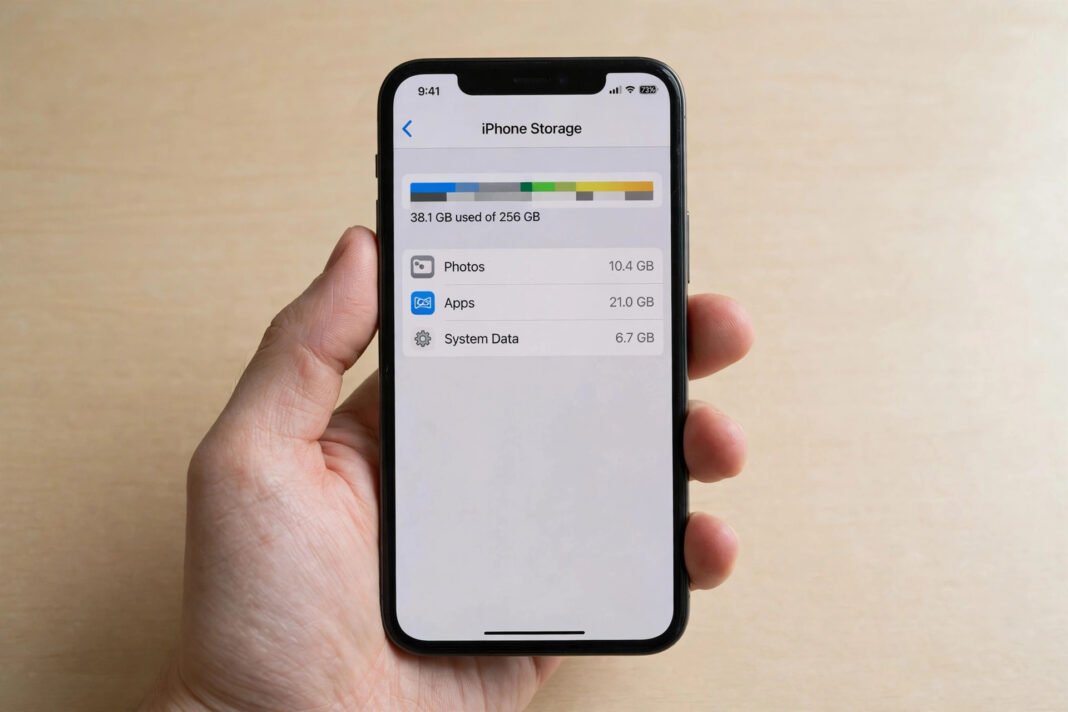
Your storage screen groups files into clear labels. Photos hold your pictures and videos. Apps hold the apps you install. Media holds music and similar files. System Data holds the rest of the working files. For instance, an app may save short-term data while it runs. Your browser may save site data to load pages faster. These files help in the short term. Yet they are not always cleared when you stop using an app.
You cannot delete System Data with one tap. There is no single button for this label. Instead, you clear the files that feed into it. First, you find which apps use the most space. Next, you clear their extra data where possible. Then you remove old files you no longer need. This approach takes a little time. However, it keeps your important files safe. In short, you shrink the label by cleaning its sources.
Why Is iPhone System Data Too Big?
System Data grows when temporary files pile up over time. Apps save data to work faster each day. Your browser saves site files for pages you visit. Messages save photos, videos, and voice notes. These files may stay even after you forget them. Also, deleted files may linger in trash folders for a while. So the total can rise slowly without one clear cause.
Long use without a cleanup also adds to the problem. Many people keep a phone for years. During that time, apps come and go. Old app data may remain after you stop using an app. Streaming apps may store data for offline use. Social apps may store media you viewed. First, one app adds a little extra data. Then another app does the same. Finally, the total becomes large enough to notice.
A full phone can feel slow at times. You may see warnings about low storage. New photos may fail to save. App updates may fail to install. However, these signs do not always mean your phone is broken. Often, they mean temporary data needs a cleanup. So check your storage before you assume the worst. A simple review can point to the real cause.
Check How Much Space System Data Uses
Start by checking your storage screen. Open Settings on your iPhone. Next, tap General. Then tap iPhone Storage. Your phone will show a coloured bar at the top. Below the bar, you will see a list of apps. Scroll down to find System Data in the list. This screen shows how much space each item uses.
Give the screen a moment to load fully. Storage numbers can take time to appear. Also, the numbers can shift as apps update their data. So do not judge the result from one quick glance. Take a screenshot of the numbers if it helps. Then you can compare the numbers after each cleanup step. For example, note the System Data number before you start. Next, note it again after you clear browser data.
While you are here, look at your largest apps. An app with a large size may hold extra data. Tap an app name to see more detail. You will see the app size and its documents and data. Documents and data often hold the extra files. If an app looks far larger than you expect, note its name. You can deal with that app in a later step.
Safe Ways to Fix iPhone System Data Too Big
A restart is a safe first step for many phones. Turn your phone fully off first. Wait a few moments after the screen goes dark. Then turn your phone back on again. A restart can clear short-term files from memory. It will not delete your photos or messages. So try this step before deeper cleanups. After the restart, check your storage screen again.
Next, look at apps you rarely use. Your phone offers a setting to offload unused apps. Offloading removes the app itself but keeps its data. You can download the app again later if you need it. To find this setting, open Settings and tap General. Then tap iPhone Storage for the full list. Look for the offload option on that screen. Turn it on only if you feel comfortable with it.
Also, keep your phone software up to date. New software can improve how your phone manages files. Open Settings and check for a software update. Install an update only when your phone has enough charge. Also, connect to Wi-Fi before you start a large update. After the update, check your storage again. In some cases, the System Data number drops after an update.
Clear Caches and Messages the Safe Way
Your browser can hold a large amount of web data. Open Settings and tap Safari on your phone. Next, tap Clear History and Website Data. Confirm the choice when your phone asks you. This step clears saved site data from Safari. It will not delete your photos or contacts. However, you may need to sign in to some sites again. So keep your passwords handy before you clear this data. For more detail, see our guide on how to clear cache on iPhone.
Messages can also take a lot of space. Photos and videos in chats add up fast. Open a chat and look at shared media. Delete large files you no longer need. Also, check old group chats for shared videos. You can set messages to delete after a set time. Open Settings, tap Messages, and look for message history. Choose a shorter keep time only if you accept losing old chats.
Some apps do not offer a clear-cache button. For those apps, check the app settings first. Look for a storage or data option inside the app. If the app holds a lot of data, you may delete it. Deleting an app also removes its local data. First, make sure you saved your important content elsewhere. For example, check that photos or notes sync to your account. Then delete the app and install it again if you need it.
When iPhone System Data Too Big Will Not Shrink
Sometimes the number stays high after one cleanup. First, do not assume the cleanup failed. Storage numbers can take time to update. Restart your phone and check the screen again. Also, repeat the browser and message steps. Small amounts of data can rebuild as you use apps. So a small rise after cleanup is normal. However, a huge number that never falls needs a closer look.
Next, check your photo trash folders. Deleted photos may stay in a trash folder for a time. Open Photos and look for a deleted items album. Empty it only if you no longer need those photos. Also, review large video files in your library. Long videos take far more space than photos. Delete copies and duplicates you no longer need. Then check your storage screen once more.
If the number still stays very high, back up your phone first. A backup protects your photos and messages. Then you can ask Apple Support for help with your model. Support staff can check issues tied to your device. A full wipe is a last resort for most people. Do not wipe your phone just to chase one number. In short, protect your data first and seek advice next.
Keep System Data Small Going Forward
Good habits can keep System Data smaller over time. First, review your storage once each month. Next, clear browser data when it starts to grow. Then delete old message media you no longer need. Also, remove apps you stopped using long ago. These small habits take only a few minutes. Yet they stop temporary files from piling up again.
Photos and videos deserve regular care too. Delete blurry shots and accidental clips soon after you take them. Also, move special photos to a backup you trust. That way, you can delete local copies with confidence. For example, back up a trip album before you clear space. Then your phone holds fewer large files. In short, a tidy library helps your whole phone run better. If a slow computer also bothers you, see our guide on how to speed up a slow laptop.
Finally, keep your phone updated and restart it at times. A short restart can clear short-term files. A monthly check can catch growth early. So you can avoid the full-storage warning in future. Small steps now save a bigger cleanup later. Screen recordings can also grow large. So see our guide on how to screen record on iPhone before you record long clips. Which cleanup step freed the most space on your iPhone?