


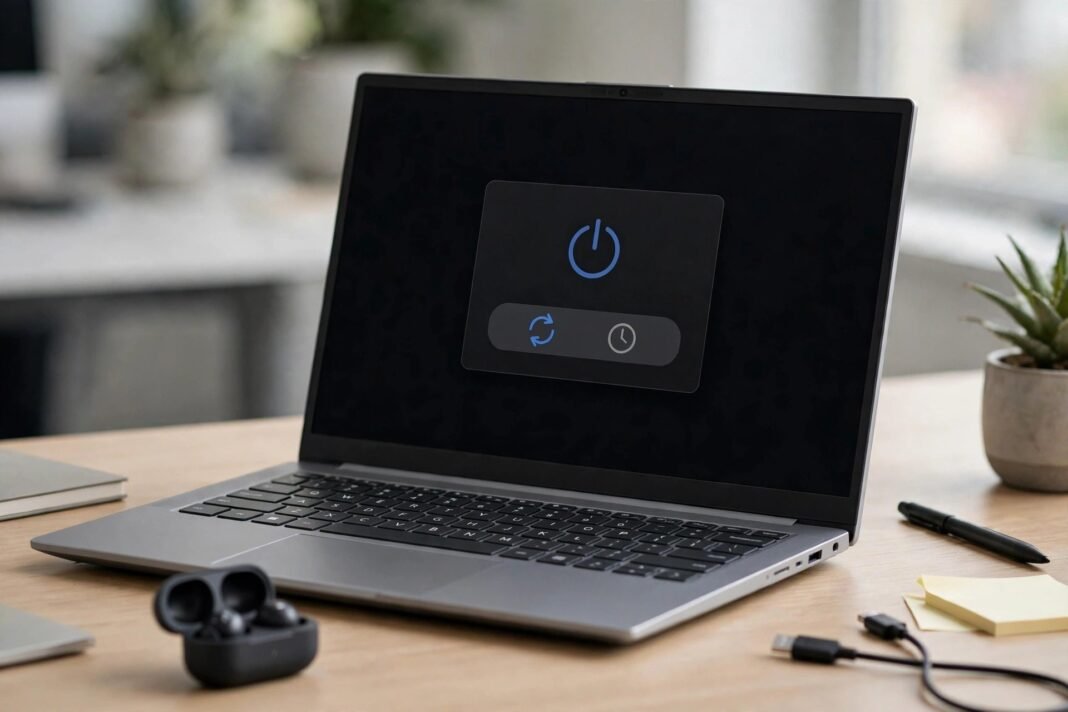
You are deep in your work, and then your PC restarts without warning. Your open files close, your video call drops, and your train of thought is gone. If this has happened to you, you are not alone. Windows updates need a restart to finish, and Windows picks the moment by itself unless you tell it otherwise. The good news is that you can take control. This guide shows five built-in ways to stop windows updates restarting your PC at the wrong time, without switching updates off for good.
Why Windows Restarts for Updates
Firstly, it helps to know why the restart happens at all. An update often replaces files that Windows is using right now. Windows cannot swap those files while they are in use, so it waits for a restart. During the restart, it puts the new files in place and then starts up again. That is why the restart feels sudden: the update was ready, and Windows chose the moment.
Updates also matter for your safety. Many of them fix security holes that criminals could use to get into your PC. So the goal here is not to block updates forever. Instead, the goal is to choose when the restart happens. The five methods below give you that choice, and you can use more than one at the same time.
Set Active Hours to Stop Windows Updates Restarting During Work
Active Hours is the single most useful setting for this problem. It tells Windows the hours you normally use your PC. Windows will not restart automatically for updates during those hours. You can set a window of up to 18 hours, so it can cover a full working day and more.
Here is how to set it on Windows 11.
- Open Settings, then select Windows Update.
- Select Advanced options, then select Active hours.
- Choose Manually, then set your start time and end time.
- Alternatively, choose Automatically and let Windows learn your hours from how you use the PC.
Set the hours a little wider than your real working day. For example, if you work from 9 in the morning to 6 in the evening, set active hours from 8 in the morning to 8 in the evening. That way, an early start or a late finish stays safe too. After that, Windows will still download and install updates in the background, but it will wait for a restart until your active hours end.
Pause Updates for Up to Five Weeks
Sometimes you need a longer break from updates. Perhaps you have a deadline, a big project, or an important trip. In that case, pausing updates is the right tool. On Windows 11, you can pause updates for up to five weeks (35 days).
Here is how to pause them.
- Open Settings, then select Windows Update.
- Find Pause updates under More options.
- On newer builds, select Pick a date and choose a date up to 35 days away.
- On older builds, open the dropdown and choose Pause for 1 week, up to 5 weeks.
While updates are paused, Windows does not download or install new updates, and it does not restart your PC for updates. When the pause ends, Windows checks for updates and installs the ones that are waiting, so plan for a restart soon after. On newer builds, you can extend the pause before it ends by picking a new date. On the older layout, Windows usually wants the waiting updates installed before it lets you pause again.
Use the pause for a clear reason, and let it end on a day when a restart is easy. A five-week pause is a useful shield for a deadline, but it is not a long-term plan. Security fixes pile up while you wait, so resume updates when the busy period is over.
Schedule the Restart for a Time That Suits You
When an update is ready and waiting, you do not have to restart at once. Windows lets you pick the time instead. This option appears on the Windows Update page as soon as a restart is pending, and it takes only a few seconds to set.
- Open Settings, then select Windows Update.
- Look for the Schedule the restart option.
- Pick a day and time when the PC will be on but you will not be using it.
- Leave the PC switched on at that time, and Windows will restart it for you.
Lunch breaks and evenings work well for this. For example, you can schedule the restart for the end of your working day, so the update finishes while you are away from the desk. As a result, you come back to a PC that is up to date, with no lost work and no dropped calls.
Turn On Notifications to Stop Windows Updates Restarting Without Warning
A surprise restart is worse than a restart you expect. Windows 11 has a setting that warns you before a restart is due, so you can save your work and pick a good moment. It sits in the same Advanced options screen as Active Hours.
- Open Settings, then select Windows Update.
- Select Advanced options.
- Turn on Notify me when a restart is required to finish updating.
Once this is on, Windows will show you a notification when an update needs a restart. You can then save everything, close your apps, and restart when it suits you. This setting works best together with Active Hours. Active Hours blocks restarts during your working day, and the notification makes sure no restart ever catches you by surprise outside those hours.
Use a Metered Connection to Slow Updates Down
A metered connection tells Windows that your internet data costs money or has a limit. Windows Update then downloads only priority updates on that network, and holds back the rest. This is useful on a phone hotspot or a capped plan, and it also slows down the restart cycle.
Here is how to turn it on for Wi-Fi on Windows 11.
- Open Settings, then select Network & internet.
- Select Wi-Fi, then select the network you are connected to.
- Turn on Metered connection.
- Then go to Settings, Windows Update, Advanced options, and make sure Download updates over metered connections is turned off.
Keep two limits in mind. Firstly, priority updates can still download, so this is not a complete stop. Secondly, the setting belongs to one network only, so it does nothing when you connect to a different Wi-Fi network. In other words, use the metered trick to save data and buy time, not as a permanent way to avoid updates.
What Changes on Windows 10
The same ideas work on Windows 10, but the menus sit in a different place. Open Settings, then select Update & Security, then select Windows Update. From there, you can pause updates, set active hours, and turn on restart warnings just as on Windows 11.
For pausing, select Pause updates for 7 days. You can select it again to add another 7 days, up to 35 days in total. Alternatively, open Advanced options and pick a resume date from the Pause updates dropdown. For active hours, select Change active hours on the Windows Update page and set the hours you normally use the PC. For warnings, turn on Show a notification when your PC requires a restart to finish updating in Advanced options.
One more thing to know: Windows 10 reached end of support on 14 October 2025. It now gets security fixes only through Extended Security Updates. If your PC can run Windows 11, moving to it is the safer long-term choice. And if an update knocks out a device driver, our guide to fixing Bluetooth on Windows walks through the fixes step by step.
Stop Windows Updates Restarting Your PC: A Quick Checklist
If you only have five minutes, work through this short checklist. Each item takes less than a minute, and together they end surprise restarts.
- Set Active Hours to cover your working day, plus a little extra at each end.
- Turn on the restart notification so Windows always warns you first.
- Pause updates before a deadline or a trip, for up to five weeks.
- Schedule the restart for a quiet time when an update is waiting.
- Turn on Metered connection on hotspots and capped networks.
Once these are set, you can forget about restarts and get on with your work. If your laptop restarts overnight and wakes up with a low battery, our guide to extending laptop battery life on Windows and Mac shows how to make each charge last longer.
Take Control of Your Restarts
You do not need to fight Windows updates, and you do not need to fear them either. Active Hours, pausing, scheduling, notifications, and metered connections are all built into Windows already. They cost nothing, and they take only a few minutes to set up. Use them together, and your PC will update on your schedule, not its own.
So which method will you set up first? Start with Active Hours today, and the next update will wait for a moment that suits you.