


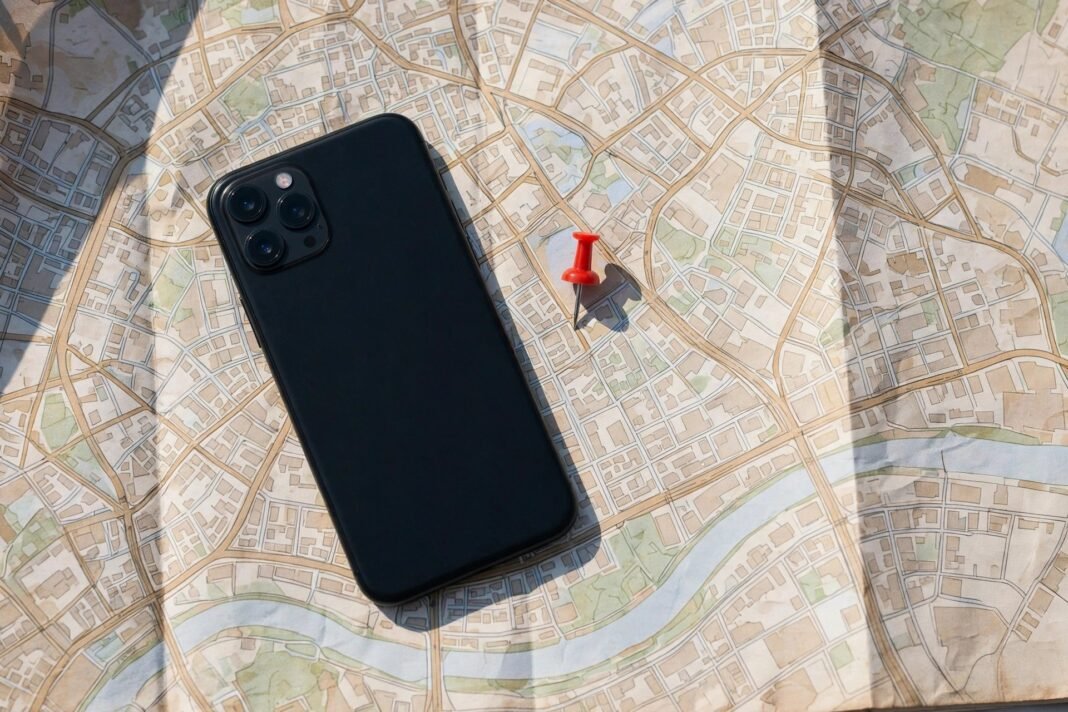
That sinking feeling is familiar. You reach for your phone, and it is not there. Your photos, messages, banking apps, and contacts are all in one small device, and now you cannot find it. The good news is that you can find your lost phone for free, on both iPhone and Android, if you act fast.
Both Apple and Google build finding tools into every phone. They show your phone on a map, make it ring, lock it, or erase it from another device. This guide walks through each step in order, so you can start with the fastest fix first. The tools are free, and they work from any browser or borrowed phone.
First, Do These Three Things Right Now
Before anything else, call your phone from another phone. If it is nearby, you will hear it ring — and if someone honest picked it up, they may answer. Then retrace your steps and check the last places you used it.
Next, borrow a phone or open a computer and sign in to your finding service. On iPhone, that is Find My. On Android, it is Find Hub. The map will show your phone’s location if it is online, so you can see at once whether it is at home or somewhere else. If the map shows your phone at home, follow the sound to find your lost phone fast.
Finally, do not chase a suspected thief yourself. If the map points to a stranger’s address, lock the phone remotely and report it. Your safety matters more than any device.
How to Find Your Lost Phone on iPhone
On another Apple device, open the Find My app and tap Devices. Then tap the name of your missing iPhone. Its location appears on the map, with the time it last checked in.
On any other device, open a browser and go to iCloud.com/find. Sign in with the same Apple Account that is on the missing phone. If the sign-in asks for a two-factor code and your iPhone is the device that would receive it, choose the Find Devices button instead — it does not need a code.
If the phone is nearby, tap Play Sound. It rings loudly even if it is on silent. If it is offline, the sound stays pending and plays the next time the phone connects to Wi-Fi or mobile data.
Turn On Lost Mode to Lock Your iPhone
If you cannot reach the phone, lock it with Lost Mode. In Find My, select your iPhone and choose Mark As Lost, then follow the prompts. On iCloud.com, the same button says Mark As Lost.
Lost Mode locks the iPhone with its passcode, or asks you to create one if the phone has none. It shows a phone number and a short message on the Lock Screen, so a finder can call you. It also suspends your Apple Pay cards on the phone, while the phone can still receive calls.
When you get the phone back, enter its passcode on the phone to turn Lost Mode off. If the phone is offline, Lost Mode waits and takes effect the next time it connects.
How to Find Your Lost Phone on Android
On any computer or phone browser, go to google.com/android/find. Sign in with the Google Account that is on the lost phone, then select the device. Its location appears on the map. You can also open the Find Hub app on another Android device, and sign in as a guest on a friend’s phone.
If the phone is nearby, tap Play sound. It rings at full volume for five minutes, even on silent. If it is somewhere you cannot reach, tap Mark as lost. That locks the phone with its PIN, pattern, or password, and lets you show a message and a contact number on the lock screen.
Google renamed this service from Find My Device to Find Hub, but the web address and the steps are the same. Find Hub turns on automatically once you add a Google Account to the phone, so most phones already have it on.
Find Your Lost Phone When It Is Offline
An offline phone is not always a lost cause. On iPhone, the Find My network lets nearby Apple devices report your phone’s location over Bluetooth, even with no Wi-Fi or mobile data. A supported iPhone still shows up this way for up to 24 hours after you switch it off.
On Android, the Find Hub network works the same way through nearby Android devices. Some newer Pixel phones still show up for several hours after they power off. On both platforms, the map shows the last known location, so check the time stamp before you set off.
Turn on Notify When Found on iPhone, or keep checking Find Hub on Android. You will get an alert when the phone comes back online. In addition, Send Last Location on iPhone sends its position to Apple just before the battery runs out — but only if you turned it on before the loss.
Samsung Owners Get a Second Chance
If you own a Samsung Galaxy phone, you have a second finding service. Go to samsungfind.samsung.com in any browser and sign in with your Samsung account. Then select your phone to see it on a map, ring it, lock it, or erase it.
Samsung Find also offers offline finding. If you turned it on before the phone went missing, nearby Galaxy devices can report its approximate location even without an internet connection. So check Samsung Find as well as Google’s service — one of them may have a fresher location. Either service can find your lost phone, so use both before you give up. Samsung Find covers your other Galaxy devices too, such as a tablet or watch, so check the full device list while you are there.
Set Up Your Phone Before It Goes Missing
None of these tools work unless you switch them on before the loss. You cannot turn them on remotely, so set them up today while your phone is in your hand.
On iPhone, open Settings, tap your name, then tap Find My, then Find My iPhone. Turn on Find My iPhone, Find My network, and Send Last Location. On Android, Find Hub is on by default, but check that location is on and that you enabled offline finding in your settings.
Also protect the accounts on your phone. Turn on two-factor authentication for your Google and Apple accounts, so a thief cannot sign in with a stolen password alone. Our guide to two-factor authentication shows the exact steps for each account.
Also write down your phone’s IMEI number today, while you have the phone. You will find it in your phone’s About screen in Settings. Keep the number somewhere safe, because the police and your carrier will ask for it if the phone is stolen.
If Your Phone Is Stolen, Protect Your Accounts
A stolen phone is a race against time. You may still find your lost phone if you act in the first hour, so move fast. First, lock it remotely with Lost Mode or Mark as lost. Then contact your mobile carrier and ask them to suspend your line, so no one can receive your calls or codes on it.
Next, change the passwords for your most important accounts from another device. Start with your Google or Apple account, then email, then banking and messaging apps. If you see signs that someone is already using your phone, our guide to the signs your phone is hacked lists the checks to run and the recovery steps to follow.
Finally, report the theft to the police with your phone’s serial number or IMEI. A report helps if the phone turns up later, and your insurer may need it for a claim.
When to Erase Your Phone for Good
Erasing is the last step, and only when you are sure the phone is gone. On iPhone, choose Erase This Device in Find My or on iCloud.com. On Android, choose Factory reset in Find Hub. Once erased, you can no longer locate the phone.
Your data stays safe even after an erase. On iPhone, Activation Lock asks for your Apple Account password before anyone can set the phone up again. On Android, Factory Reset Protection does the same with your Google Account. So never remove a missing phone from your account while you are still searching — that switch turns the lock off.
Could you find your lost phone today if it went missing? Check your Find My or Find Hub settings now, before you need them. Five minutes today can save you days of worry later.